
This article explains how to restrict remote desktop (RDP) access for the server firewall.
For Windows users, safeguarding your Windows Server by limiting Remote Desktop (RDP) access when not connected to a VPN is a vital measure for ensuring server security.
Steps to restrict remote desktop access for the server firewall:
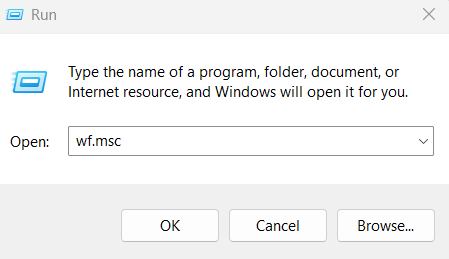
- Click Start, select Run, type wf.msc, and press Enter to open the Windows Server Firewall.
- Now, go for the Inbound Rules option.
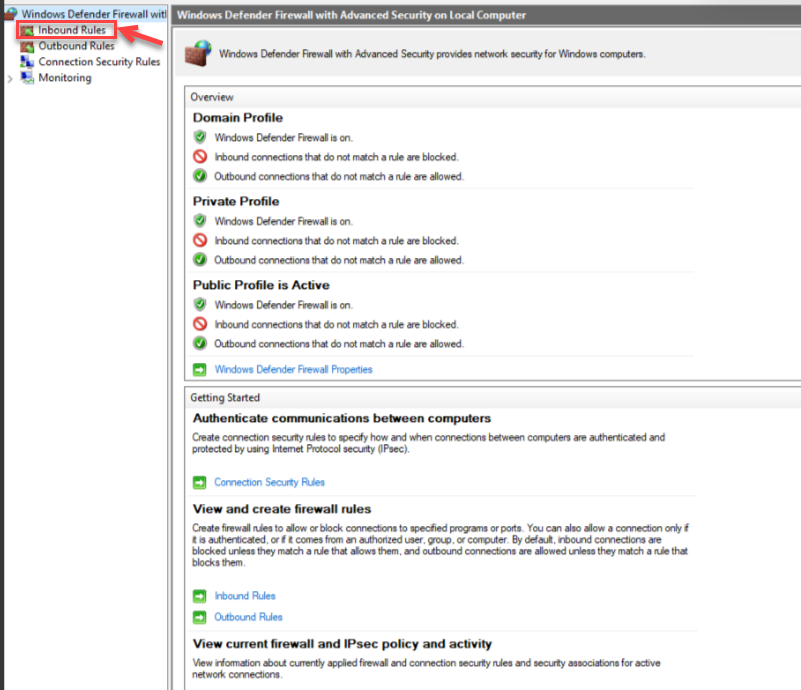
- Open RDP port rule.
- Go to the Scope tab, and click the Add button in the Remote IP addresses section. Click OK.
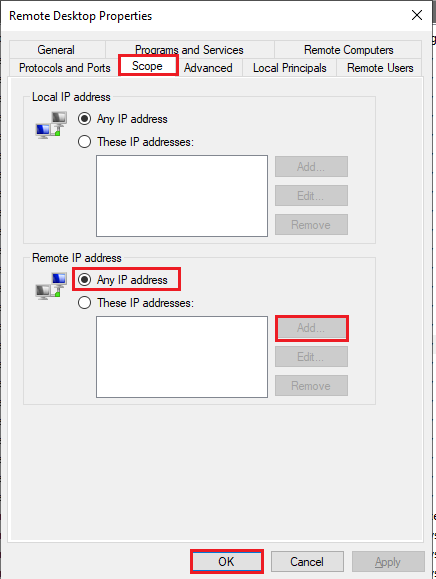
- To limit access, include either your specific IP address or a range of IP addresses.
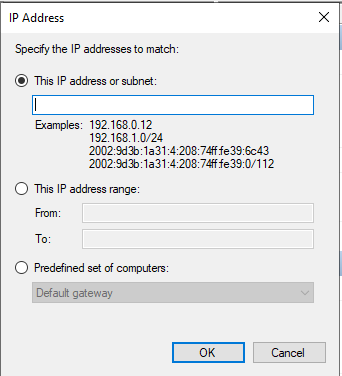
Note: Make sure to include additional IP addresses, such as those of your developer or systems administrator, as required. - Click OK.
Note: Please ensure that RDP access is restricted only to a client machine with a static IP address.
In this way, securing Remote Desktop (RDP) access helps prevent unauthorised connections and strengthens overall server security. By following these recommended restrictions, you can ensure safer remote access. For more details, refer to our knowledge base.