
Table of Contents
Managing Email accounts
Create an email account
To create an email account:
- Open Websites in the left sidebar.
- When the website dashboard loads, select Emails in the top navigation.
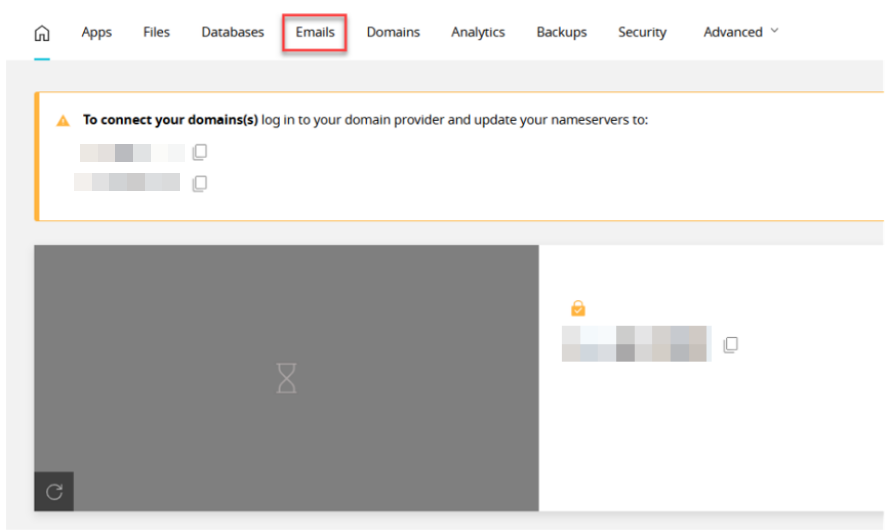
- Open Email in the left side bar.
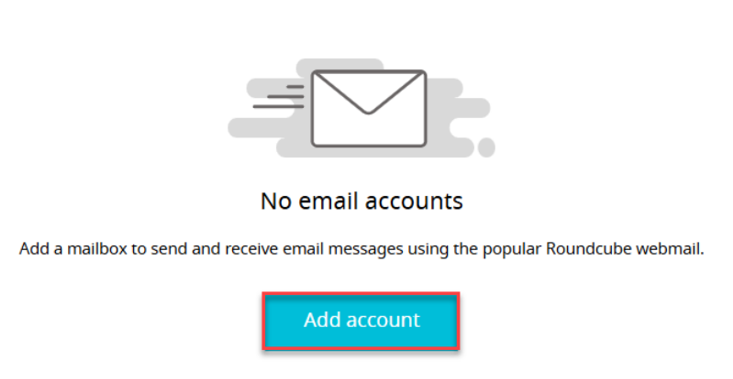
- Select an Add account.
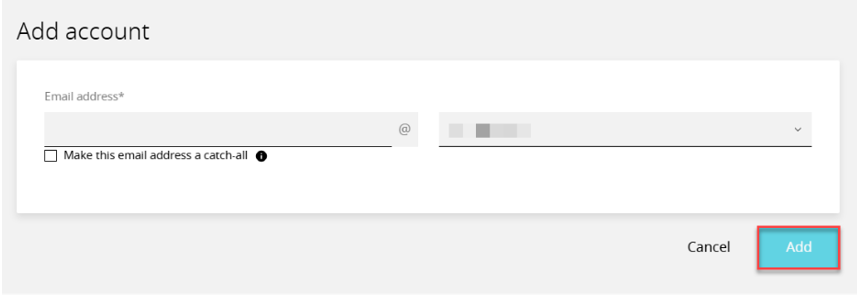
- When the form loads, input your email address.
- Select the Mailbox.
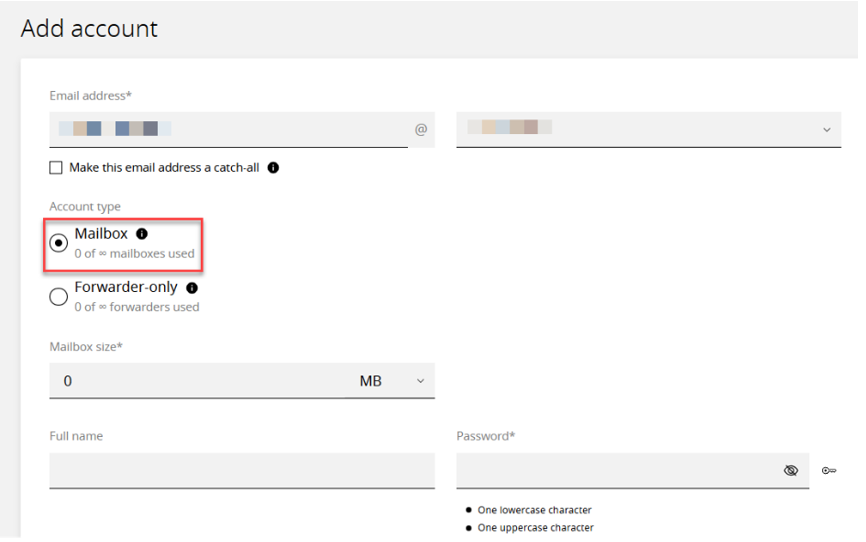
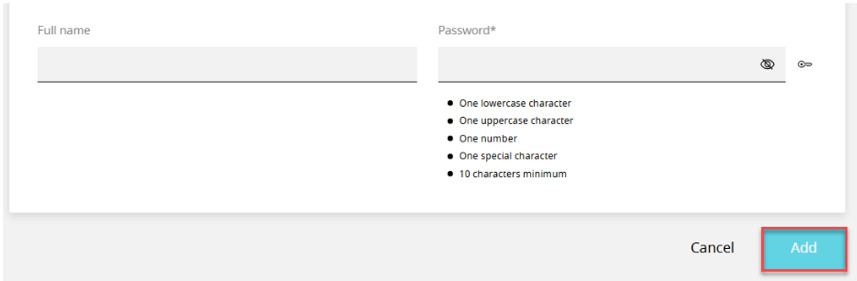
- Complete the form.
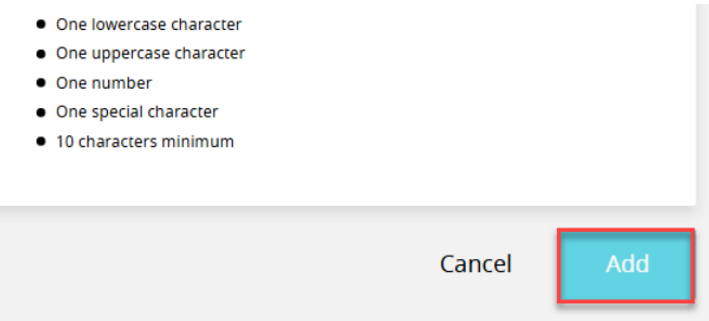
- Click Add to finish.
Email authentication
Email authentication (or email validation) is a collection of protocols used to verify the source and legitimacy of email messages.
SPF (Sender Policy Framework) is a form of email sender authentication. It validates if an email was sent from an authorised IP address. An SPF record is automatically added to every domain.
DKIM (DomainKeys Identified Mail) is a form of domain authentication that signs the message and verifies it was sent from the source domain. DKIM can be enabled on a per-date basis.
To enable DKIM on a domain:
- Open Websites in the left side bar.
- Select the website you would like to enable DKIM.
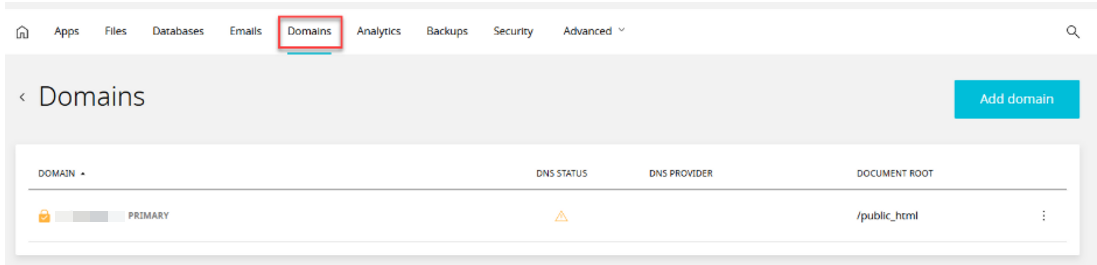
- Select Domains from the top menu and select the domain you would like to enable DKIM on.
- Scroll to Email authentication and toggle DKIM On.
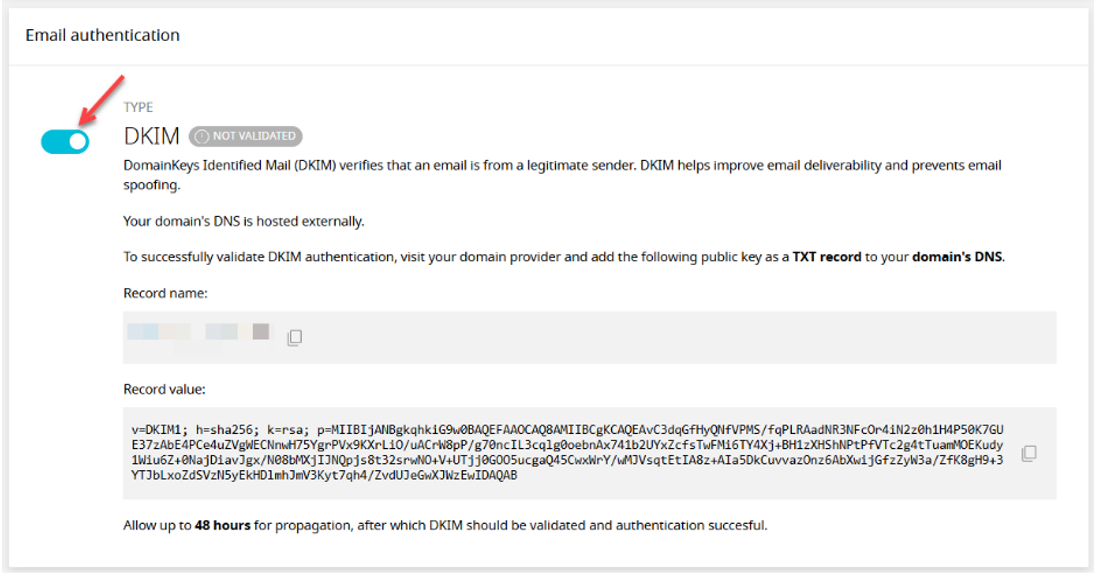
- If the DNS is hosted with Enhance, wait for validation. If the DNS is hosted elsewhere, follow the instructions on screen to complete authentication.
Catch-All Email Addresses
Create a catch-all email addresses
A catch-all email address accepts all emails sent to an address on a domain; this includes any non-existent or misspelled email addresses. This means that a [email protected] catch-all email address will also receive mail sent to [email protected] and [email protected].
To create a catch-all email address:
- Open Websites in the left side bar.
- Select the website you would like to create a catch-all email address on.
- When the website dashboard loads, select Emails in the top navigation.
- Click Add account.

- Complete the form, ensuring you select Make this email address a catch-all.
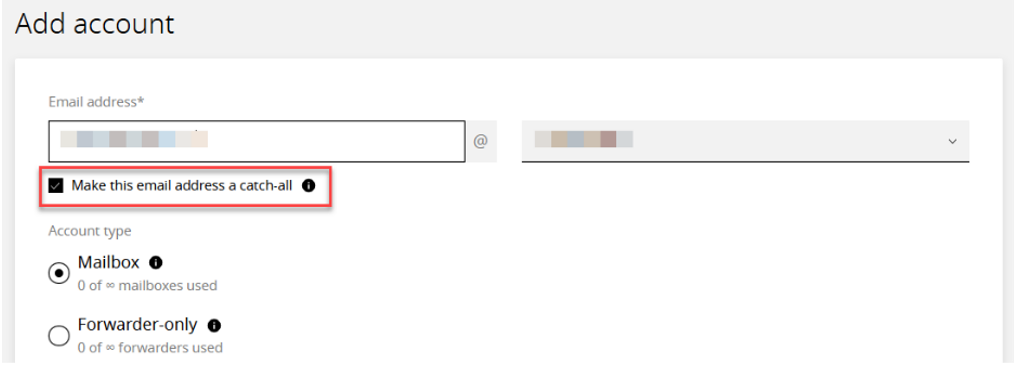
- Click Add to finish.
To convert an existing email address to a catch-all:
Note: only one catch-all email address is allowed per domain
- Open Websites in the left side bar.
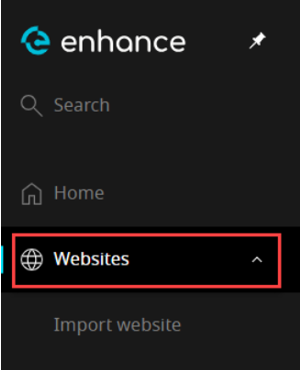
- Select the website you would like to create a catch-all email address on.
- When the website dashboard loads, select Emails in the top navigation.

- Locate the email address you would like to convert and select Manage.
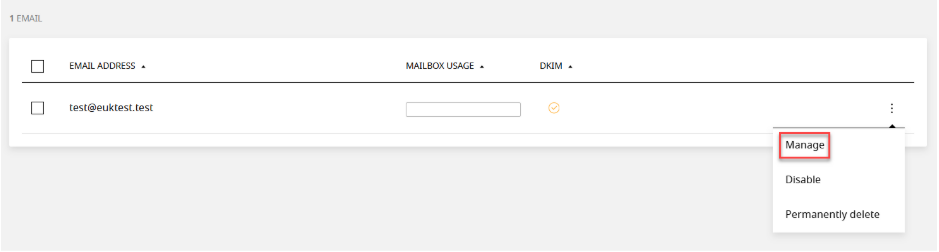
- Scroll to Catch-all.
- Toggle Catch-all on.

Managing databases in Enhance
Add a new database
To add a database to your website:
- Open Websites in the left side bar.
- Select the website you would like to add the database to.
- When the website dashboard loads, select Databases in the top navigation.
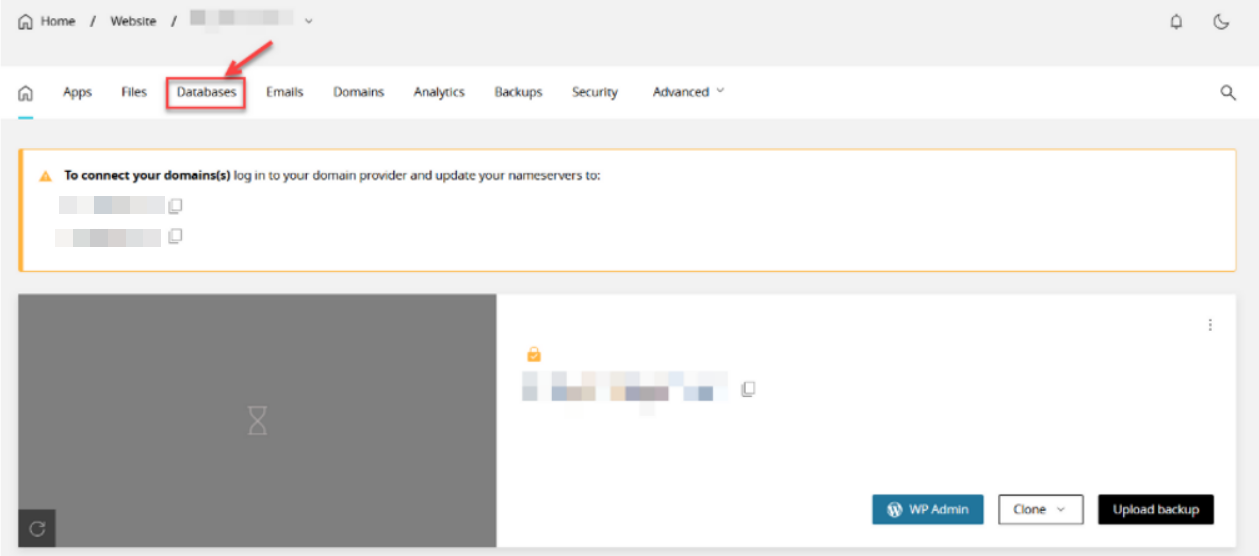
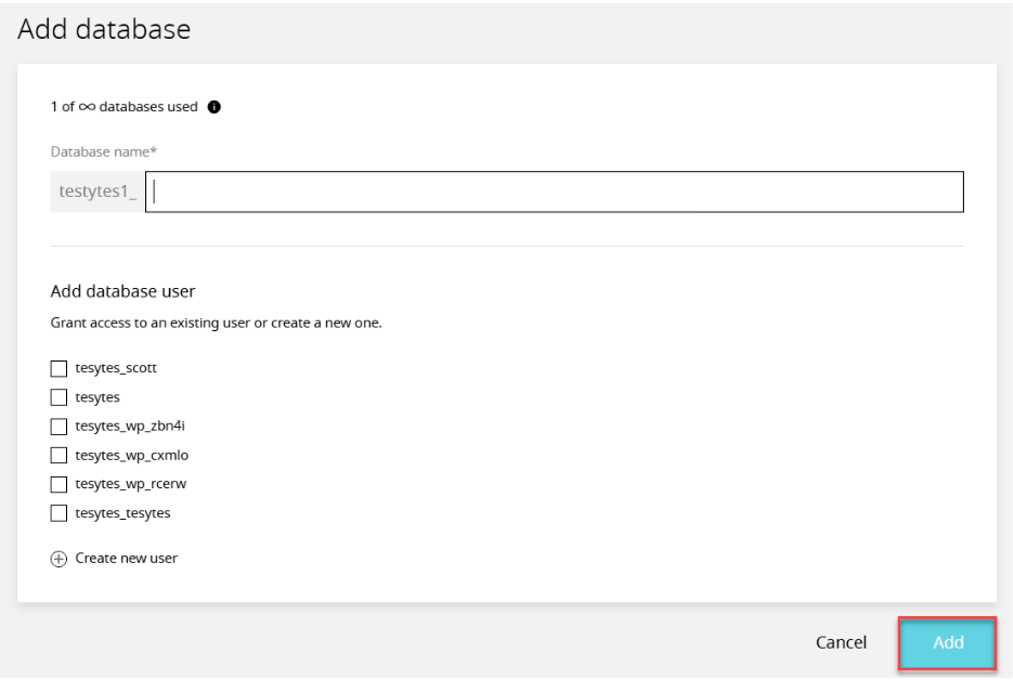
- Select the Add database and input the database name.
- Complete the ‘Add database user’ form to create a new database user or select an existing database user. By default, all ‘database permissions’ will be selected. You can edit the user permissions by deselecting the ‘All database privileges’ checkbox.
Note: A database can be created without a user. It is possible to add a new or existing user to a database at any point. - Click Add to finish.
Add a new database user
To add a database user:
- Open Websites in the left side bar.
- Select the website you would like to add the database user to.
- When the website dashboard loads, select Databases in the top navigation.
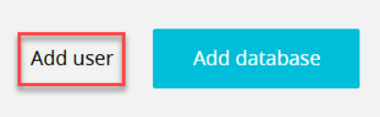
- Select the Add user and complete the form.
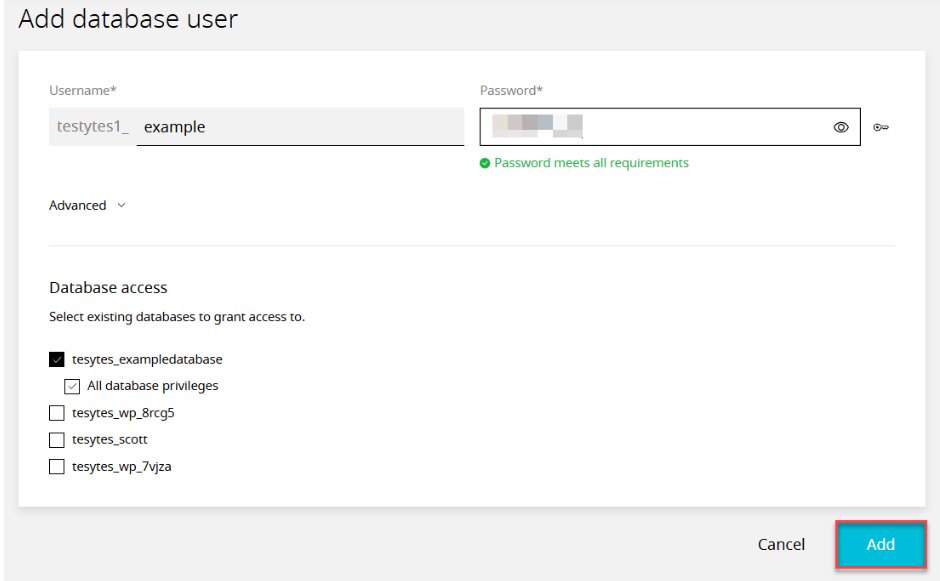
- Select database access. Selecting an existing database will grant this user access to the database.
Note: A database user can be created without granting database access. - Click Add to finish.
Accessing phpMyAdmin
phpMyAdmin is a tool used to manage data within a database, for example, editing and creating tables.
NOTE: To access phpMyAdmin, one or more databases must exist on your website
To access phpMyAdmin:
- Open Websites in the left side bar.
- Select the website you would like to access phpMyAdmin on.
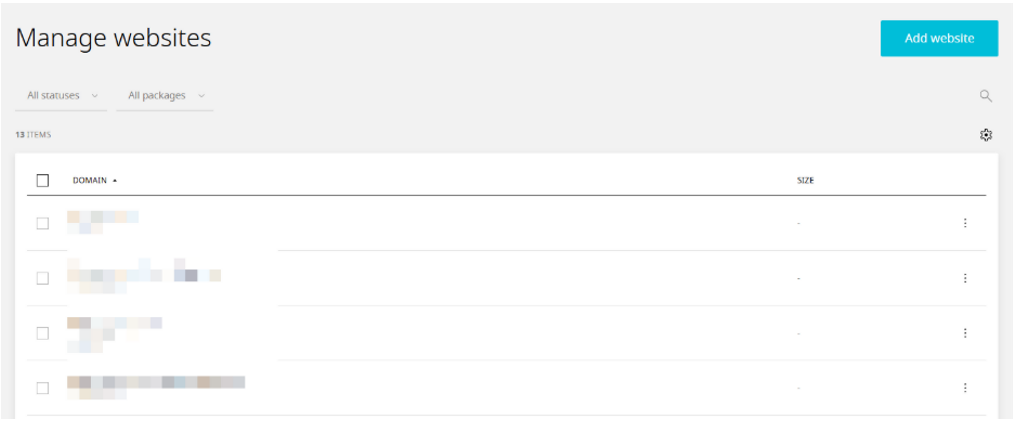
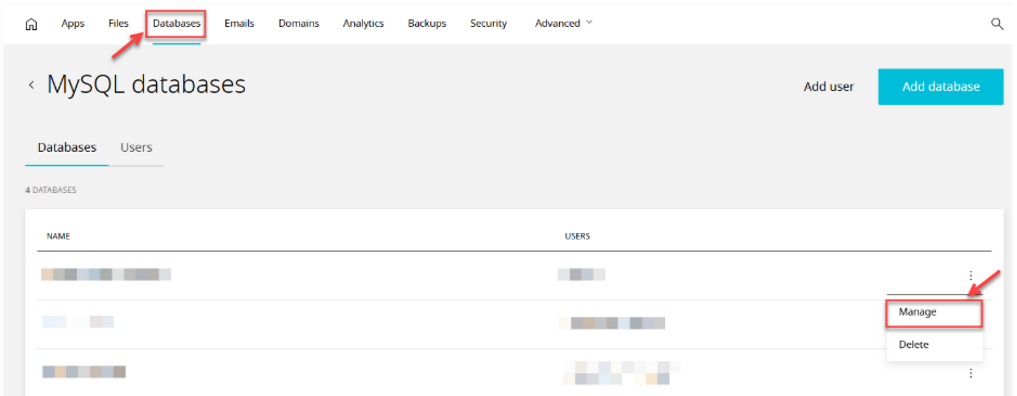
- When the website dashboard loads, select Databases in the top navigation.
- Locate the database you would like to access and click the … menu, then select Manage.
- Scroll to PhpMyAdmin.
- Click the phpMyAdmin button.

This will open the phpMyAdmin database manager.
Make sure your website is added or migrated first. If not, see How to Add a New Website or Migrate Your Website from cPanel to Enhance