
In this article, you will learn how to create a MySQL database and database user in cPanel using the Database Wizard. MySQL databases enable you to store large amounts of data in a readily accessible format and are essential for most web applications, including WordPress, Joomla, and custom PHP applications.
Only database users with the correct privileges can read from or write to a database, ensuring data security and controlled access.
Prerequisites
Before you begin, ensure that:
- You have access to cPanel
- Your hosting plan supports MySQL Databases
- You have valid cPanel login credentials
Follow the steps:
Access the Database Wizard
- Log in to your cPanel account.
- Scroll down to the Databases section.
- Click on Database Wizard.
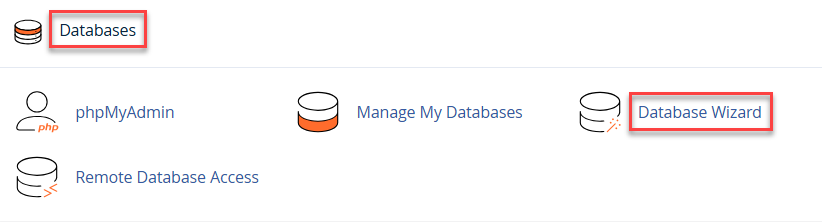
This will open the MySQL Database Wizard, which guides you through the database creation process step by step.
Create a New Database
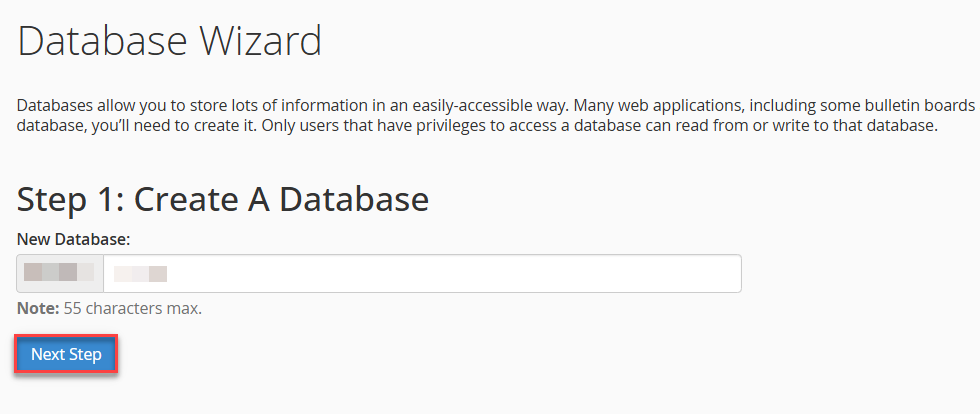
- Under Step 1: Create a Database, enter a name for your new database.
- The database name is automatically prefixed with your cPanel username.
- A maximum of 55 characters is allowed.
- Click Next Step.
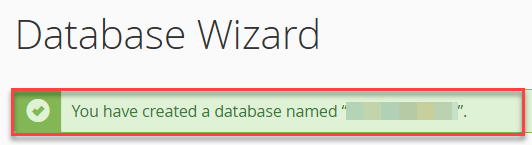
- You will see a confirmation message indicating that the database has been created successfully.
Create a Database User
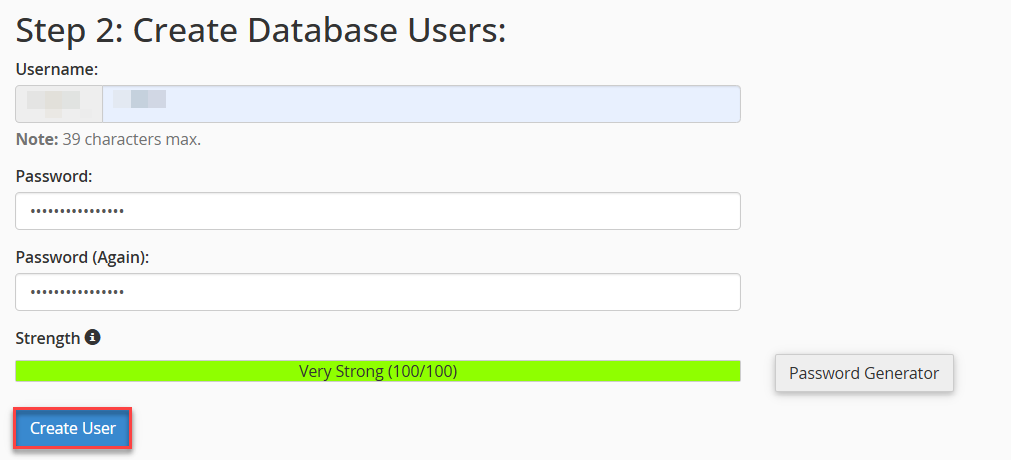
- Under Step 2: Create Database Users, enter a username for the database user.
- The username is automatically prefixed with your cPanel username.
- A maximum of 39 characters is allowed.
- Enter a password for the user.
- You can manually enter a password or click Password Generator.
- Ensure the password strength shows Very Strong for better security.
- Re-enter the password to confirm it.
- Click Create User.
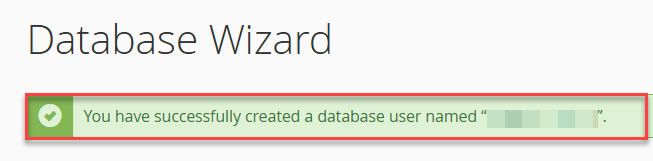
- A success message will confirm that the database user has been created.
Add the User to the Database
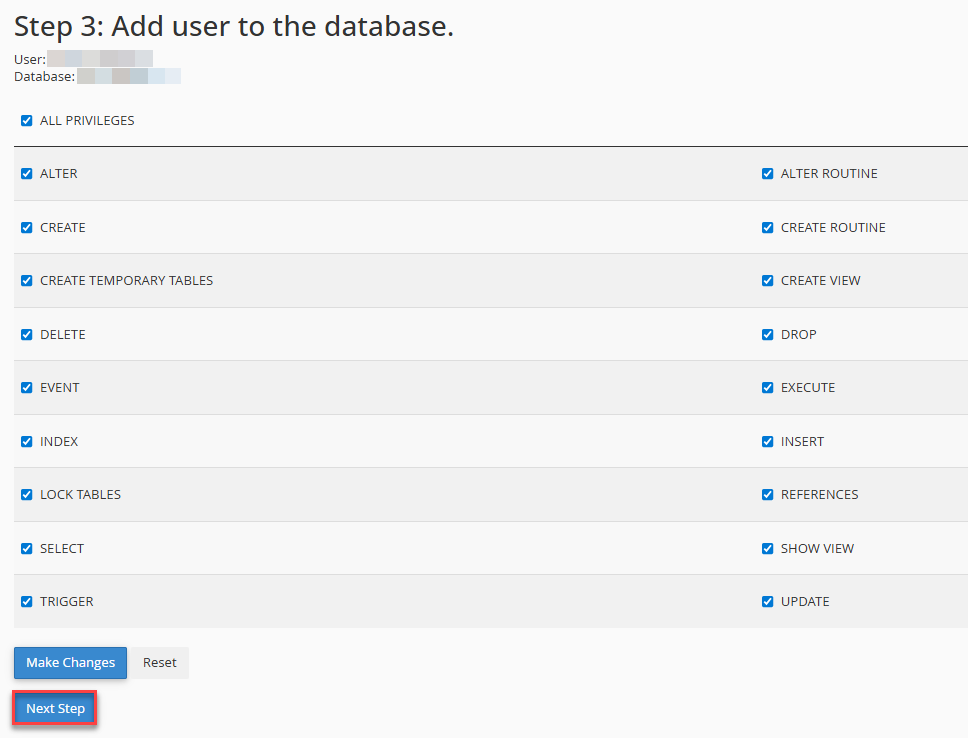
- Under Step 3: Add User to the Database, select the required privileges for the user.
- To grant full access, check All Privileges.
- Alternatively, select individual privileges based on your application requirements.
- Click Next Step to proceed.
Note: It is recommended to assign only the permissions required for security-sensitive environments.
Complete the Task
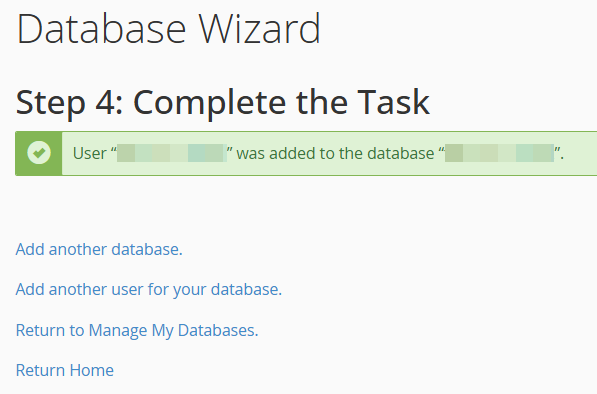
You will see a confirmation message stating that the user has been successfully added to the database.
Below the success message, you will find the following options:
- Add another database
- Add another user for your database
- Return to Manage My Databases
- Return Home
The MySQL database and user setup are now complete.
Important Notes
- Database names and usernames are automatically prefixed with your cPanel username.
- Always use strong passwords to protect your database.
- Avoid granting unnecessary privileges to reduce security risks.
Using the Database Wizard in cPanel is the easiest and safest way to create a MySQL database and database user. Once completed, you can use these credentials to connect your website or application to the database.
For further assistance, contact the eukhost support staff.