
The first layer of protection for your WordPress website against unwanted access is a strong password. Using weak passwords exposes your website to viruses, hacking, and data leaks. WordPress users may efficiently generate and manage strong passwords with the help of this article.
Table of Contents
Why Strong Passwords Are Important?
- Prevent Hacks: Weak passwords are easy targets for brute-force attacks.
- Protect User Data: Strong passwords help safeguard sensitive user and customer information.
- Maintain Website Integrity: Prevent unauthorised changes to your website content or settings.
Characteristics of a Strong WordPress Password
A secure password should:
- Be at least 12 characters long.
- Include uppercase and lowercase letters.
- Contain numbers and symbols.
- Avoid common words or easily guessable phrases (like “password123” or your name).
- Be unique and not used across multiple accounts.
How to Create a Strong Password in WordPress?
Option 1: Use WordPress Built-in Password Generator
- Log in to your WordPress Dashboard.
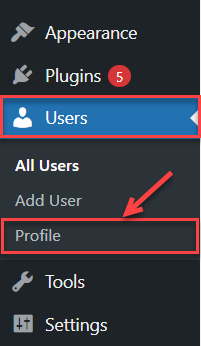
- From the left menu, go to Users > Profile (or click your profile under your username at the top right).
- Scroll down to the Account Management section.
- WordPress will display a strong auto-generated password in the field.
- You can either use this suggested strong password or replace it with your own.
- (Optional) If you’re worried your account might still be logged in elsewhere, click Log Out Everywhere Else to secure your account.

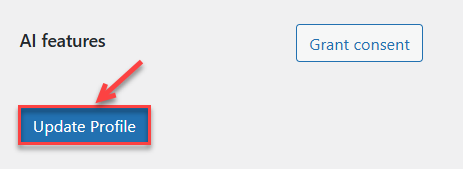
- After choosing your new password, scroll down and click Update Profile to save the changes.
Option 2: Use a Password Manager
Password managers like LastPass, 1Password, or Bitwarden can generate and securely store strong passwords. This ensures you don’t have to remember complex passwords manually.
Best Practices for Managing WordPress Passwords
- Update Passwords Regularly: Change passwords every 3–6 months for added security.
- Enable Two-Factor Authentication (2FA): Adds an extra layer of protection in addition to your password.
- Never Share Passwords: Avoid sending passwords via email or chat.
- Use Unique Passwords: Each WordPress account should have a different password to prevent a domino effect if one account is compromised.
Recommended Plugins for Password Security
- WP Password Policy Manager: Enforce strong password rules for all users.
- iThemes Security: Offers password expiration, strong password enforcement, and more.
- Wordfence: Adds two-factor authentication and monitors login attempts.
Conclusion:
For WordPress security, creating and maintaining strong passwords is important. You can protect your website from unwanted access by using built-in tools or plugins and the advice above.
Want to manage passwords on your server too? Learn How to change user password in Linux