
This article explains that correct file permissions are important for WordPress security. Whereas incorrect permissions may allow unauthorised access, modification, or even site compromise. Here in this guide, you will learn how to set the correct file and folder permissions for WordPress using cPanel’s file manager.
Table of Contents:
Why do File Permissions Matter?
File permissions control who can read, modify, or execute files on your server. If they are not configured correctly, it can lead to several issues, such as:
- Exposing sensitive files to attackers who could misuse them.
- Allowing malicious scripts to modify or replace important website files.
- Breaking WordPress functionality if the permissions are too strict and block essential operations.
Recommended WordPress File Permissions
- Files: 644 (Owner can read/write; others can only read)
- Folders: 755 (Owner can read/write/execute; others can read/execute)
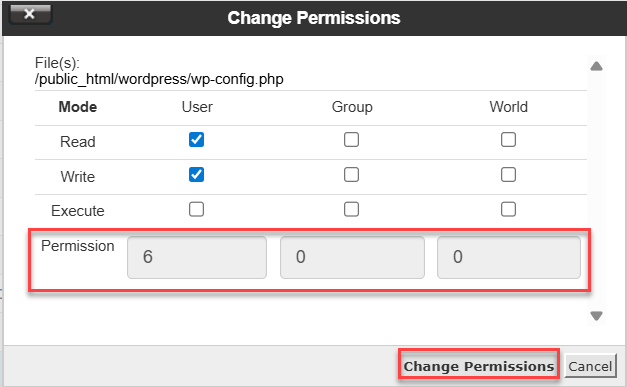
- wp-config.php: 600 or 640 (restricts access to this sensitive file)
Steps to Configure File Permissions in cPanel:
-
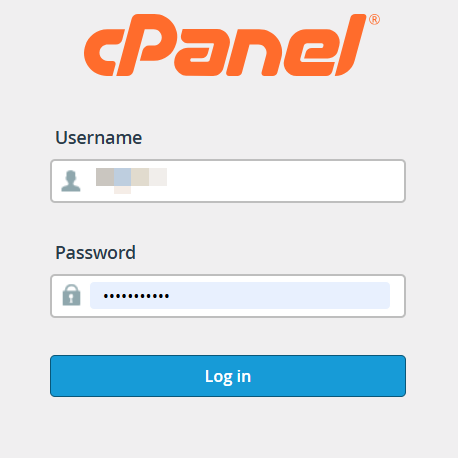
- Log in to cPanel:
- Go to your hosting control panel (usually yourdomain.com/cpanel).
- Enter your username and password.
- Open File Manager
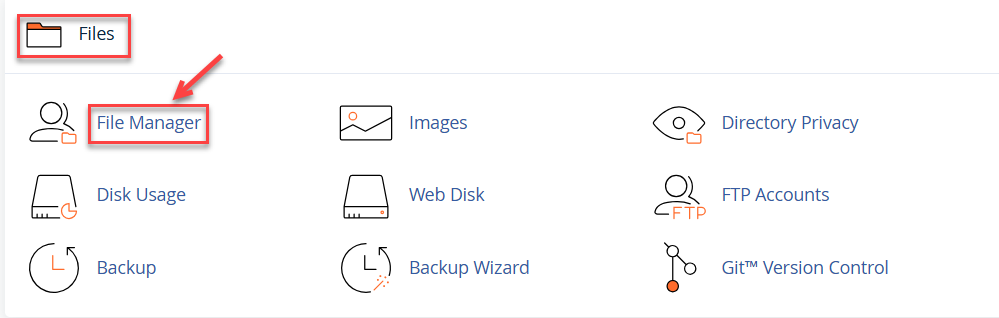
- Under the Files section, click File Manager.
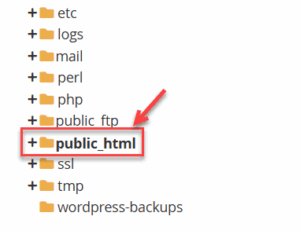
- Navigate to your WordPress installation directory (often public_html).
- Under the Files section, click File Manager.
- Update Folder Permissions
- Select a folder (e.g., wp-content).
- Right-click and choose Change Permissions.
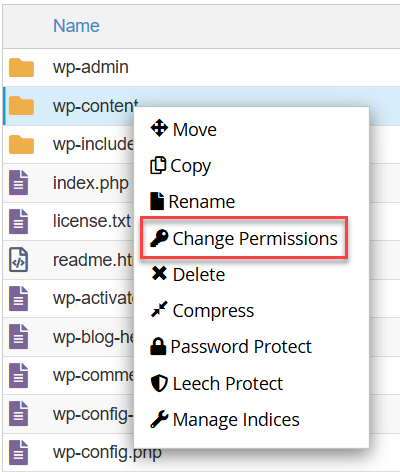
- Set the value to 755.
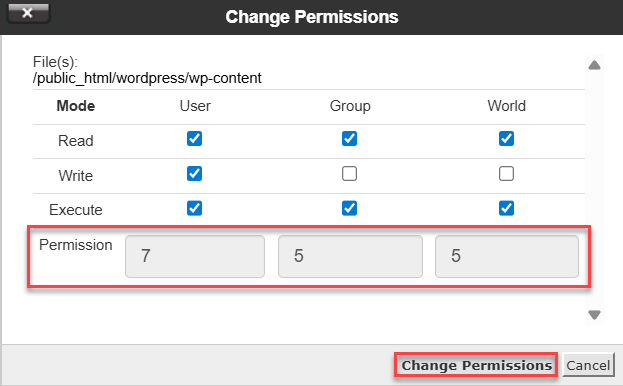
- Apply the same setting to all directories (wp-admin, wp-includes, etc.).
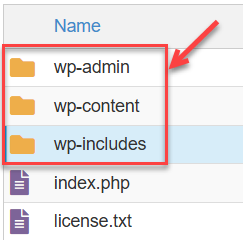
- Update File Permissions
- Select a file (e.g., index.php).
- Right-click > Change Permissions.

- Set to 644.
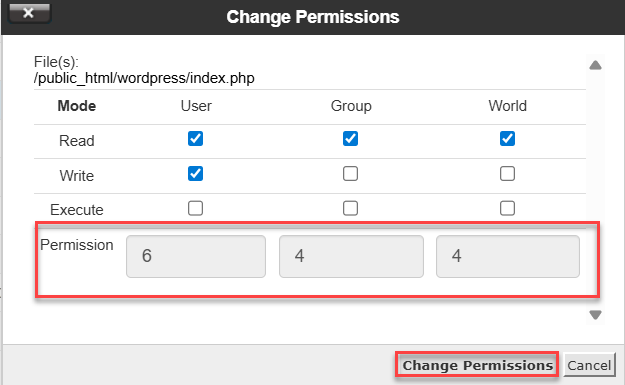
- Apply to all WordPress files.
- Secure wp-config.php
- Locate wp-config.php in the root directory.
- Right-click > Change Permissions.
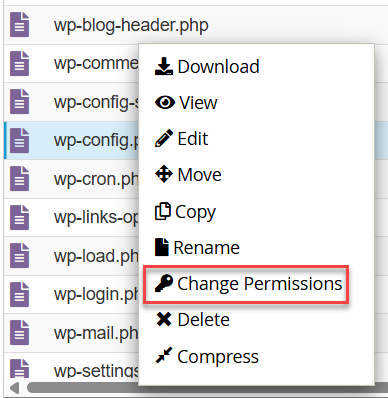
- Set to 600 or 640 (based on server compatibility).
- Verify Changes
- Log in to cPanel:
Best Practices for WordPress File Security
Conclusion:
In this manner, you reduce security concerns and protect your WordPress website from unauthorised access by properly configuring file permissions in cPanel.
Please do not hesitate to contact our support staff if you need assistance.
Want to manage permissions at the server level? Learn How to change file permissions on a Linux Server