
If you want to remove the .html extension from your website URLs to make them cleaner and more user-friendly, you can do so using the .htaccess file on an Apache server.
Here are the steps:
1. Back up your .htaccess file
Before making any changes, download a copy of your current .htaccess file so you can restore it if something goes wrong.
- Access your ‘.htaccess’ file:
- Log in to cPanel.
- Under the Files section, open File Manager.
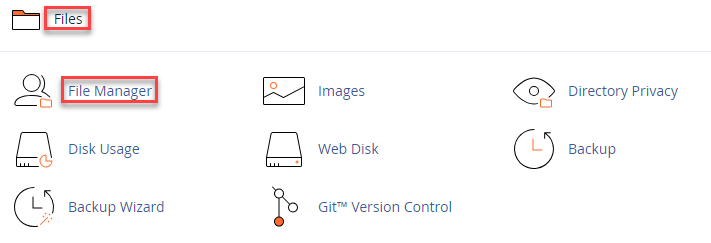
- Click Settings (top right), tick “Show Hidden Files (dotfiles)”, and click Save. The .htaccess file is hidden by default.
- Open your website’s root folder. For your main domain, this is the “public_html” folder. For an addon domain or subdomain, open that domain’s own folder.

- If there is no .htaccess file, click + File and create a new file named .htaccess.

- Edit the .htaccess file:
- Right-click the .htaccess file and select Edit.
- Add the following code at the end of the file, with each line on its own line:
RewriteEngine On
RewriteCond %{REQUEST_FILENAME} !-d
RewriteCond %{REQUEST_FILENAME}\.html -f
RewriteRule ^(.*)$ $1.html [NC,L]
This code tells the server to show the .html page even when .html is not typed in the URL.
- Click Save Changes, and then click Close.
- Optional: redirect old .html links to the new address
If you want visitors who use the old .html address to be sent to the clean address, add these lines directly below RewriteEngine On (before the other rules):————–
RewriteCond %{THE_REQUEST} \s/+(.+?)\.html[\s?] [NC]
RewriteRule ^ /%1 [R=301,L]
————–
- Verify the changes:
- Test your URLs:
- Open a web browser and navigate to your website.
- Open a page without the .html extension (for example, yourdomain.com/about) and check that it loads correctly.
- Check that all your pages open and that there are no 404 errors.
- Test your URLs:
- Additional Tips:
- If you do not see the changes right away, clear your browser cache or try a different browser.
By following these simple steps, you can remove the .html extension from your URLs and make them cleaner. If you need extra help, please contact our support team.
For detailed instructions on changing your .htaccess file, see our guide on How to Edit the Existing .htaccess File.
Get full control over server settings with a high-performance hosting solution.
For detailed instructions on modifying your .htaccess file, see our guide on How to Edit the Existing .htaccess File.