
In this article, we have explained how to update contact information and notification settings in cPanel. It ensures you always receive hosting alerts and quota warnings.
Follow the steps:
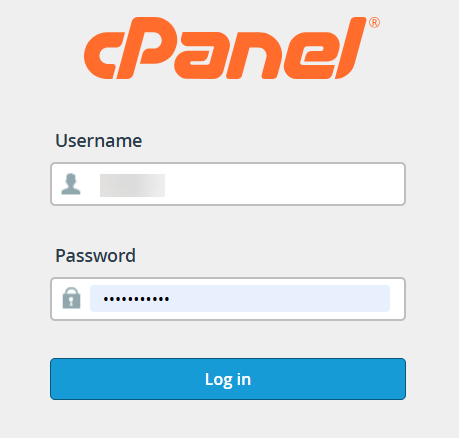
- Log in to cPanel.
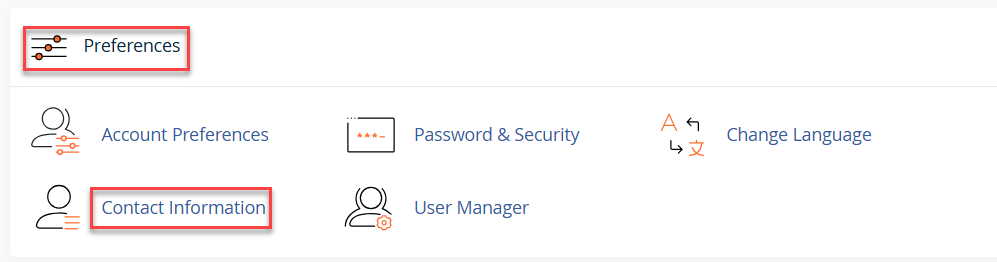
- Go to “Contact Information” under the “Preferences” tool.
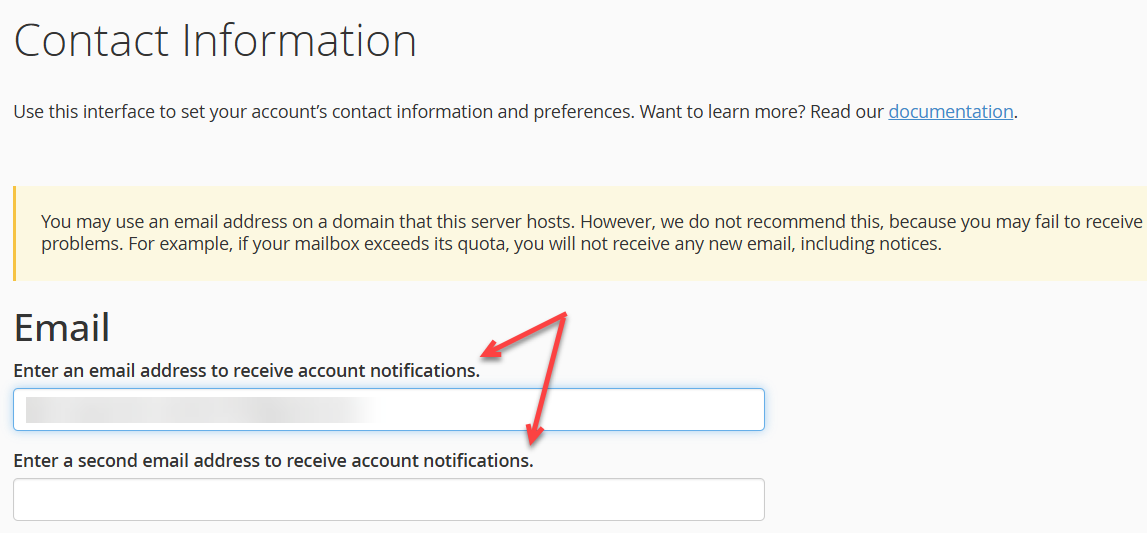
- Enter your email address for notifications.
- Primary email (required).
- Secondary email (optional, as a backup).
Note: Using an email hosted on the same server is not recommended (if the server is down or the mailbox is full, you may miss alerts).
- Enter your account password if you change the contact address.

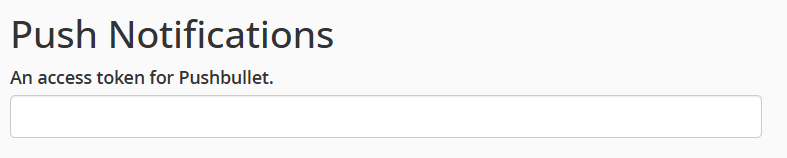
- (Optional) Enable Push Notifications by entering a Pushbullet access token.
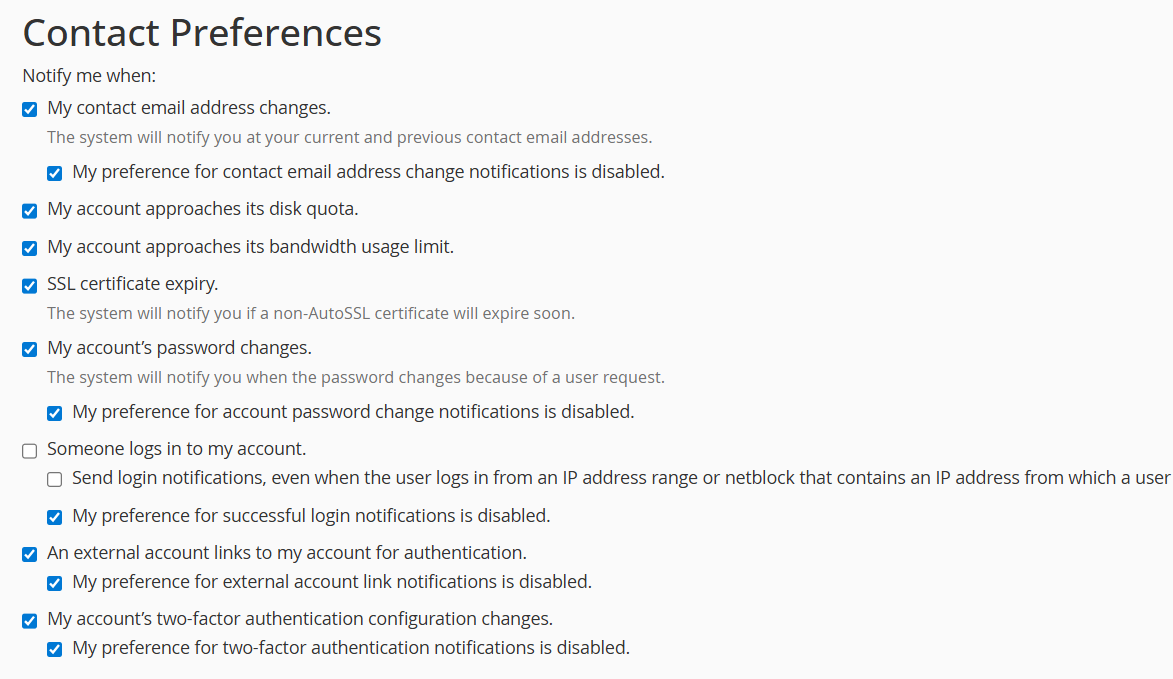
- Set Contact Preferences (select the types of notifications you want to receive, such as quota warnings and password reset notices).
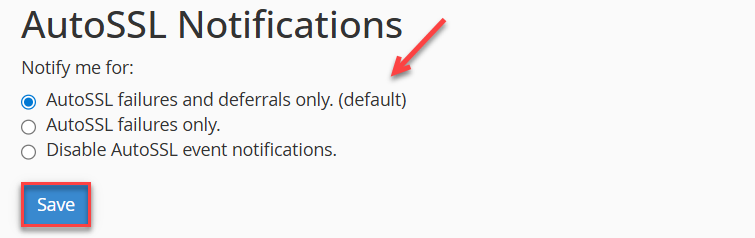
- Select the “AutoSSL Notifications” setting to receive alerts for failures, deferrals, or disable notifications altogether, ensuring you stay informed about SSL issues.
- Save changes.
Best Practices:
- Always use an external email (e.g., Gmail, Outlook) instead of your hosting domain.
- Add a secondary email to avoid missing critical notifications.
- Review preferences periodically to ensure you don’t miss important security alerts.
This way, you may now receive hosting alerts and quota warnings by updating contact information and notification settings in your cPanel account.
Want to keep your account details updated too? Learn How to upgrade the contact information and preferences in cPanel