
This guide will walk you through using Roundcube Webmail.
Webmail eliminates the need for email software, allowing you to check and manage your emails from any web browser or mobile device. With its powerful features and easy-to-use interface.
Note: Make sure you have an email account set up before you start.
Table of Contents:
Key Features of Roundcube
Roundcube offers a clean, simple layout that makes handling your emails straightforward. With it, you can:
- Send and receive emails quickly and reliably.
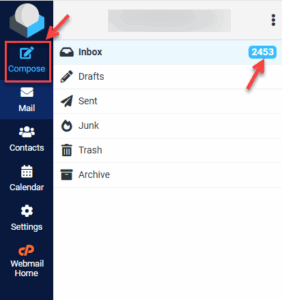
- Manage junk mail effectively with customisable spam filters.
- Address book to store, organise, and search contacts.
- Calendar for managing appointments, events, and schedules.
- Advanced settings for full control over your email experience.
Security Best Practices
Protecting your email account is crucial. Follow these best practices:
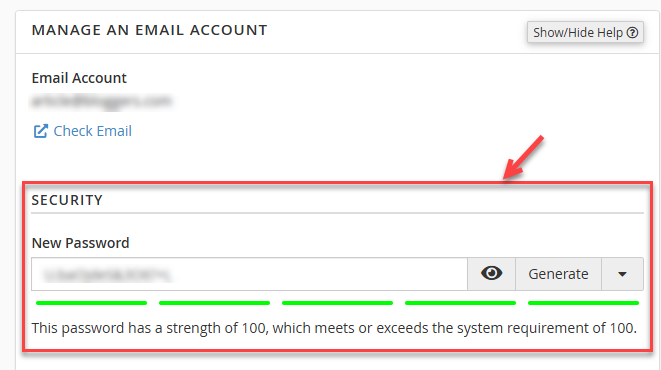
- Use strong passwords: Minimum 12 characters, including letters, numbers, and symbols. Avoid common words or sequences.
- Enable two-factor authentication (2FA): If your hosting provider supports it, enable 2FA to add an extra layer of security.
- Recognise phishing attempts: Be cautious of emails asking for sensitive information. Verify sender addresses and hover over links before clicking.
- Log out on shared devices: Always log out completely if using a public or shared computer.
- Keep software updated: Regularly update your browser and Roundcube version to prevent security vulnerabilities.
Accessing Roundcube Webmail
To log in, follow the steps:
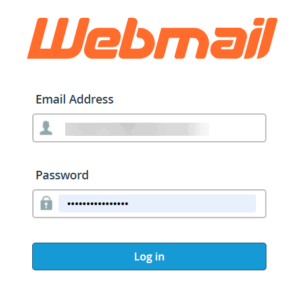
- Launch a browser and enter ‘www.yourdomain.com/webmail’, replacing ‘yourdomain.com’ with your actual domain.
- Enter your complete email address and the password you set when creating the account.
- You will enter the standard dashboard after logging into Roundcube webmail.
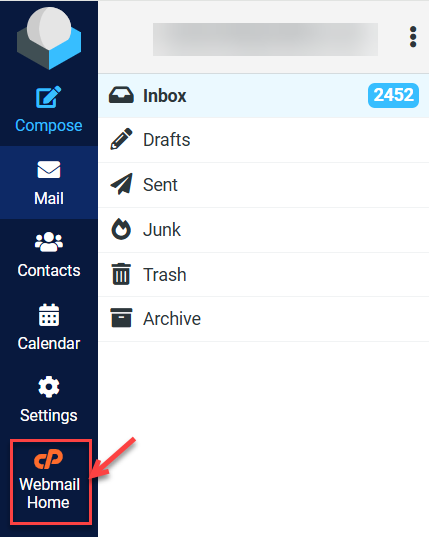
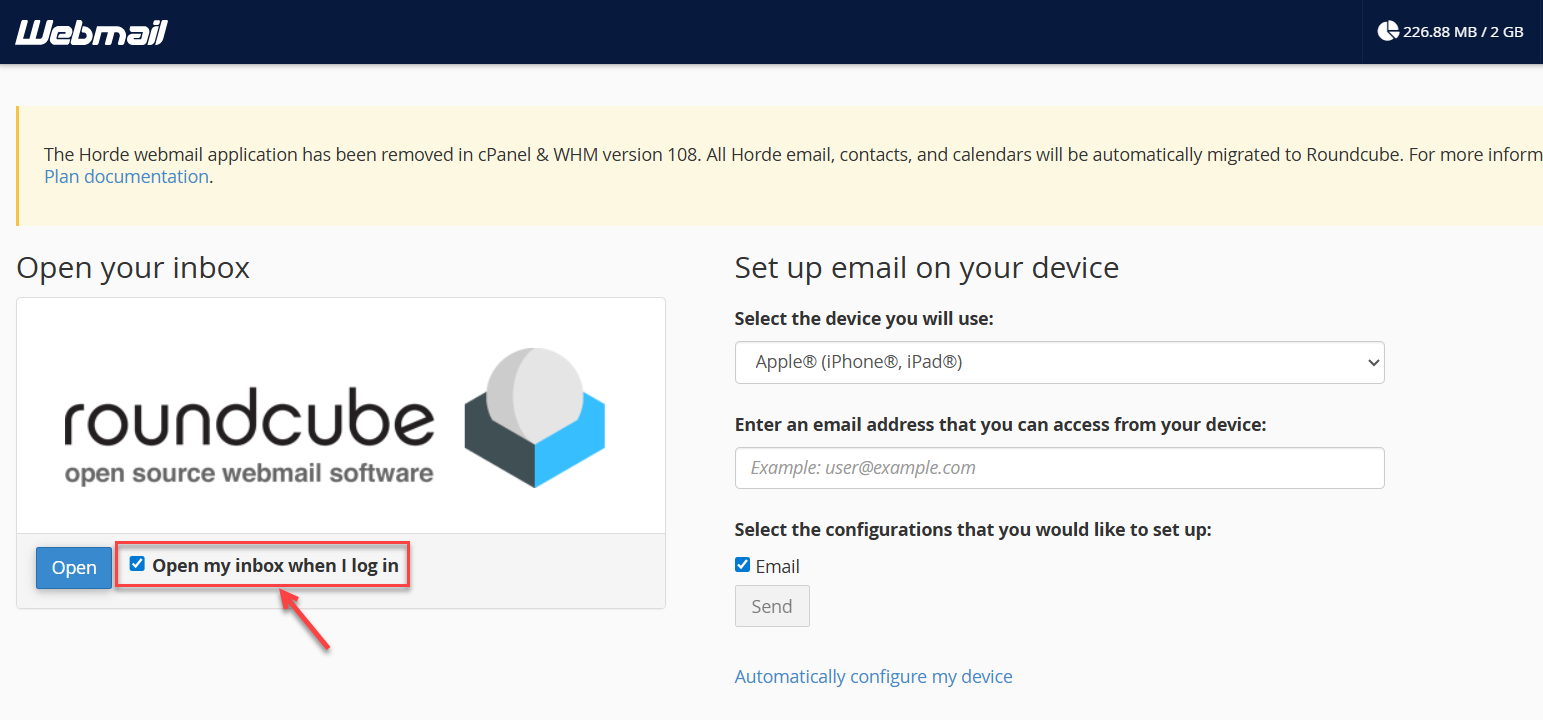
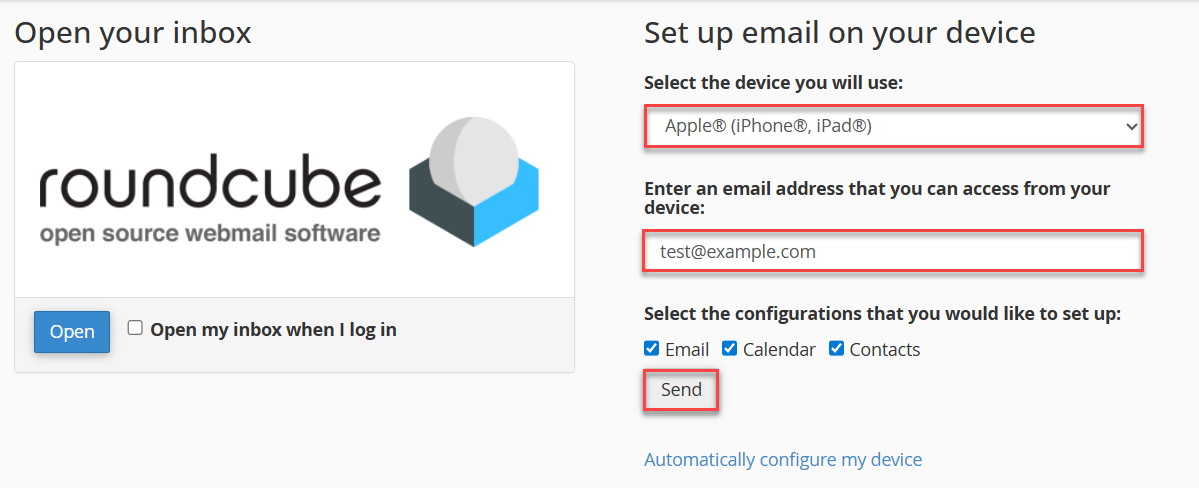
- If you wish to set Roundcube as your default webmail client, select the option ‘Webmail Home’ from the left-hand side of the screen and tick ‘Open my inbox when I log in’ as shown in the image given below.
Sending and Receiving Emails with Roundcube
Composing an email:
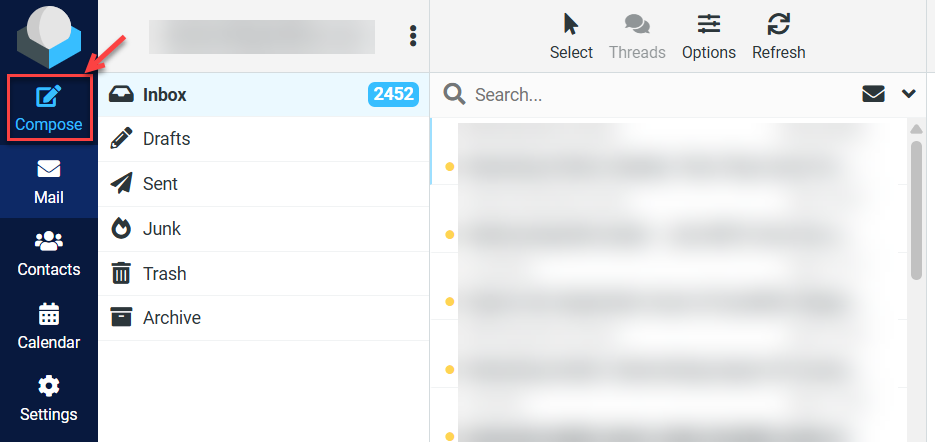
- Click ‘Compose’ from the left menu to start a new email.
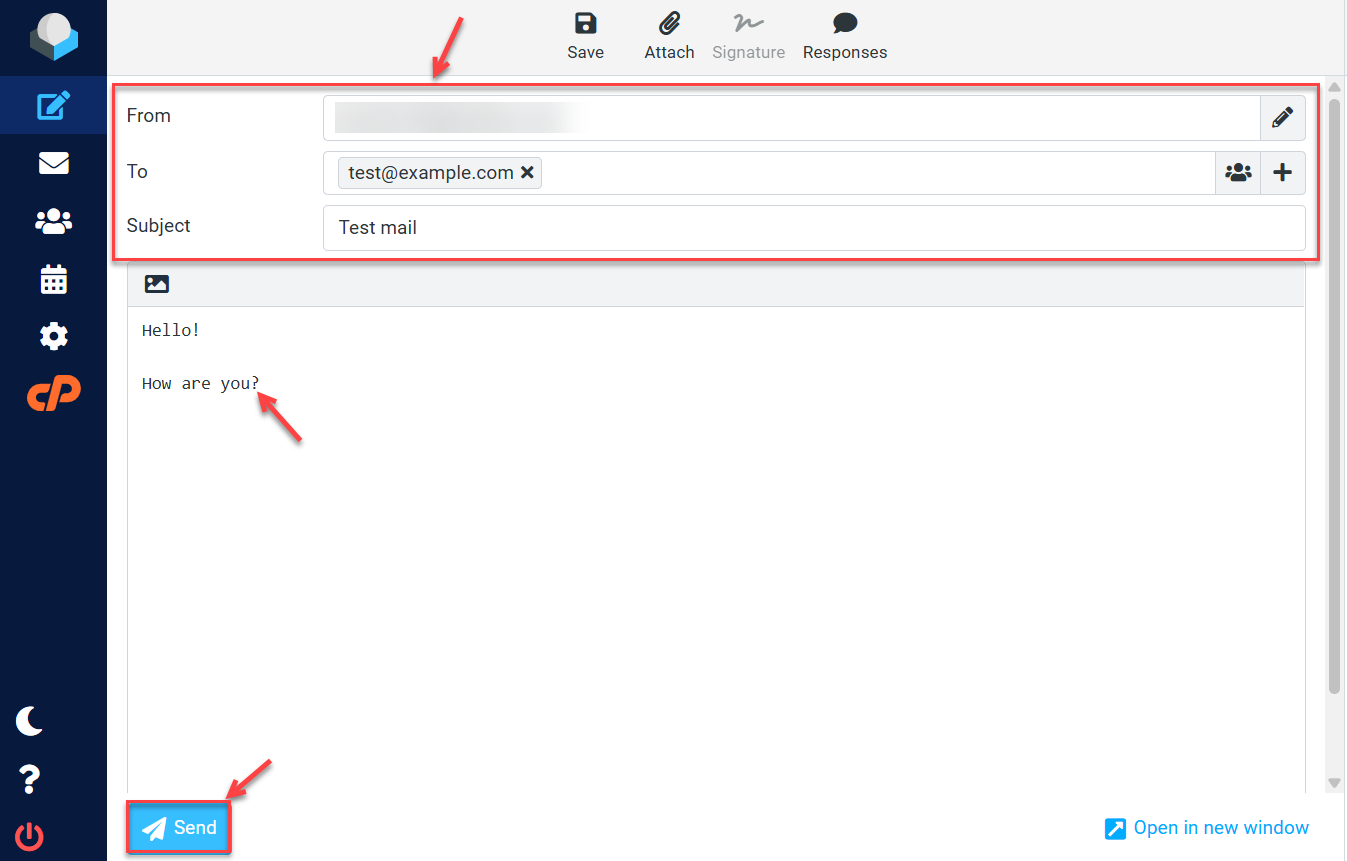
- Fill in the recipient’s address, subject, and your message in the body field.
- Use the formatting tools to style your message or add attachments/images.
- Click ‘Send’ to deliver the email.
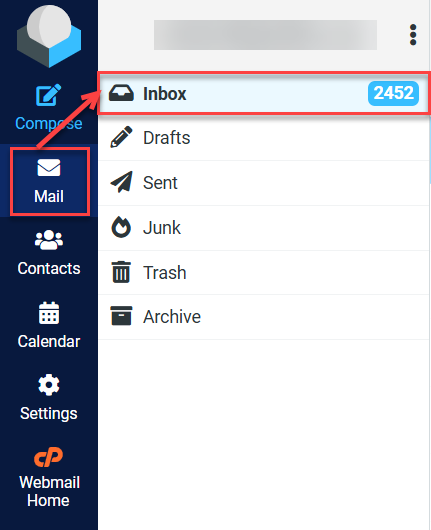
Checking incoming emails:

Handling Junk Mail
Roundcube includes spam management features:
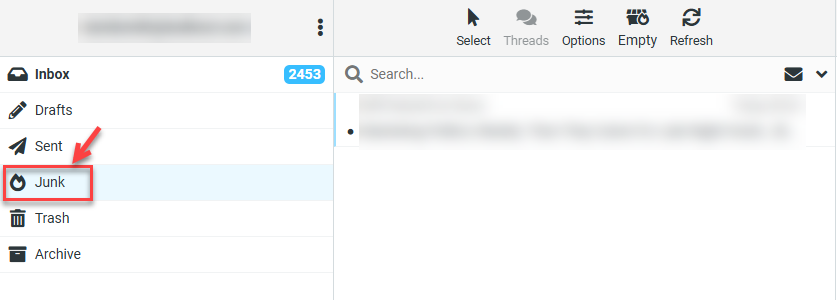
- Use Junk to mark an email as spam.

- Use Not Junk if a valid email is mistakenly flagged.
- Messages in the Junk folder are automatically deleted after a set period, but you can also clear them manually by choosing Empty.

Managing Contacts with Address Book
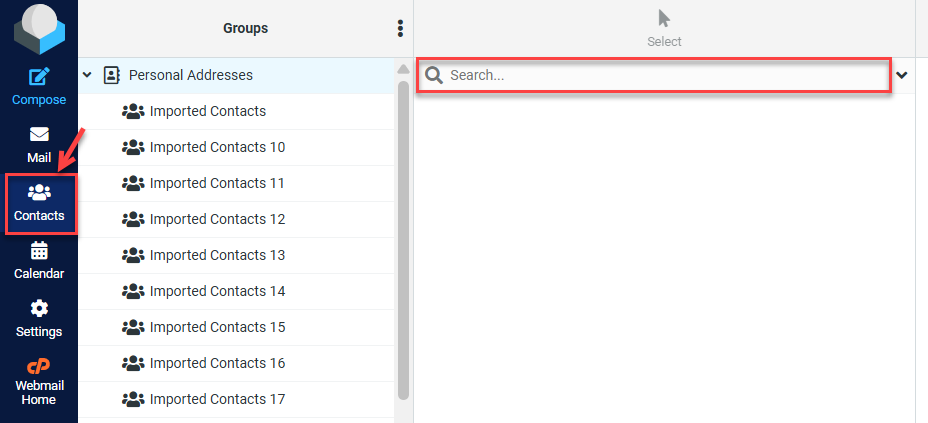
The integrated address book lets you store and manage contacts. To access it:
- Click Contacts in the left menu.
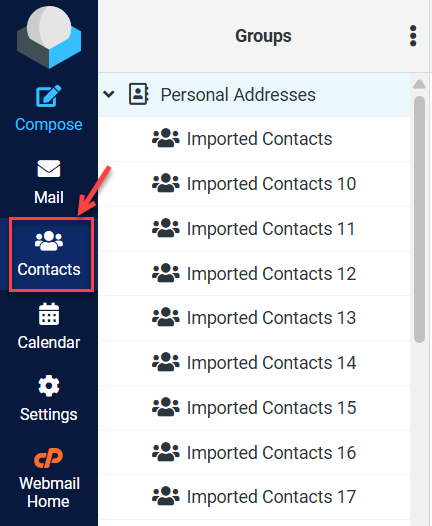
- Use the options at the top to add new contacts, delete, search, or import/export contacts.

Calendar Management
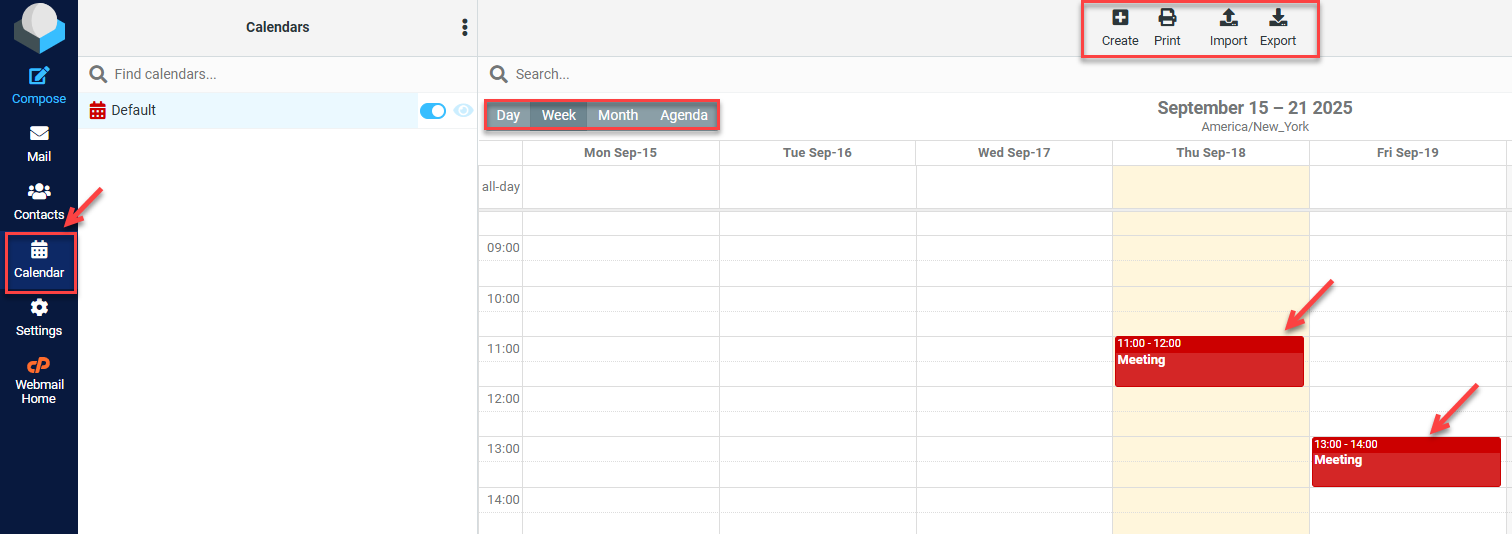
Roundcube’s calendar helps you manage appointments and events.
- Click Calendar in the left menu.
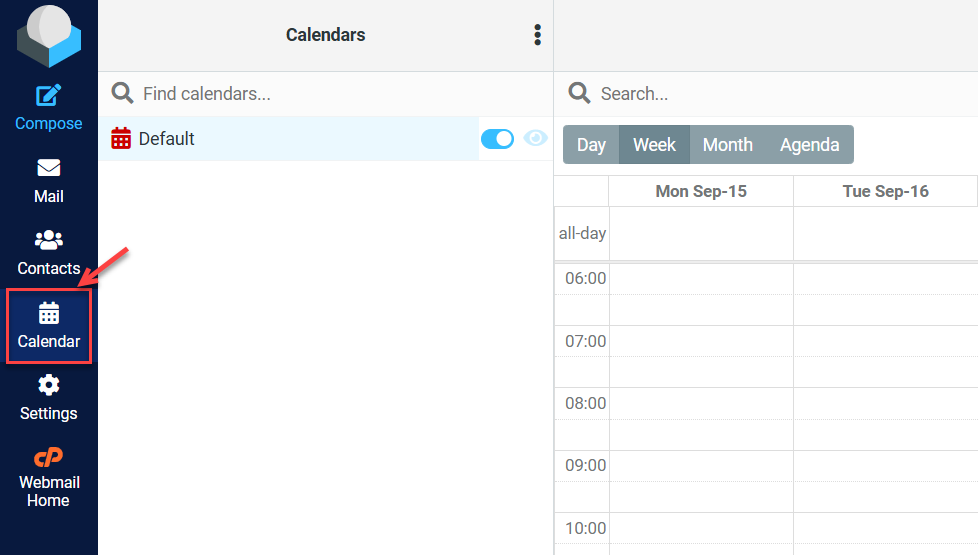
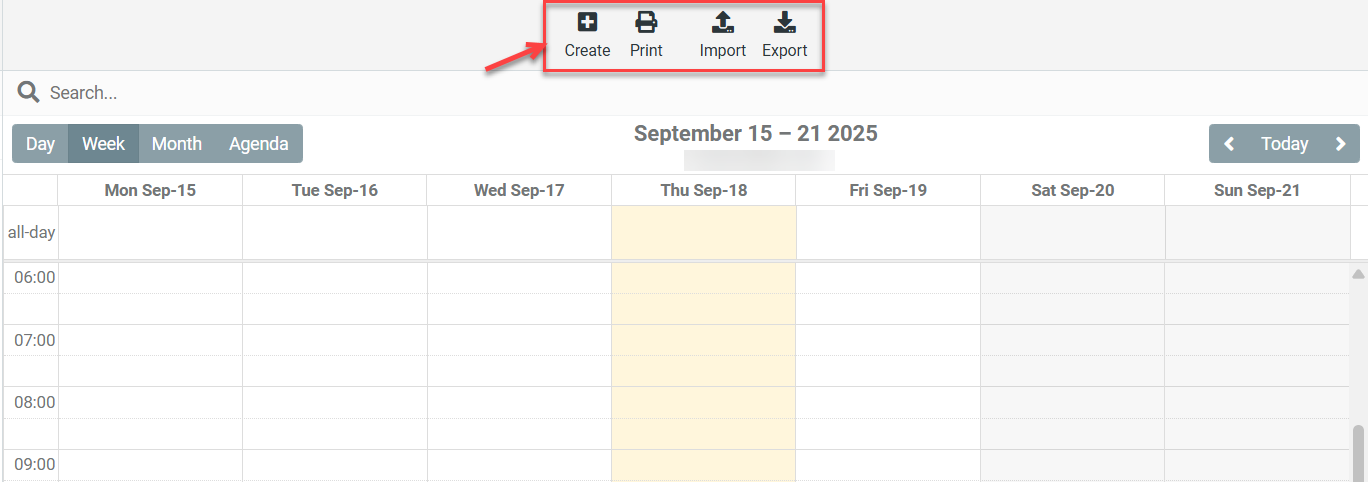
- Use the top menu to add new events, print schedules, or import/export calendars.
Customising Roundcube
- Themes
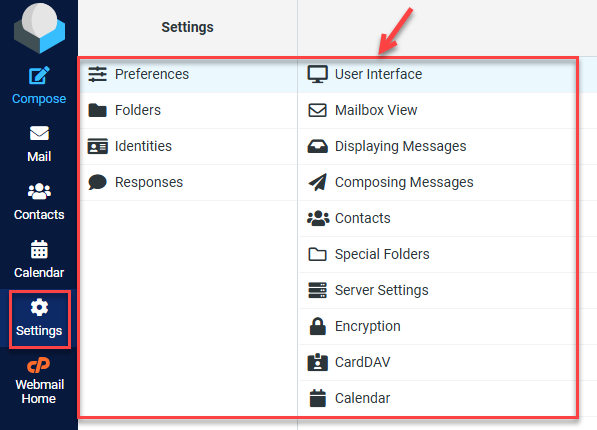
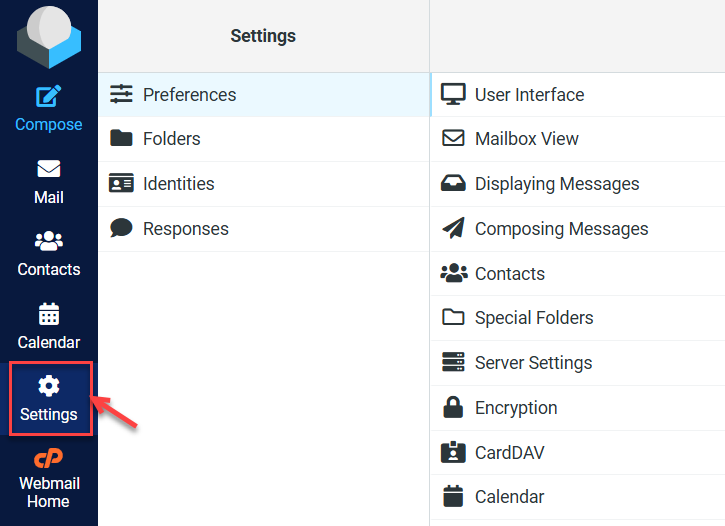
- Access via Settings >Preferences >User Interface.
- Switch between light/dark modes for better readability and comfort.
- Themes affect colours, layout, and visibility but not functionality.
- Plugins
- Examples: Calendar sync, email signatures, templates, task management.
- Enable/disable via Settings >Plugins.
- Limit plugins to improve performance.
- Mailbox Display Settings
Setting Up Roundcube on Devices
Roundcube can be accessed via smartphones, tablets, or desktop email apps.
- For setting up Roundcube on a mobile device or desktop email client, use the IMAP server ‘mail.yourdomain.com’ on port 993 with SSL/TLS encryption to receive emails.
- To send emails, use the SMTP server ‘mail.yourdomain.com’ on port 465 with SSL/TLS encryption.
- Your username should be your full email address, and the password is the one you set for your email account.
- Ensure that you enter these settings correctly in your email app to establish a secure and reliable connection.
Device Setup Steps:
- Log in to cPanel.
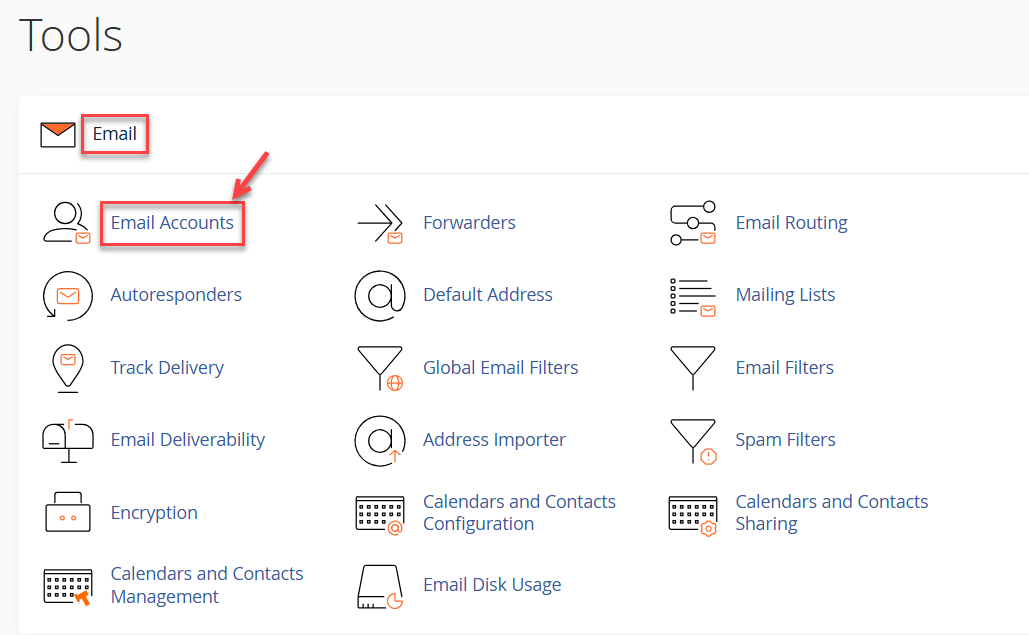
- Select ‘Email Accounts’.
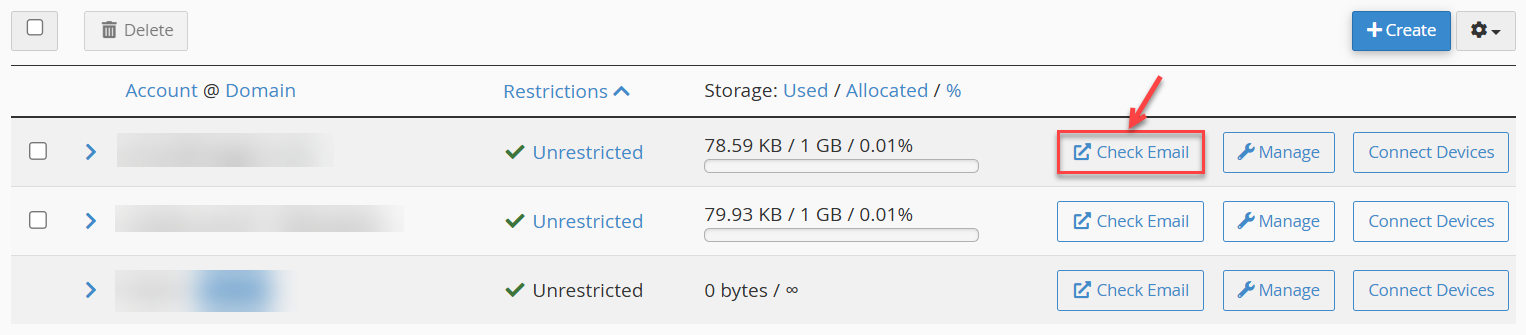
- Find the chosen email account from the list and click ‘Check Email’.
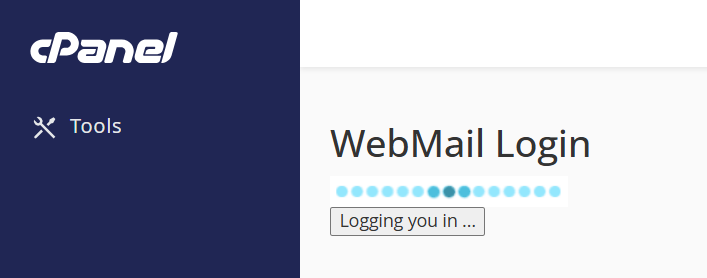
- Upon clicking, you will be redirected to Roundcube webmail.
- Find ‘Set up email on your device’ and fill in the appropriate information:
- Select your device (iPhone, Android, etc.) using the drop-down menu.
- Enter your email address that you can log in to using your device.
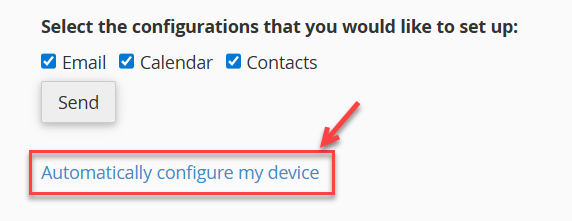
- Then select which services you would like to configure (Email, Contacts, Calendar).
- Finally, click ‘Send’ to receive setup instructions via email.
- Follow the provided steps to complete the configuration.
- Advanced users can also use auto-configuration scripts available in Webmail.
Performance Tips:
- To stop your inbox from loading slowly, archive or remove old emails.
- Regularly clear the cache in your browser.
- Don’t use additional plugins than you need.
- If calendar sync is not needed, disable it.
- Folders should be arranged for easier access and less clutter.
By following these steps, you can make the most of Roundcube’s email, contact, and calendar tools on both desktop and mobile devices.
Should you encounter problems, our support team is available 24/7 to assist you.
A Business Email Hosting solution provides reliable email services, webmail access and the tools needed to manage business communications efficiently.