
Server performance plays a key role in keeping websites fast and reliable. At eukhost, we have seen that even small Optimisations can noticeably improve speed, stability, and resource usage. This guide highlights how simple tweaks, like refining database settings, enabling caching, or adjusting web server configurations, can make a meaningful impact across cPanel, WHM, and Plesk environments.
Table of Contents
Why Small Adjustments Matter?
Servers often slow down due to:
- Misconfigured database limits
- Disabled or outdated caching settings
- Web servers running with default values
- High traffic with no optimisation layer
Even a 5–10% improvement in these areas can lead to:
- Faster page load times
- Reduced CPU usage
- Longer hardware lifespan
- Smoother website performance during traffic spikes.
Top Areas to Tune for Faster and More Stable Websites
- Database Tweaks
Small changes you can make:- Optimise tables (MySQL/MariaDB)
- Increase query cache size
- Fix slow queries
- Reduce unnecessary connections
- Caching Improvements
Caching reduces repeated processing and speeds up response time.
You can enable:- NGINX or Apache caching
- Opcode caching (OPcache)
- Redis or Memcached
- Browser caching headers
- Web Server Adjustments
Simple but effective improvements:
How to Apply These Optimisations (cPanel, WHM & Plesk)
The optimisation steps differ depending on the control panel installed on your server. Below are simple, practical steps you can follow across cPanel, WHM, and Plesk to improve performance. Each panel offers different levels of control, from beginner-friendly settings to deeper server-level optimisation.
If your server has cPanel Control Panel:
cPanel provides beginner-friendly tools that help improve website performance, reduce load times, and optimise resource usage.
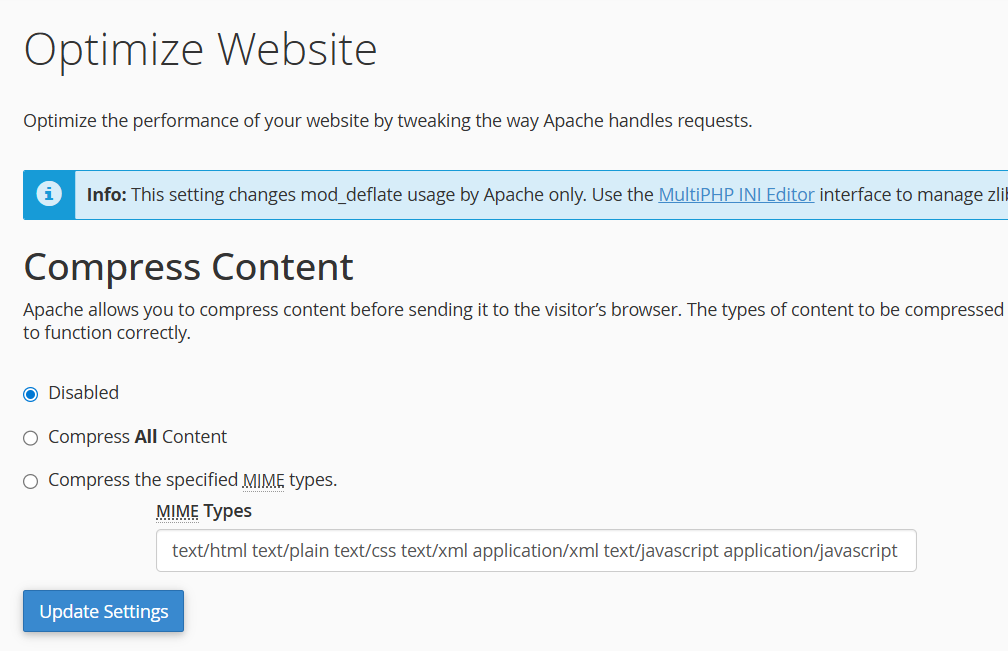
- Enable Caching & Compression. Path: cPanel > Optimise Website.
- Once you open the Optimise Website tool, you will find options to enable compression for your website content.
- What to do:
- Turn on compression (usually “Compress all content”)
- Enable optimisation for text-based files such as:
HTML
CSS
JavaScript
XML
Plain text - This reduces file sizes and speeds up page loading.
- Database Optimisation
- Path: cPanel > MySQL Databases > Optimise Table.

- If your cPanel theme supports it, you may see Optimise Table directly under MySQL Databases.
- If not, optimisation is still possible via phpMyAdmin: select the tables and choose Optimise Table from the dropdown.
- This process helps:
Remove overhead
Reorganise table storage
Improve query execution speed
- Path: cPanel > MySQL Databases > Optimise Table.
If Your Server Has WHM (WebHost Manager):
WHM offers more in-depth server-level performance tuning options.
- Adjust Apache Performance Settings: Path: WHM > Service Configuration > Apache Configuration > Global Configuration.
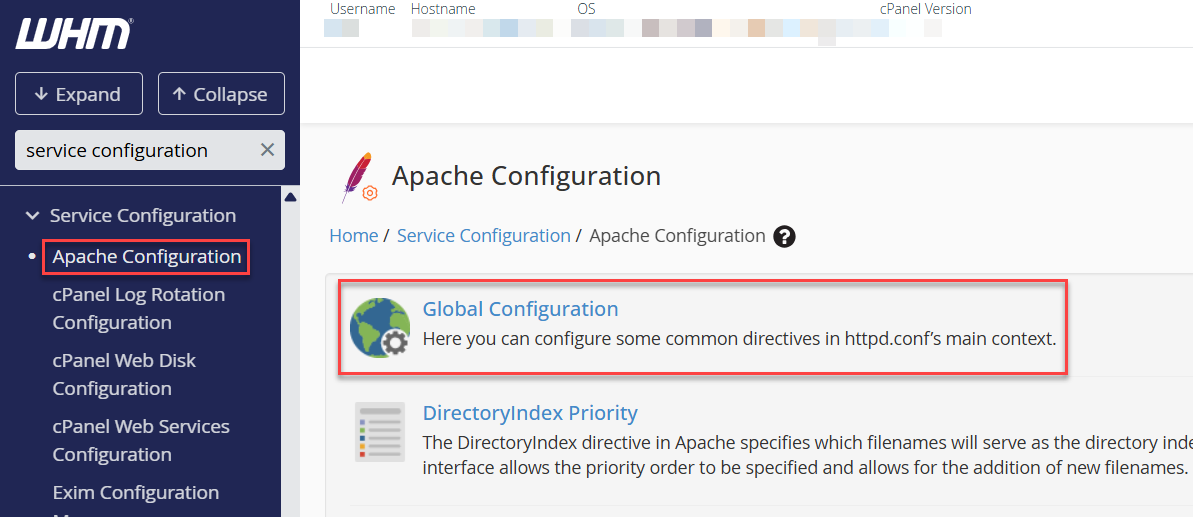
- Inside Global Configuration, you can modify several key performance parameters:
- KeepAlive
Controls persistent connections. Keeping it ON helps reduce connection overhead.

- Enable Compression
Ensures Apache compresses content before serving it, improving load times. - MaxRequestWorkers
Determines how many simultaneous requests Apache can handle.
Optimising this value helps prevent overloads and improves stability.
These changes directly influence server responsiveness and resource usage.

- KeepAlive
- Restart SQL Services
- Path: WHM > Home > Restart Services > Database Server (MySQL).
- Restarting MySQL:
- Clears stuck or long-running processes.
- Releases locked tables or cached resources.
- Resolves temporary performance or connection issues.
- Refreshes the MySQL service without rebooting the entire server.
If Your Server Has Plesk Control Panel:
Plesk offers a clean, user-friendly interface for tuning Apache and NGINX.
- NGINX/Apache Performance Tweaks: Path: Plesk > Websites & Domains > Apache & NGINX Settings.
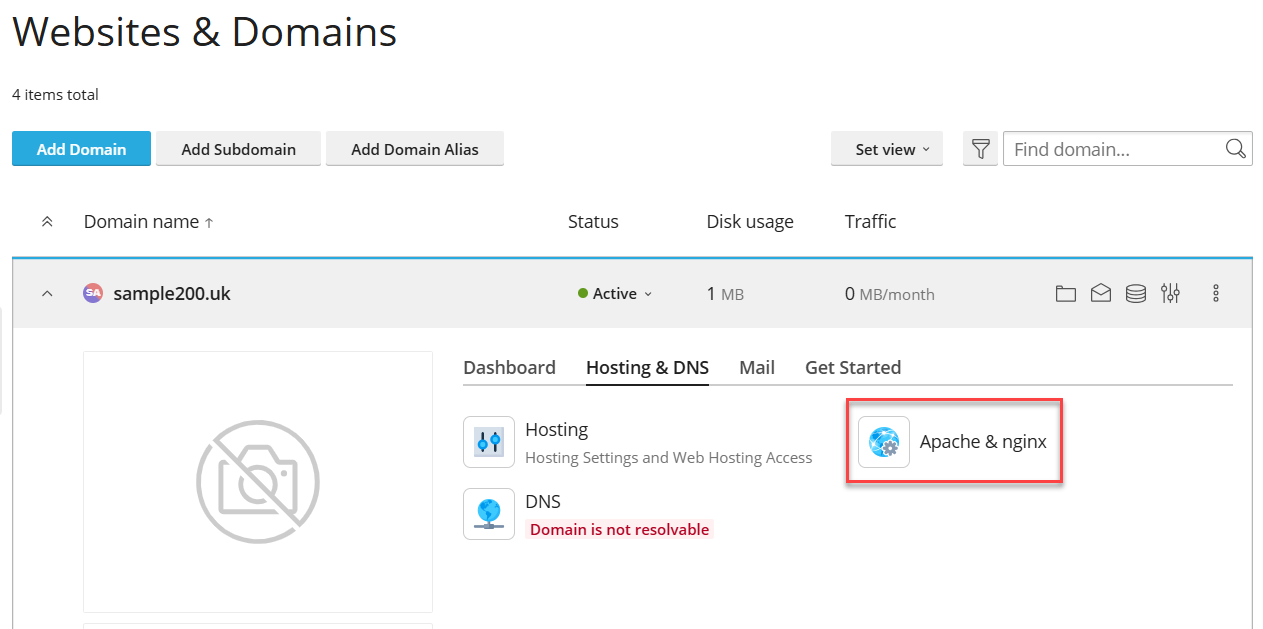
- From this section, you can easily modify:
- Caching settings for static content.
- Gzip compression, which reduces file size and speeds up delivery.
- Static file handling, allowing NGINX to serve CSS/JS/images directly instead of Apache.
(This reduces load and improves performance significantly.)
These settings ensure efficient content delivery and faster website responses.
Best Practices
- Make incremental changes; never edit everything at once.
- Monitor CPU, RAM & disk I/O after each adjustment.
- Keep backups before modifications.
- Use staging environments for high-traffic sites.
- Review web server logs monthly.
When to Contact Support?
You should contact eukhost Support if:
- The server becomes unresponsive after tweaking
- You cannot restart services
- You need help configuring Redis/Memcached
- You are unsure about Apache/NGINX limits
Our support engineers are available 24/7 for assistance.
In such a way, even small adjustments to database settings, caching layers, and web server configurations can greatly enhance server performance. Whether you’re using cPanel, WHM, or Plesk, these simple Optimisations help unlock more speed and stability without requiring major system changes.
Want to take your server performance even further? Read our guide on How to Optimise Dedicated Server Performance