
A WordPress site’s security becomes increasingly more important as it expands. Imunify360, firewall protection, vulnerability scanning, and off-site backups are all included in eukhost, so you can take proactive measures to prevent malware, intrusions, and data loss. You can configure and activate these tools for strong protection by following the steps in this article.
Table of Contents
Protect Your Website Using Imunify360
Imunify360 is a comprehensive security suite integrated with WHM and cPanel. It uses advanced AI and real-time malware detection to protect your websites.
Steps:
- Log in to WHM.
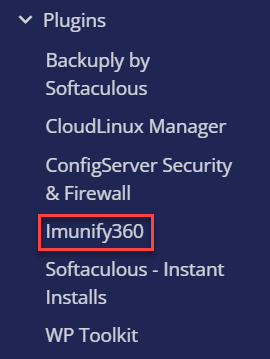
- Navigate to Plugins > Imunify360.
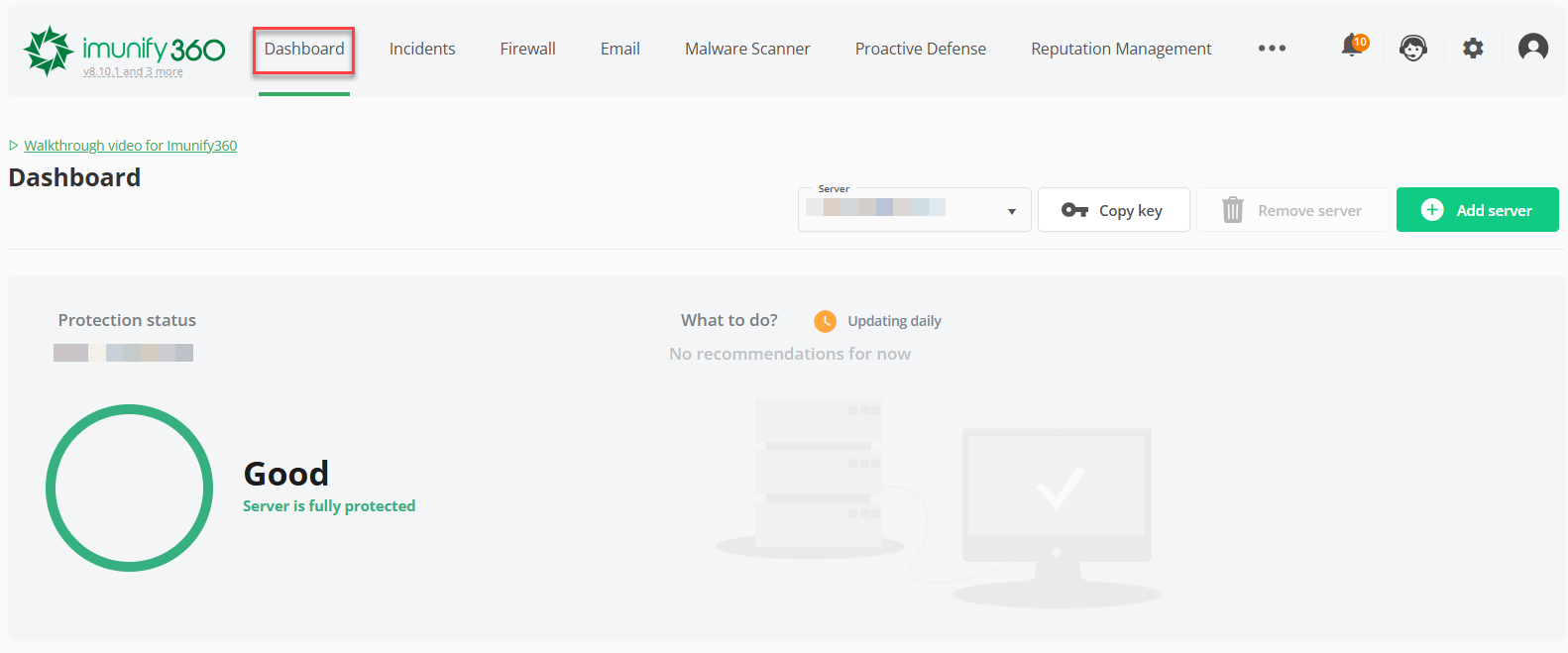
- Review the Security ‘Dashboard’ for detected threats and recent events.
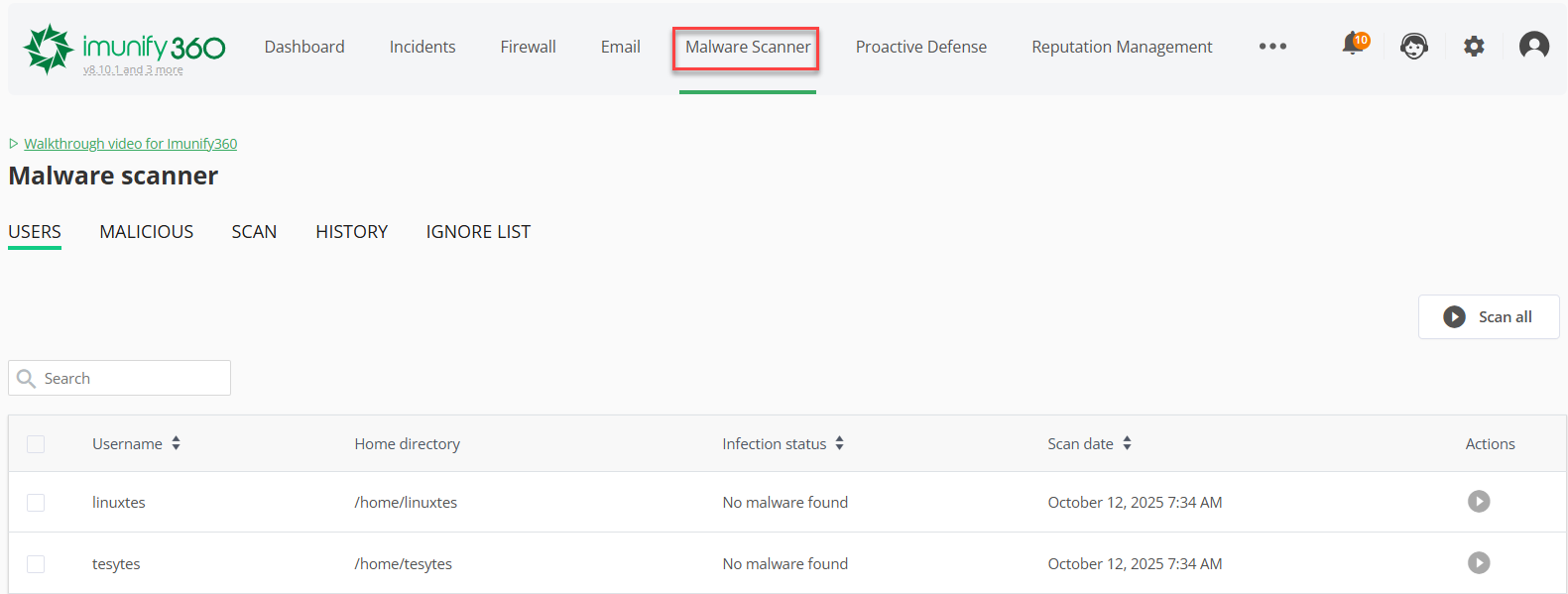
- Use the ‘Malware Scanner’ to perform a full server or cPanel account scan.
- Go to the ‘Malware Cleanup’ section to delete or quarantine infected files.
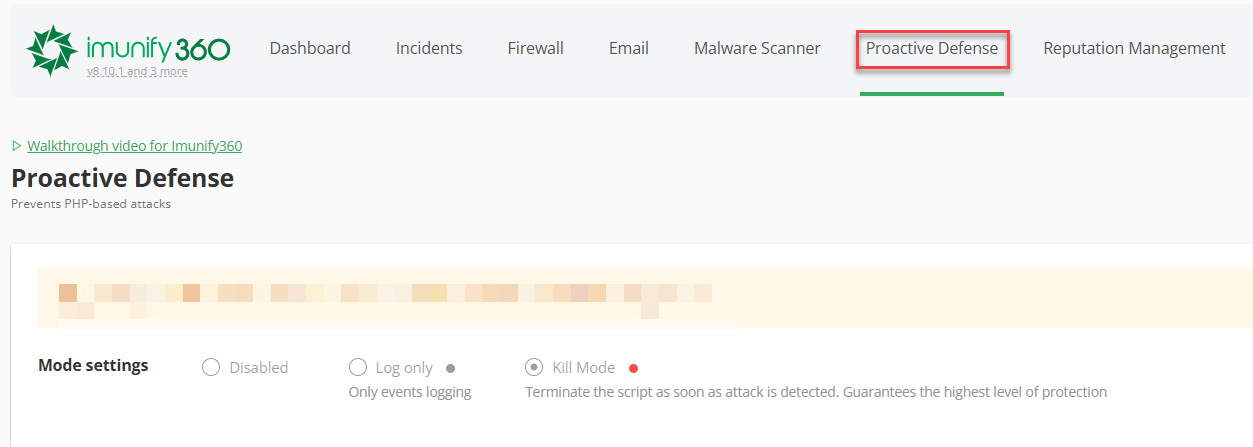
- Enable ‘Proactive Defense’ to block malicious PHP scripts automatically.
- Enable ‘Reputation Management’ to ensure your domains are not blacklisted.
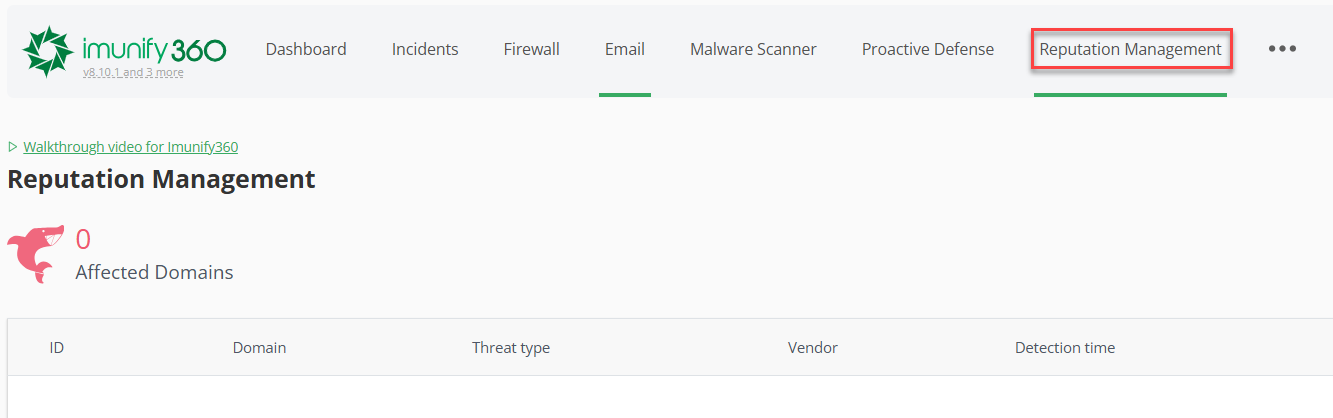
Tip: Imunify360 also highlights outdated WordPress installations, plugins, and themes. Always update them promptly to minimise vulnerabilities.
Configure and Use Firewall Protection (CSF)
The ConfigServer Security & Firewall (CSF) is a powerful firewall integrated within WHM. It filters incoming and outgoing traffic, blocks suspicious IPs, and monitors attacks.
Steps:
- Log in to WHM.
- Go to Plugins > ConfigServer Security & Firewall (CSF).
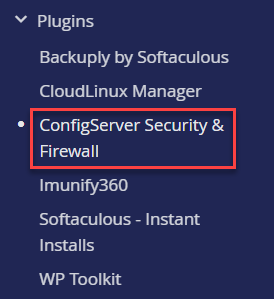
- Verify that the Firewall Status shows ‘Enabled and Running.’

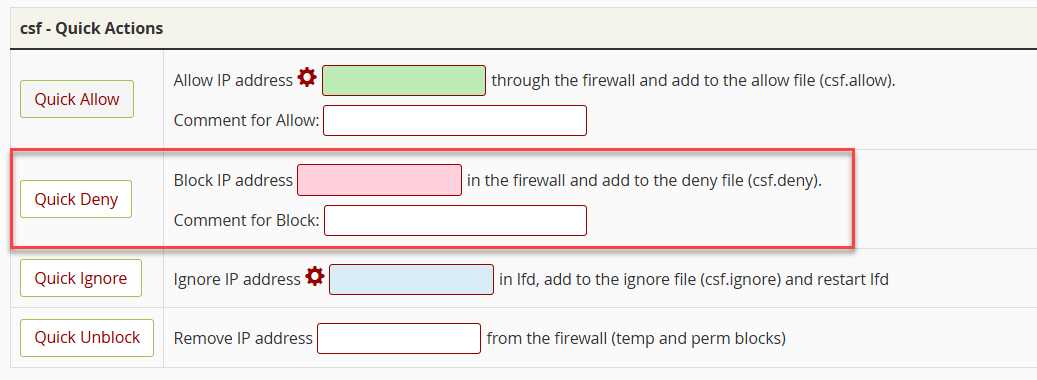
- To block a specific IP, click ‘Quick Deny’ and enter the IP address.
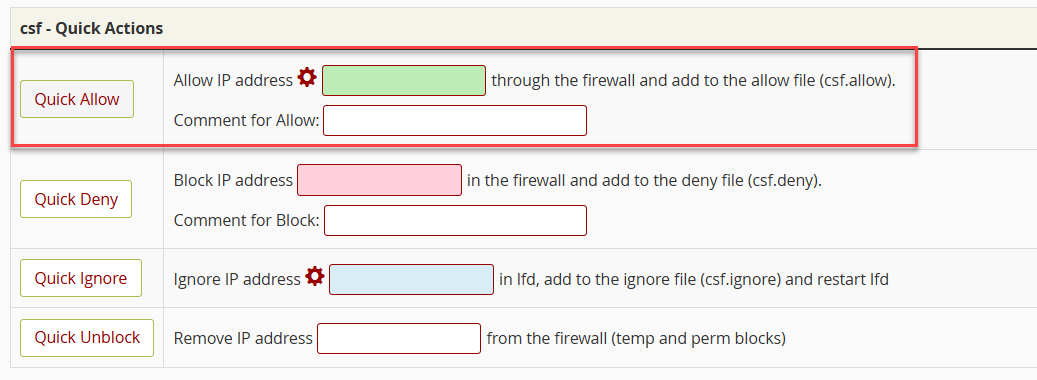
- To whitelist a trusted IP, use ‘Quick Allow’ and enter your IP (e.g., your office or home).
- To monitor blocked connections, view ‘Temporary Allow/Deny’ IPs under the firewall options.

- Enable Country Blocking if attacks originate from certain regions.
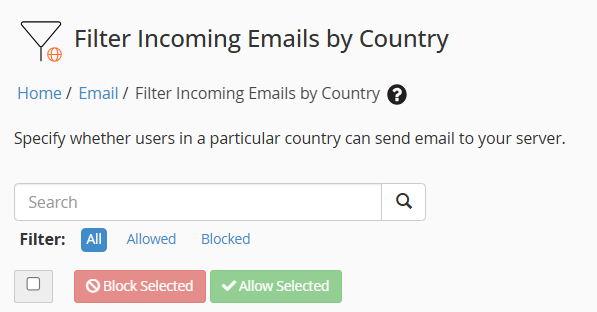
Tip: Avoid blocking large IP ranges unless necessary. Misconfiguration can prevent legitimate users or administrators from accessing the server.
Secure Data with Offsite Backups
Offsite backups are important for disaster recovery. Storing backups remotely protects against ransomware, accidental deletions, or hardware failures.
Steps:
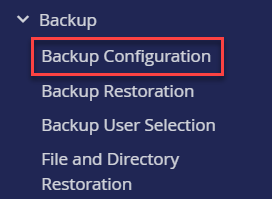
- In WHM, go to ‘Backup Configuration’.
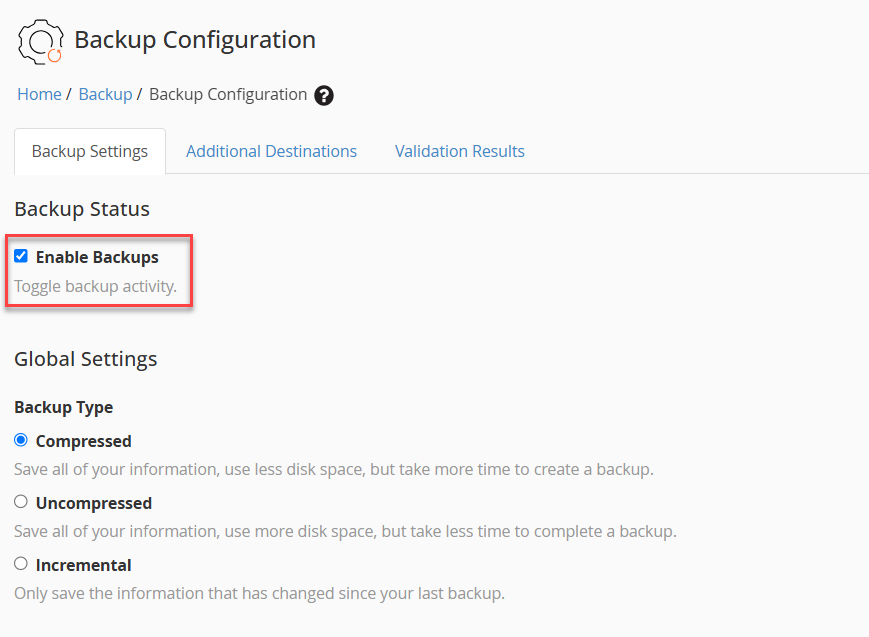
- Set ‘Backup Status’ to Enabled.
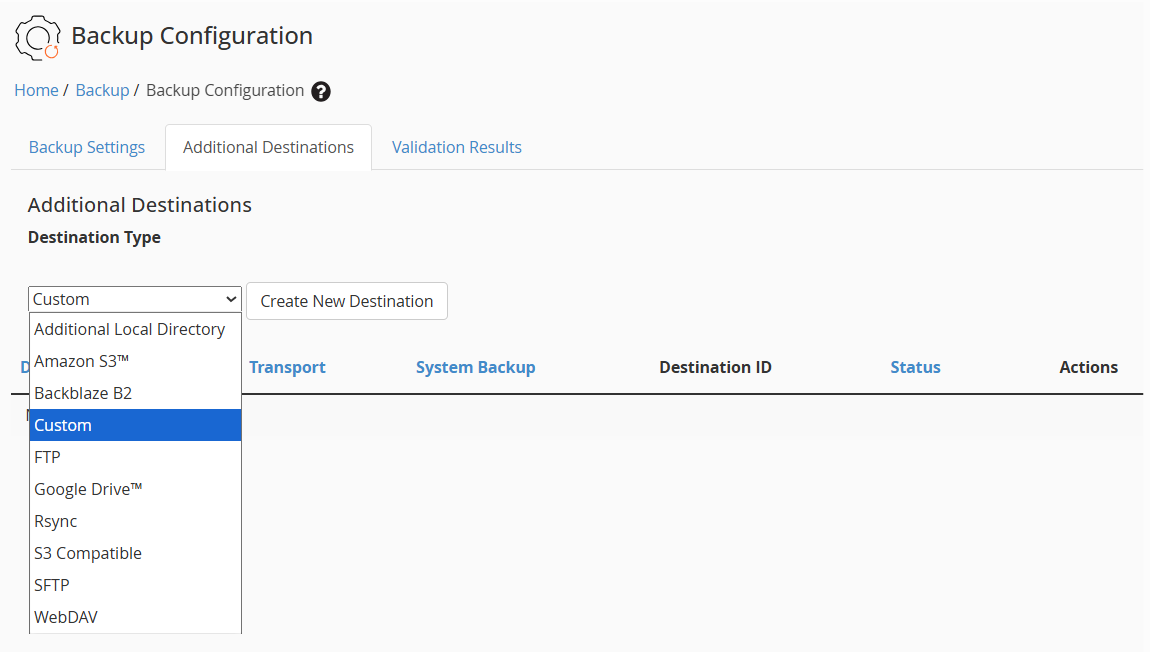
- Choose a Backup Destination such as:
- Remote FTP/SFTP Server
- Amazon S3
- Google Drive
- Remote Backup Space provided by your host
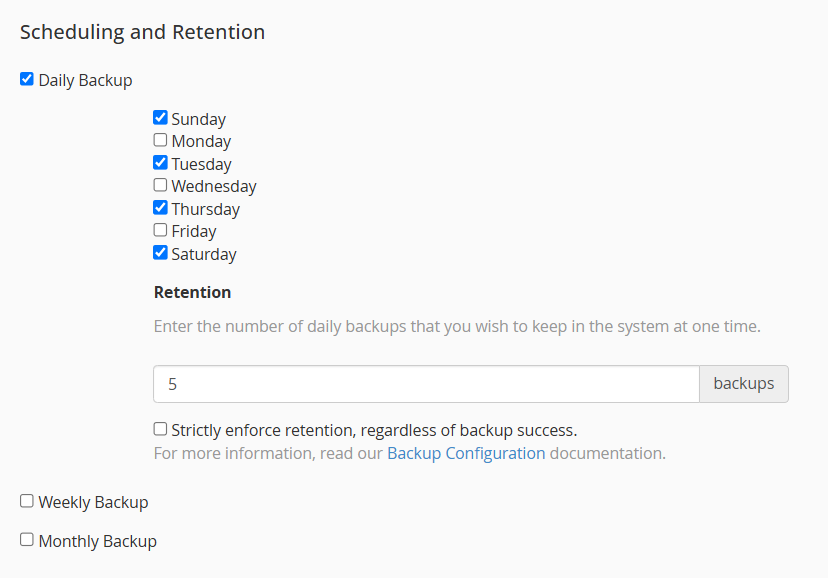
- Define your Backup Schedule (daily, weekly, or monthly).
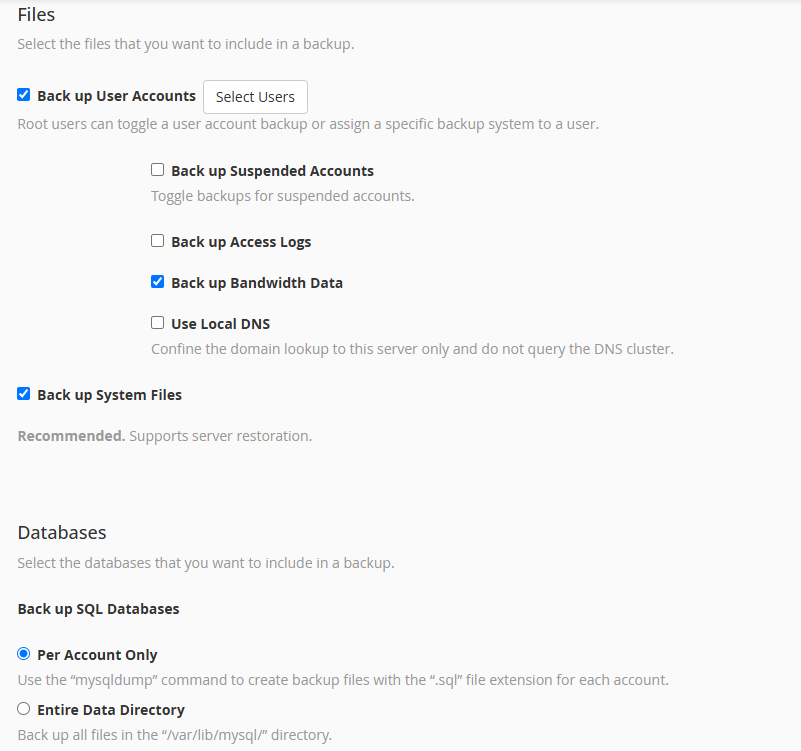
- Include Account Files, Databases, and Email Forwarders.
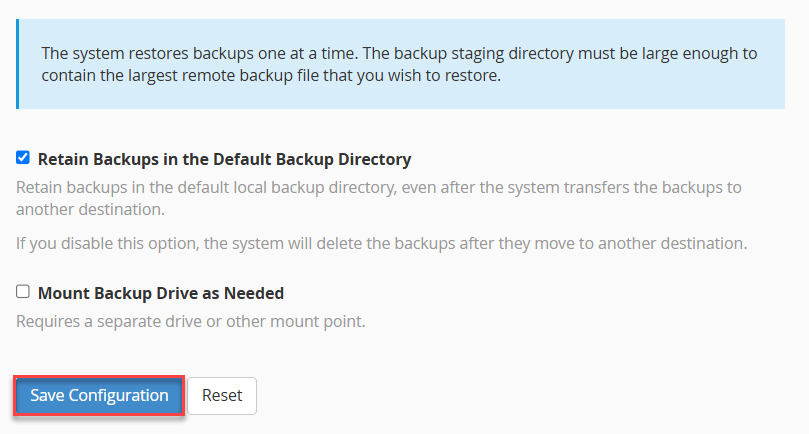
- Click ‘Save Configuration’.
- Test backup restoration periodically to verify file integrity.
Tip: Keep at least 7–14 days of backup retention for better recovery flexibility.
Additional Security Recommendations
- Install and enforce SSL (HTTPS) on all sites.
- Enable Two-Factor Authentication (2FA) in cPanel.
- Use strong passwords for WordPress and MySQL databases.
- Disable XML-RPC if not required.
- Regularly update WordPress core, themes, and plugins.
- Limit login attempts and use CAPTCHA on WordPress login pages.
This way, by combining Imunify360, CSF Firewall, and Offsite Backups, you establish a strong, covered defense strategy for your WordPress hosting environment.
This setup ensures continuous protection against malware, unauthorised access, and data loss, keeping your websites and clients secure.
However, if you face any difficulty in this process, feel free to contact our support staff.
Enhance your server protection further – learn How to install Imunify360