
A website’s loading speed affects user experience, SEO, and conversions. A sluggish website that loads slowly can frustrate users; they may show lower interest, and in turn, it affects sales of the company. As part of our WP-Accelerated stack, eukhost offers performance-enhancing tools like caching and HTTP/2 to guarantee your website loads quickly and functions perfectly.
The functions of each feature and how they enhance your WordPress website are explained in this article.
Table of Contents
Why Site Performance Matters?
Here’s why website performance is so important:
- User Experience: Slow sites frustrate visitors and increase bounce rates.
- SEO Ranking: Google and other search engines rank fast-loading websites.
- Conversions: Faster sites motivate users to stay longer, engage more, and complete purchases.
- Handling Traffic Spikes: Improved hosting guarantees your site can manage high traffic periods without slowing down.
Enable Caching in WordPress
Caching helps store preloaded versions of your website’s pages and resources so they load faster for visitors.
You can enable caching in WordPress using a plugin:
- Log in to your WordPress Admin Dashboard.
- Go to Plugins > Add New.
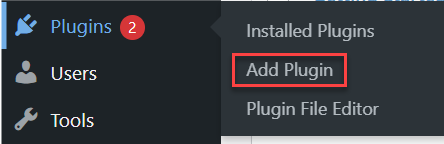
- Search for a caching plugin such as:
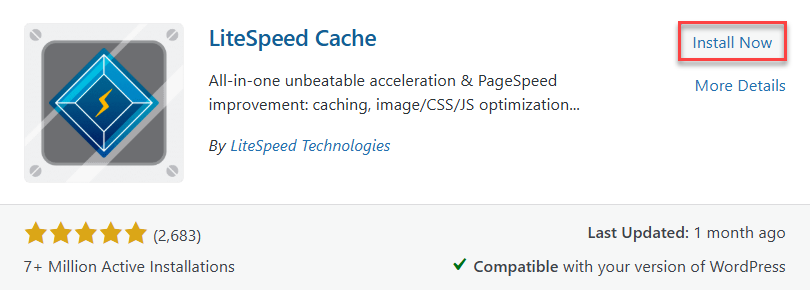
- LiteSpeed Cache (recommended if your server supports LiteSpeed)
- WP Super Cache (simple and beginner-friendly)
- W3 Total Cache (offers advanced configuration options)
- Click Install.
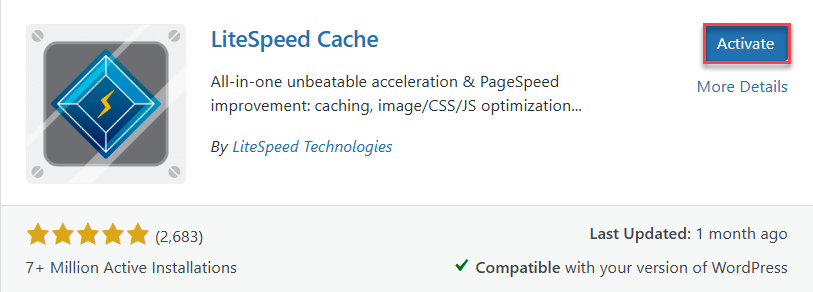
- After installation, activate it.
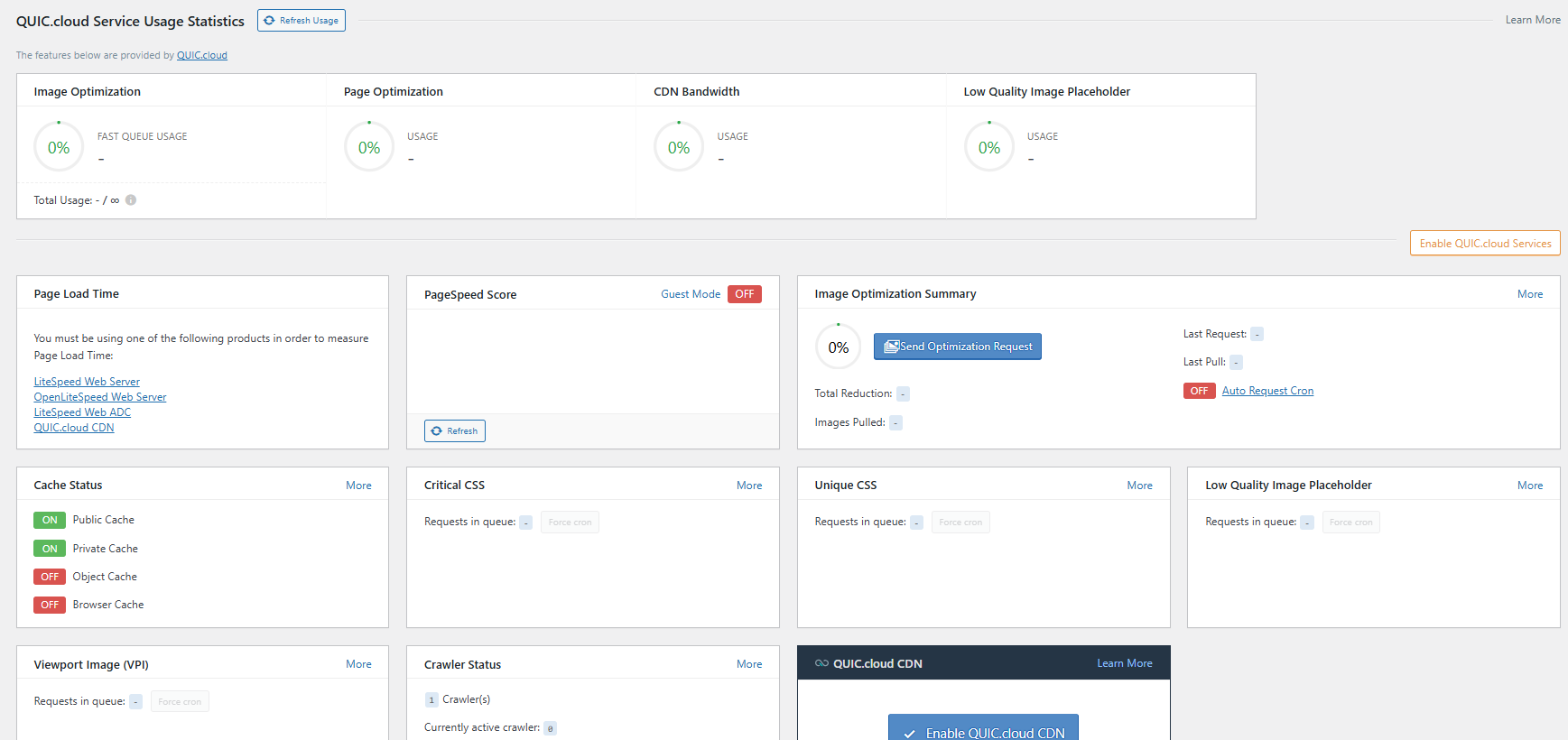
- Open the plugin’s Settings and enable Page Cache and Browser Cache (if available).
Verify if Caching Is Working
You can confirm caching is active using your browser’s developer tools:
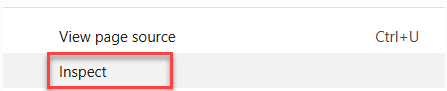
- Visit your site and open Inspect.
- Select the Network tab.

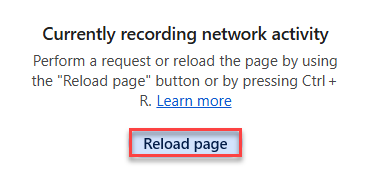
- Refresh the page.
- Look for headers like:
x-litespeed-cache: hit
or
cache-control: public, max-age=...
These indicate caching is active.
Verify HTTP/2
You can verify HTTP/2 support using browser developer tools or command-line tools without relying on third-party websites.
- Check via Browser Developer Tools
- Google Chrome / Microsoft Edge
- Open your website in Chrome/Edge.
- Press F12 to open Developer Tools.
- Click on the Network tab.
- Right-click on the column headers (e.g., Name).
- Tick Protocol to enable the Protocol column.
- Reload the webpage.
- Check the Protocol column:
- h2 = HTTP/2
- http/1.1 = HTTP/1.1
- Mozilla Firefox
- Open Firefox and press F12.
- Go to the Network tab.
- Reload the page.
- Refer to the Protocol column to determine whether it displays HTTP/2 or HTTP/1.1.
- Google Chrome / Microsoft Edge
- Command-Line Methods
- Using cURL
- Open a terminal/command prompt.
- Run the following command:
curl -sI https://yourwebsite.com -o /dev/null -w '%{http_version}\n'
- The output will show:
2 > HTTP/2
1.1 > HTTP/1.1
- Using OpenSSL (ALPN Negotiation Check)
- Run this command:
openssl s_client -connect yourwebsite.com:443 -alpn h2 </dev/null 2>/dev/null | grep -i "ALPN"
- If you see:
ALPN protocol: h2
Then the server supports HTTP/2.
- Run this command:
- Using cURL
Conclusion
This way, we can improve WordPress performance with caching and HTTP/2. eukhost’s WP-Accelerated stack combines premium caching and HTTP/2 to provide a high-performance WordPress hosting environment. These features ensure your website is fast, reliable, and scalable, giving your visitors a superior experience while improving SEO and conversions.
Want to speed up your WordPress site even more? Learn How to Set Up Caching on Your WordPress Website