
Monitoring your hosting account’s resource usage is important to confirm your WordPress website runs smoothly. If your site becomes sluggish or you frequently reach usage limits, it may be time to upgrade your plan for more CPU, memory, or storage.
In this guide, you will explore how to check your CPU, RAM, and disk space usage in cPanel.
Table of Contents:
Check CPU and RAM Usage in cPanel
- Log in to cPanel.
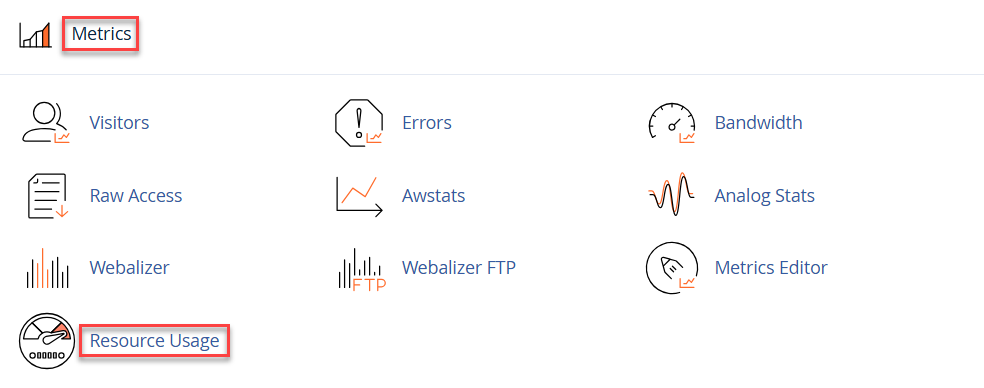
- In the ‘Metrics’ section, click ‘Resource Usage.’
- You will see a message like:
- “Your site had no issues in the past 24 hours.” or
- “Your account has reached resource limits within the past 24 hours.”
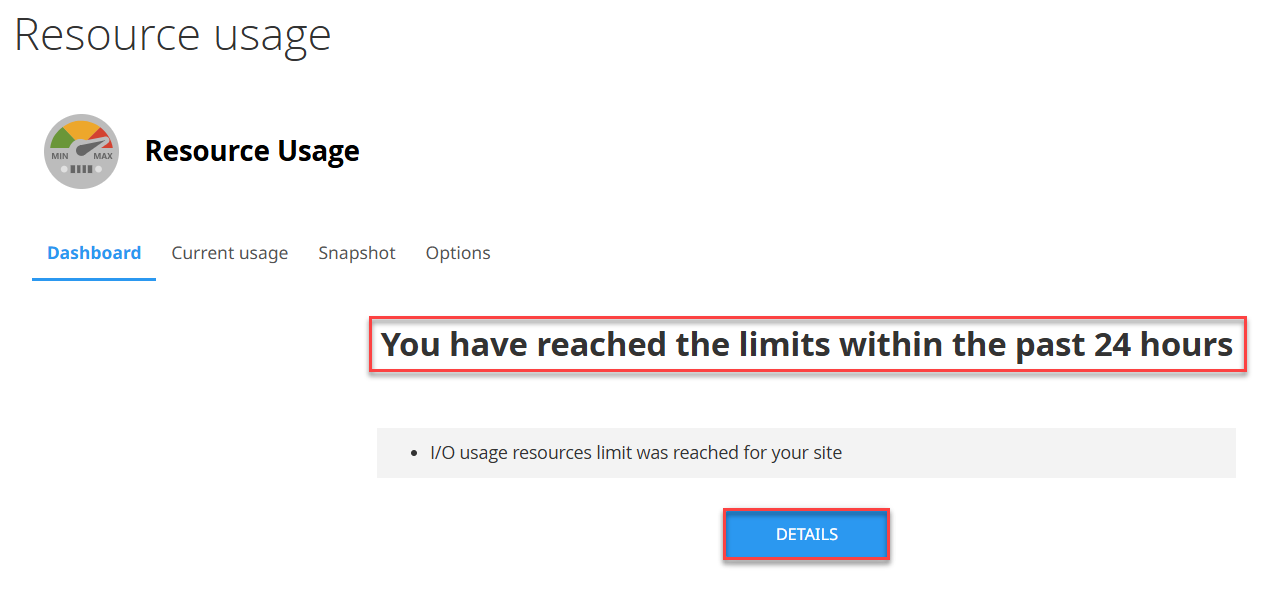
- Click “Details” to view usage graphs for:
- CPU Usage: Measures how much of your server’s processor capacity is being used.
- Memory Usage: Shows the amount of physical RAM in use.
- I/O Usage & Operations: Tracks disk read/write activity and input/output operations.
- Entry Processes: Number of simultaneous scripts or connections running on your account.
- Processes: Active processes currently running on the server.
- System Faults: Errors or issues detected in server operations.
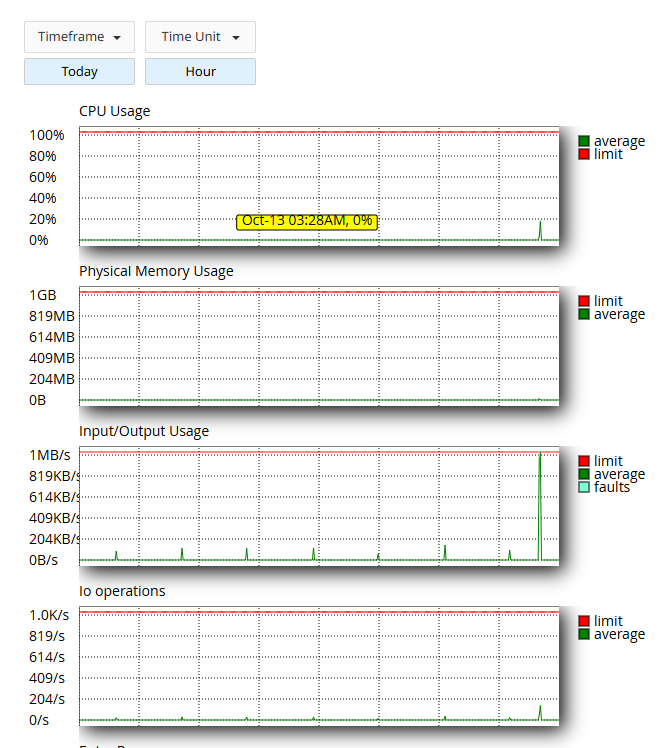
Tip: If CPU or memory usage frequently hits 100%, your website may need a higher hosting plan with more resources.
Check Disk Space Usage
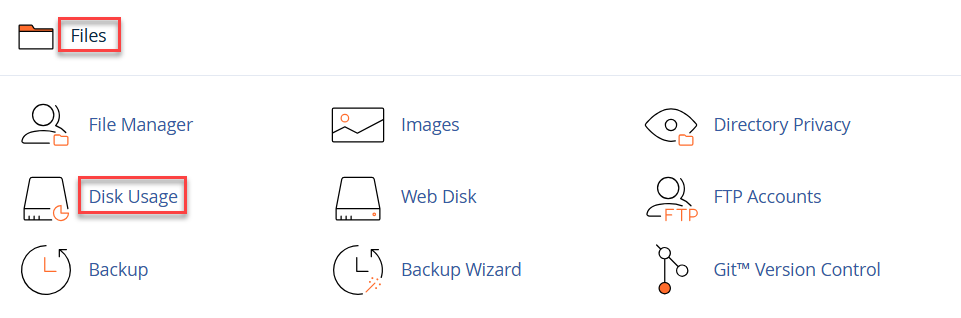
- In the ‘Files’ section, click ‘Disk Usage.’
- You will see a detailed list showing:
- Files in home directory: around 16 MB, these are files located in your /home/username/ directory.
- Files in hidden subdirectories: around 95 MB, used by system or configuration folders.
- public_html: approximately 247 MB, this is your main website directory where WordPress files are stored.
- tmp folder: about 48 MB, contains temporary and cached data.
- etc, logs, php, ssl directories: range between 07 MB to 2.76 MB, hold configuration files, logs, and SSL-related data.
- Databases: about 42 MB, representing storage used by your WordPress or application databases.
- Email Accounts: around 17 MB, shows the space used by emails under your hosting account.
- At the bottom, you will also see a summary like:
259.35 MB total disk space used
5,000.00 MB quota limit (258.85 MB used)
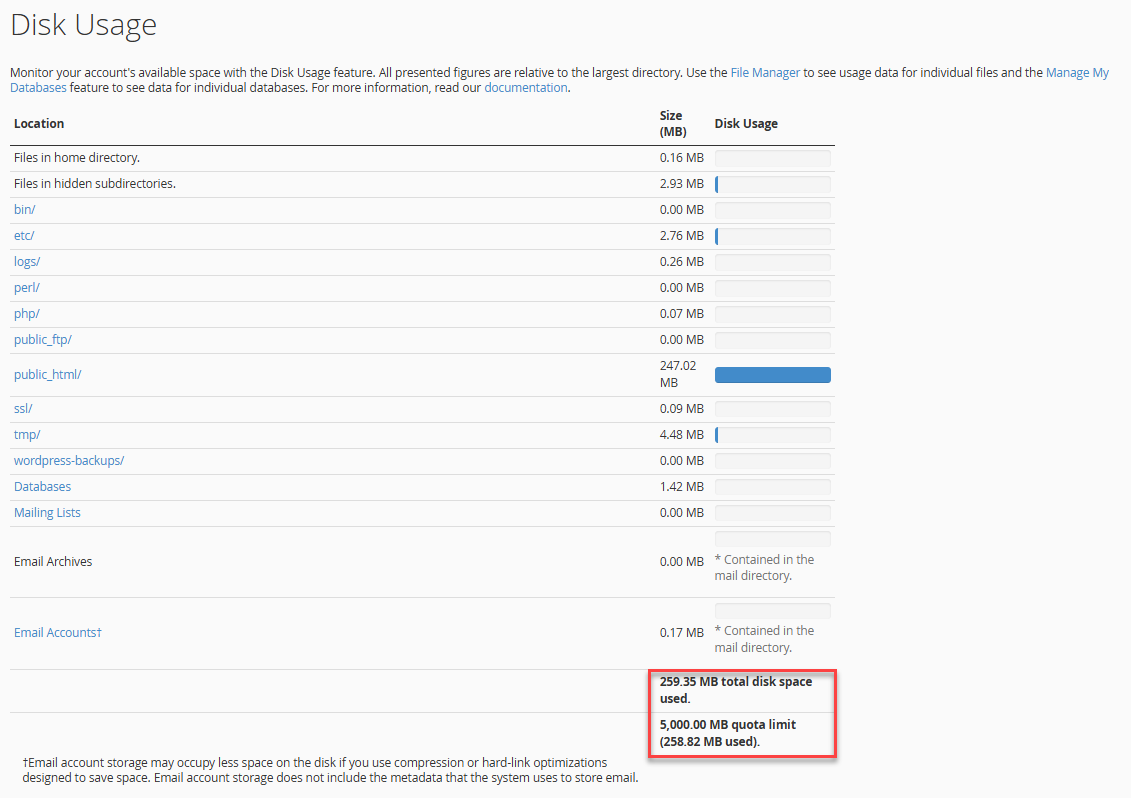
This helps you understand your total usage and how much storage remains available.
Tip: Regularly remove unused plugins, old backups, and media files to free up storage.
Monitor Bandwidth Usage
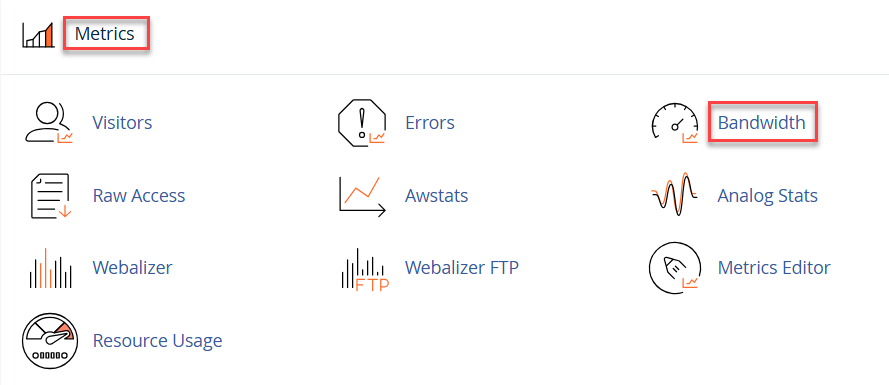
- In the ‘Metrics’ section, click ‘Bandwidth.’
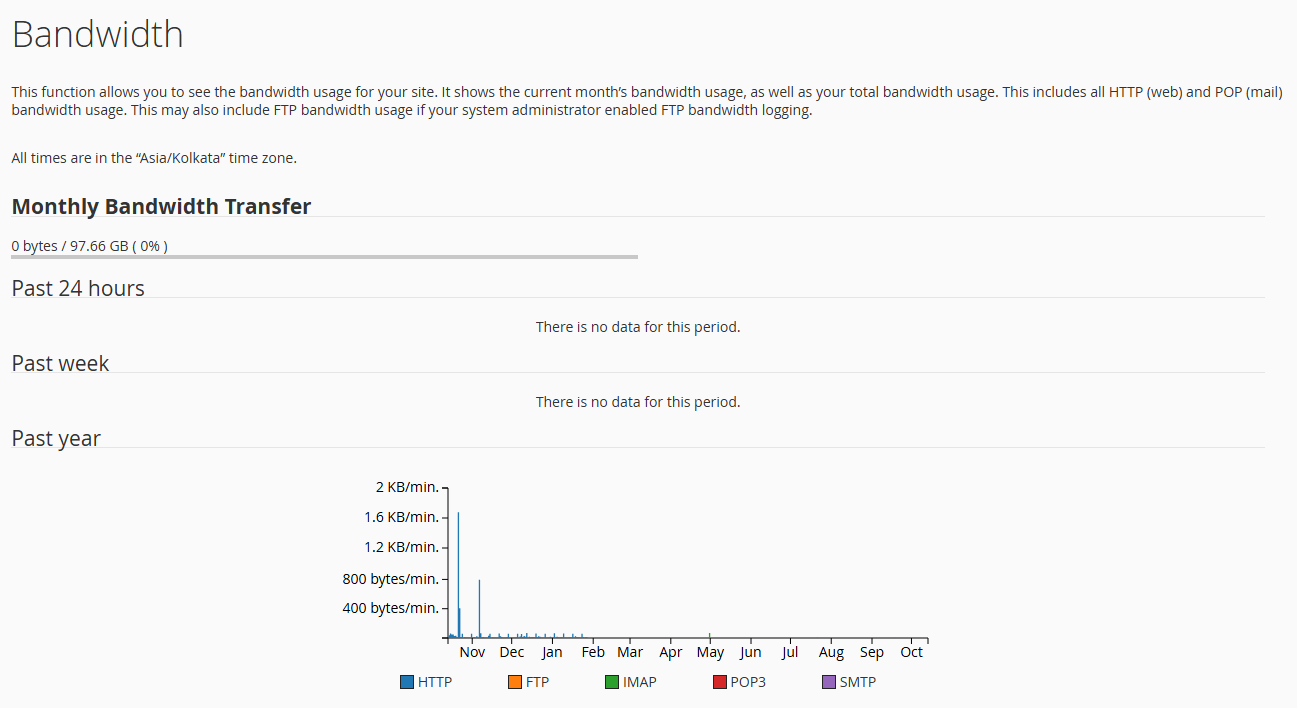
- You will see a detailed Bandwidth Usage page (as shown in the image).
- It displays graphs that show how much data your website has used over different periods, the past 24 hours, the past week, and the past year.
- The Monthly Bandwidth Transfer section indicates your total bandwidth usage out of the allocated limit (for example, 0 bytes / 97.66 GB).
- The chart at the bottom helps visualise usage across HTTP, FTP, IMAP, POP3, and SMTP services.
 Tip:
Tip:
When to Upgrade?
If you notice:
- CPU or memory usage often reaches 90–100%.
- Slow loading times despite optimisation.
- Limited disk space or frequent ‘resource limit reached’ messages.
Upgrading provides you with additional CPU power, increased memory, and expanded storage, enabling your site to handle higher traffic and richer media without slowing down.
Conclusion
This way, regularly checking your hosting resource usage helps you maintain optimal website performance and plan future upgrades efficiently. By staying within resource limits, you always experience fast, stable, and secure access to your WordPress site.