
Automated backups are essential for protecting your website and server data against accidental loss, cyberattacks, or hardware failures. This guide explains how to configure automated backups using R1Soft and Acronis, along with best practices to ensure data reliability and security.
Table of Contents
How to configure Automated Backups with R1Soft?
- Access R1Soft
- Log in to your cPanel, WHM, or directly into the R1Soft Backup Manager.
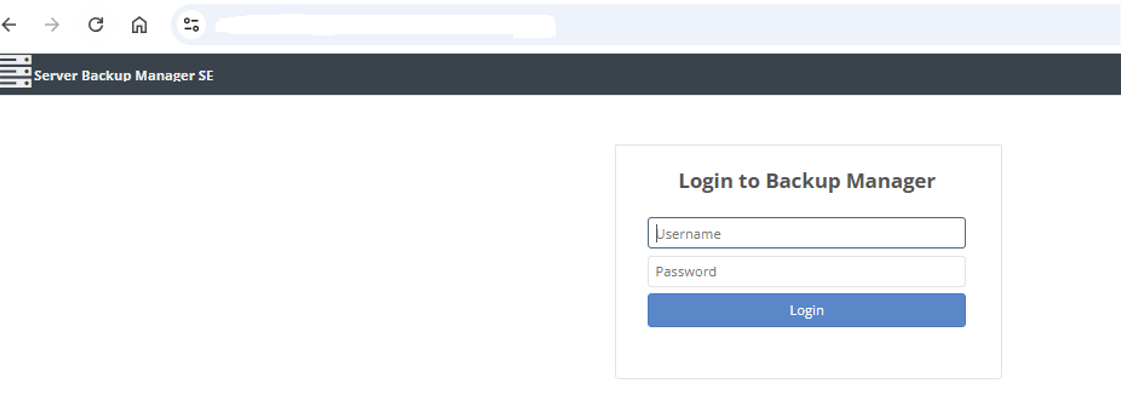
- Navigate to the Backup Manager dashboard.
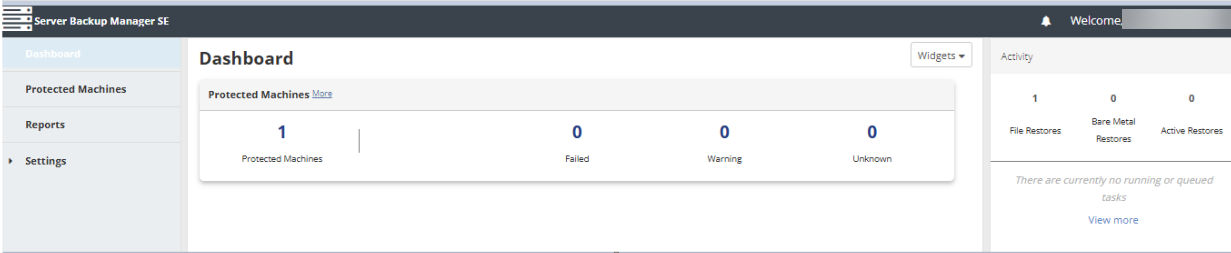
- Log in to your cPanel, WHM, or directly into the R1Soft Backup Manager.
- Add a Server
- Click Add Server.
- Enter the server details:
- IP Address
- SSH credentials (use key-based authentication where possible)
- Server Name
- Click Save to register the server.
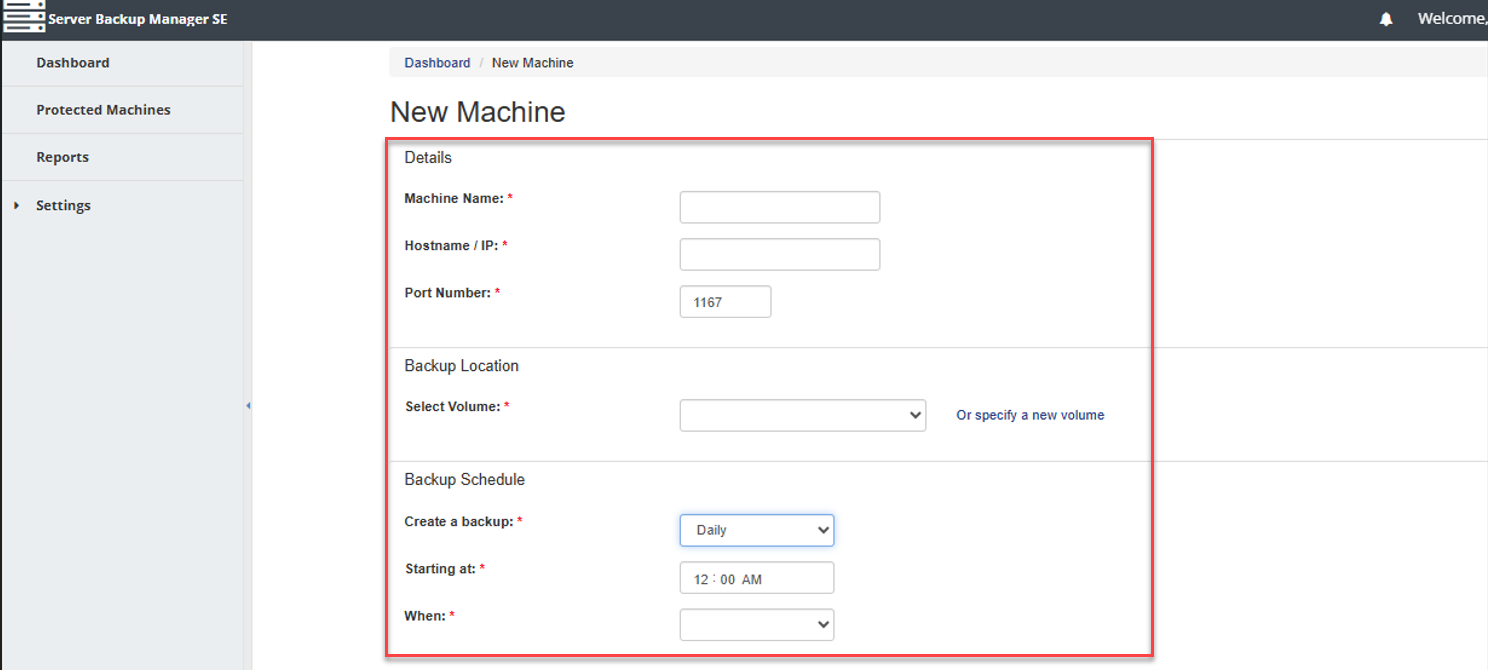
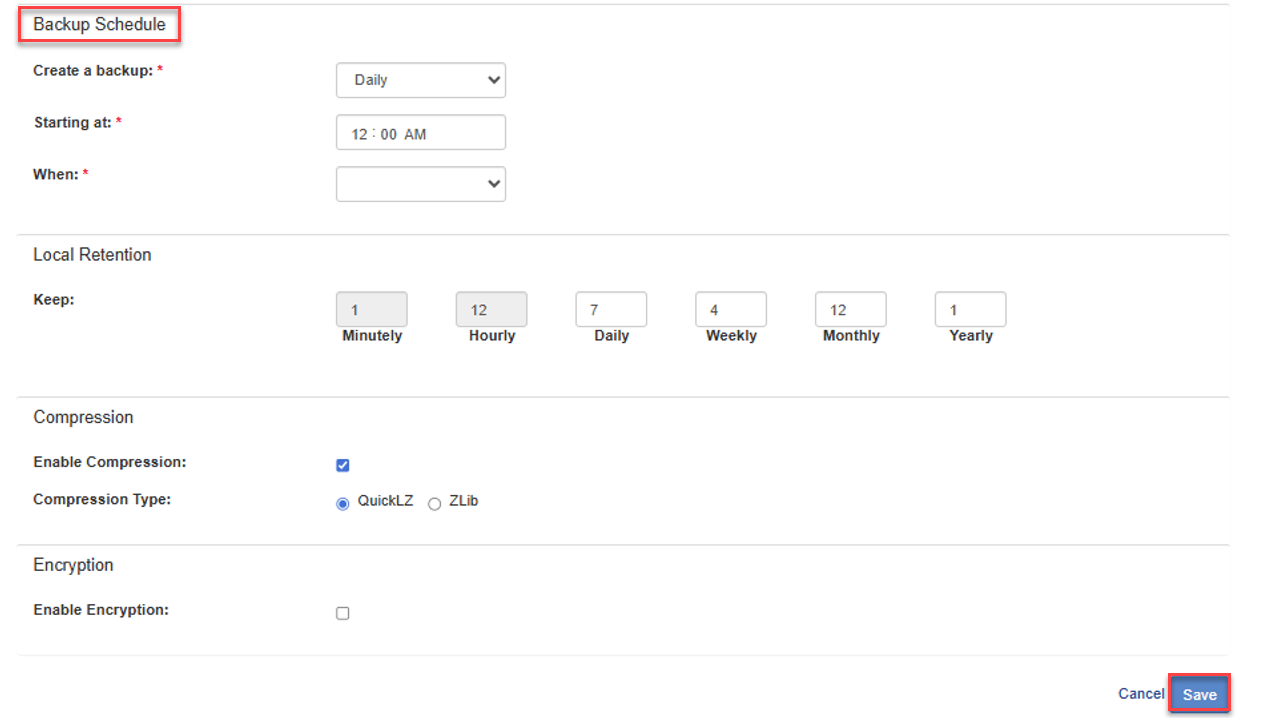
- Create a Backup Schedule
- Select the server you want to back up.
- Click Create Backup Schedule.
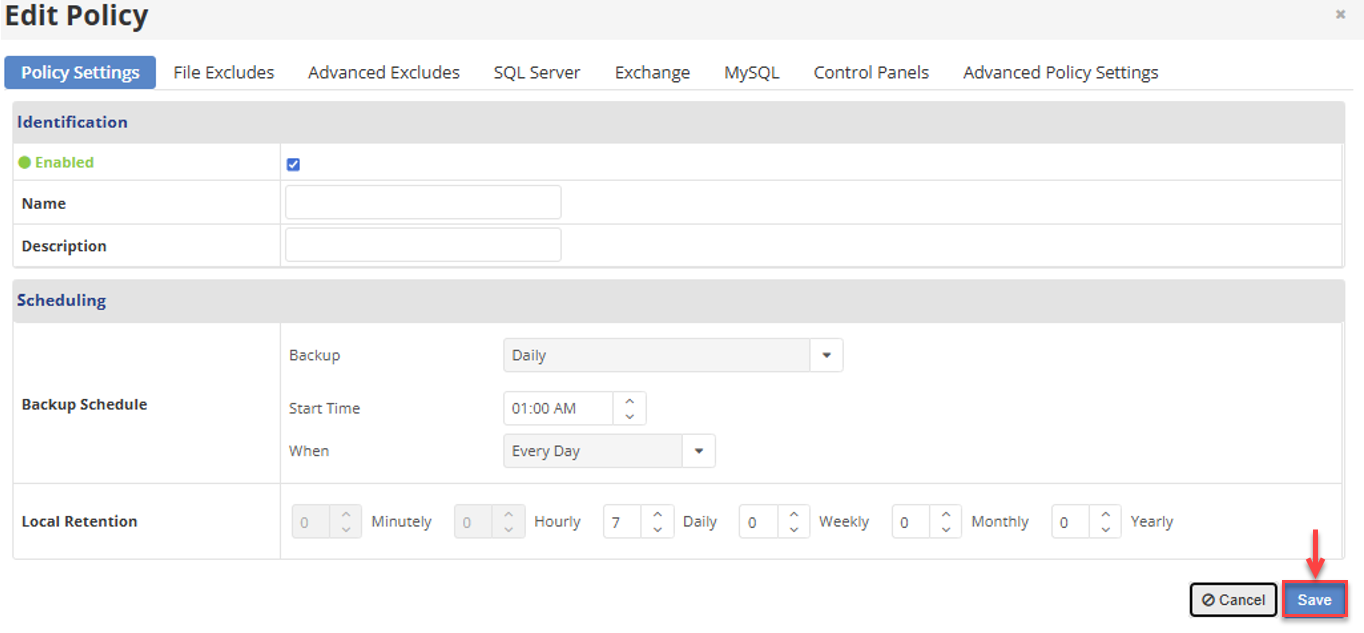
- Configure:
- Frequency: Daily, Weekly, or Hourly
- Retention Policy: Number of backups to keep
- Data Scope: Files, databases, or both
- Save the schedule to activate it.
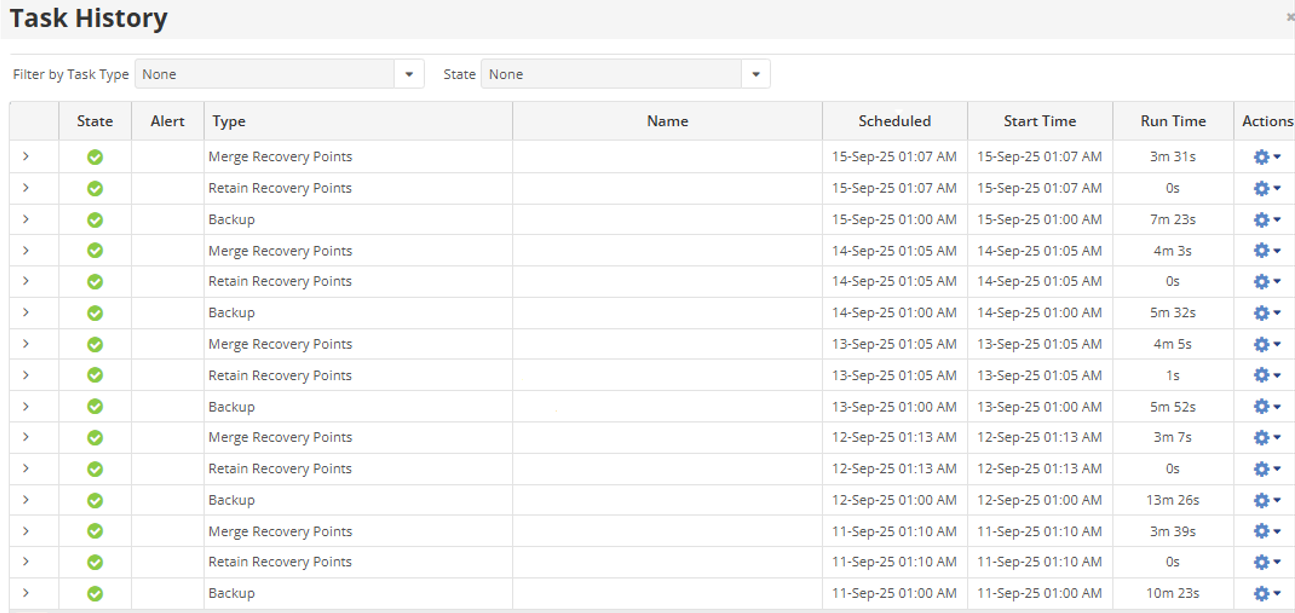
- Verify the Backup
How to configure Automated Backups with Acronis?
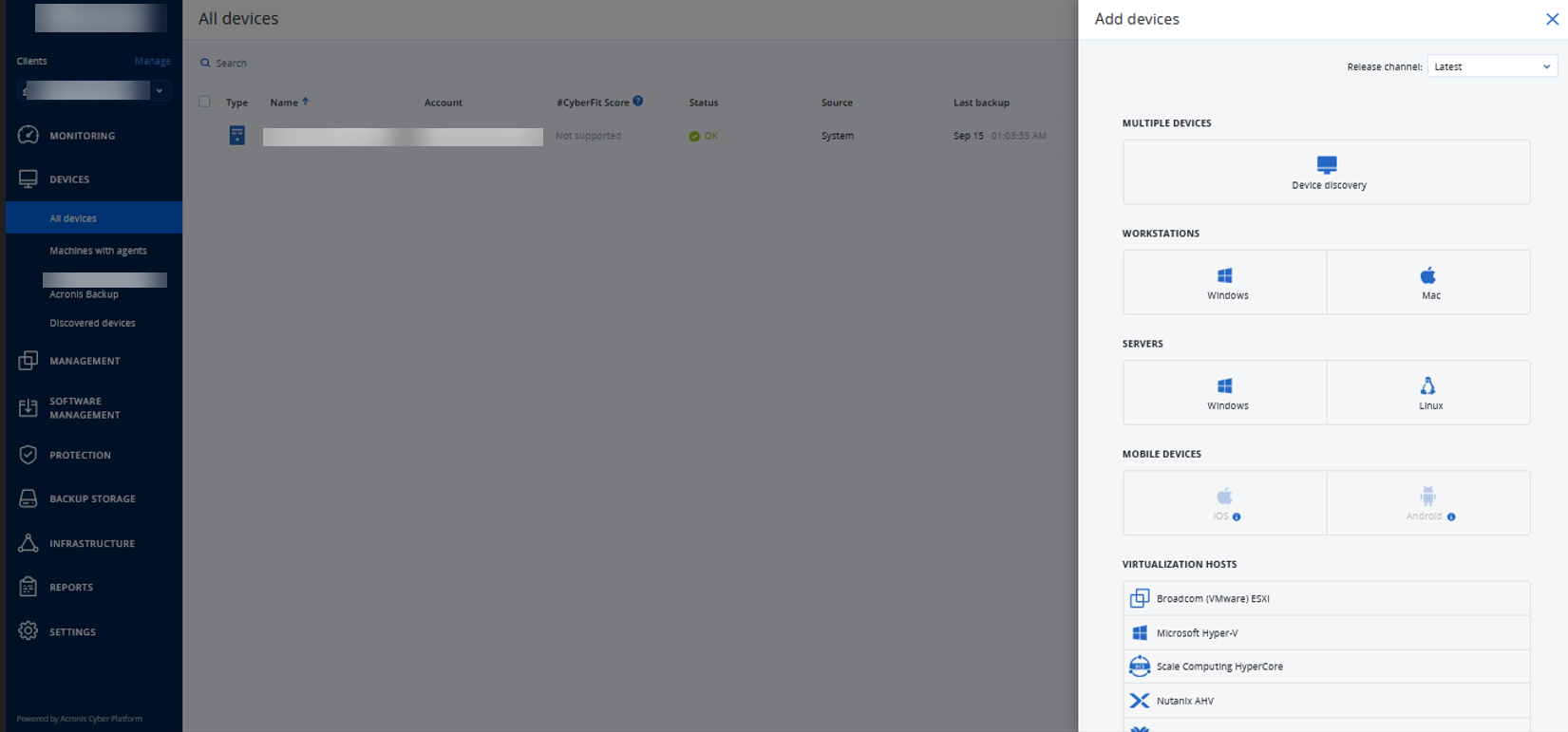
- Access Acronis Dashboard
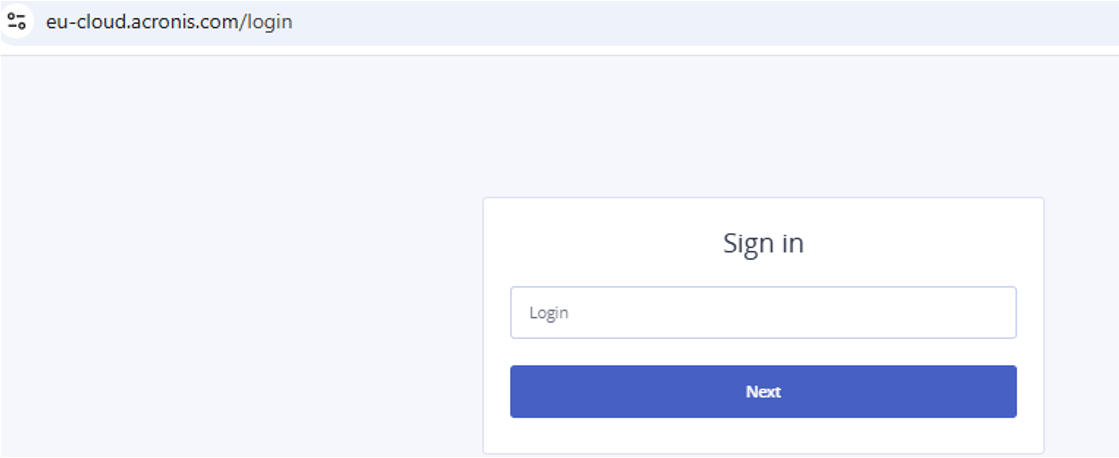
- Log in to your Acronis account.
- Go to Devices and select the server or PC you want to protect.
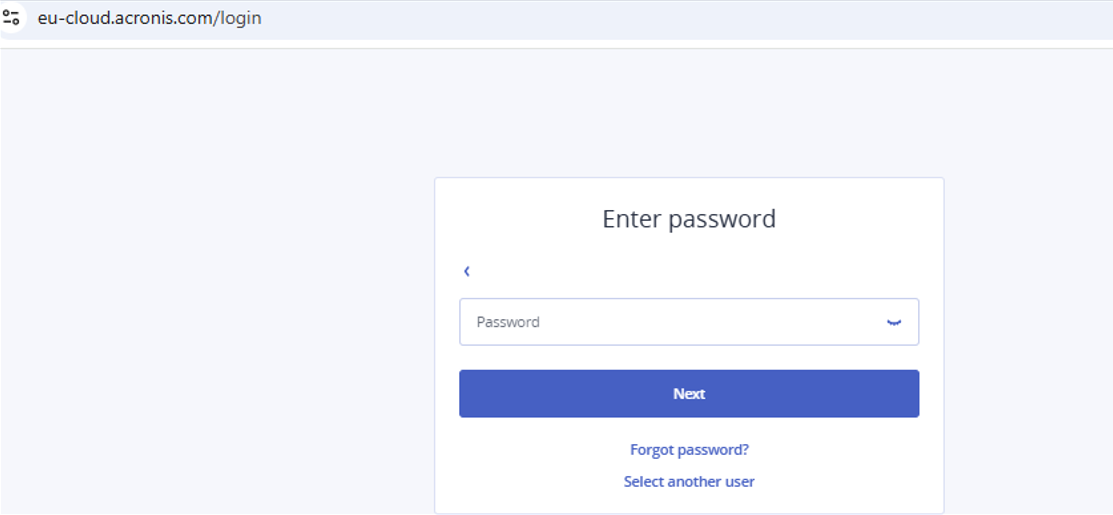
- Log in to your Acronis account.
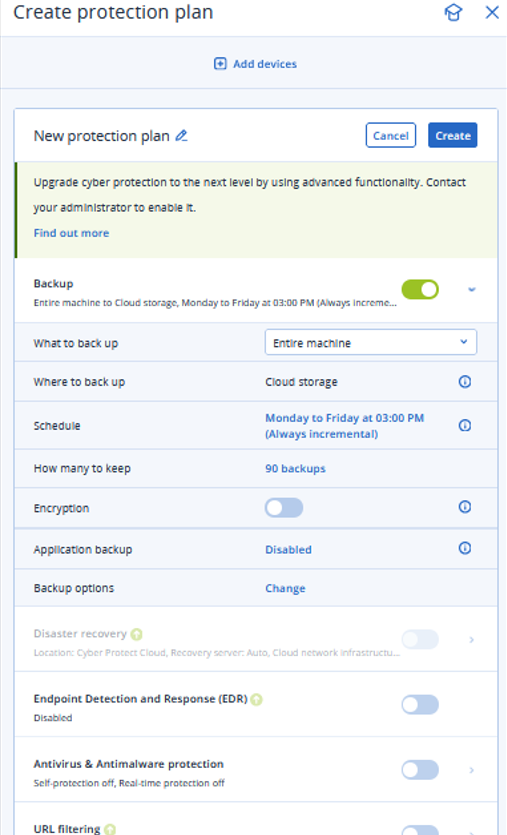
- Create a Backup Plan
- Click Add Backup.
- Select the Backup Source: Files, folders, or the entire disk.
- Choose a Backup Destination:
- Acronis Cloud Storage
- Local storage
- Network storage
- Schedule Backups
- Set the backup frequency: Daily, Weekly, or Custom.
- Enable Incremental Backups to save storage and improve speed.
- Enable Email Notifications to receive alerts.
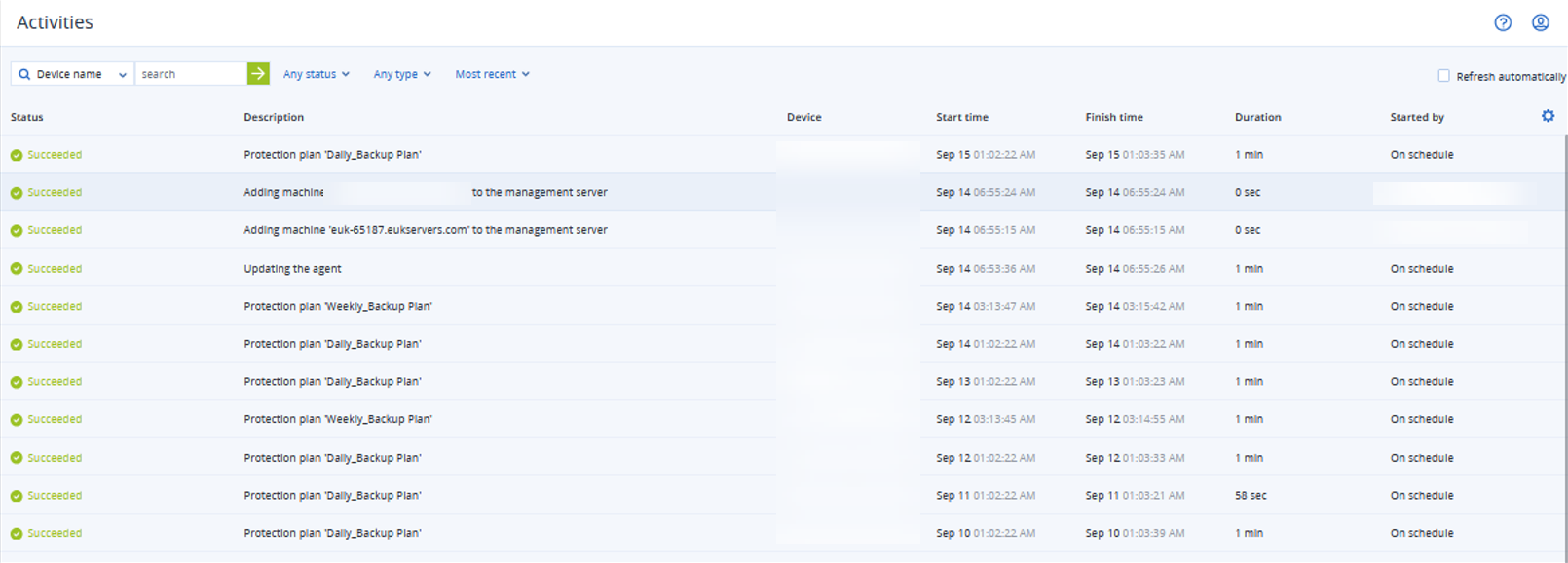
- Run and Verify
Best Practices for Automated Backups
- Test restores regularly to ensure backups can be restored successfully.
- Use multiple locations by keeping copies in both local and cloud storage for redundancy.
- Monitor backup logs frequently to detect issues early.
- Enable notifications to get alerts for failed or incomplete backups.
- Secure backup access with strong authentication and encryption.
- Optimise scheduling by using daily incremental backups with weekly full backups for high-traffic websites.
Conclusion
By setting up automated backups using R1Soft or Acronis and following the steps above, you can protect your website and server data, reduce downtime, and ensure fast recovery when required.
Configured automated backups? Learn How to create a backup using R1Soft’s CDP agent on an offsite server