
A Catch-All email address in cPanel allows a mailbox to receive messages sent to invalid or non-existent addresses within your domain. This ensures that emails sent to mistyped or unused addresses are not lost.
In this guide, you will learn how to set up a catch-all email address in cPanel quickly and efficiently.
Follow these steps to create a Catch-All email in cPanel:
- Log in to cPanel.
- Select ‘Default Address’ under the ‘Email’ section.
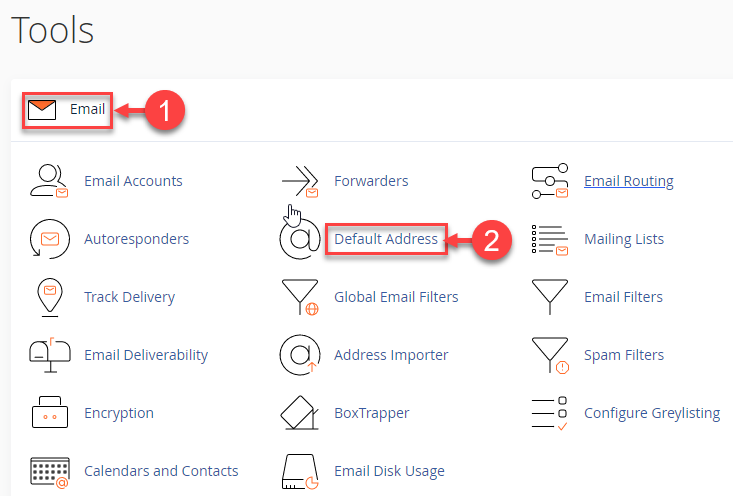
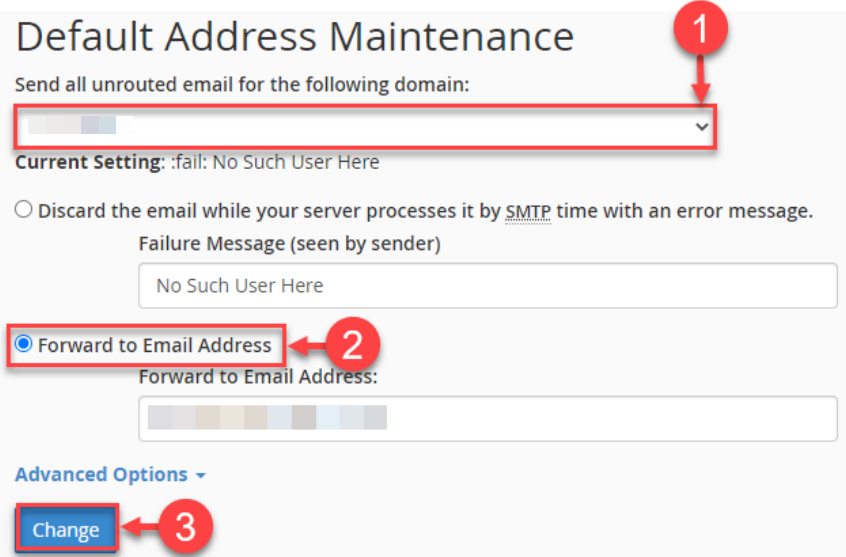
- Set up your Catch-All email:
- Select the domain for which you want to set up the catch-all address from the drop-down menu.
- Choose ‘Forward to Email Address’.
- Enter the email address where all misdirected emails should be forwarded.
- Click ‘Change’ to save your settings.
- Lastly, verify your setup by sending a test email to a non-existent email address under your domain to ensure it is delivered to the catch-all address.
Expert Tips:
- Use a dedicated email address as your Catch-All to keep your main inbox organised.
- Regularly monitor the catch-all mailbox to filter or delete irrelevant messages.
- Combine catch-all functionality with email filters to automatically sort incoming emails.
In this way, setting up a catch-all email address in cPanel helps ensure that no important emails are missed and allows you to manage all incoming messages for your domain efficiently. Our support team is always available via live chat, ticket, or email if you need any assistance.