
This article explains how to add an MSSQL database connection string in the web.config file for a website hosted on a Windows-based Plesk server.
Prerequisites
- A Windows hosting plan in Plesk
- An existing MSSQL database and database user
- Access to Plesk File Manager
Steps to Add MSSQL Connection String in web.config
- Log in to Plesk Panel.
- Select a domain and click on the Files option.
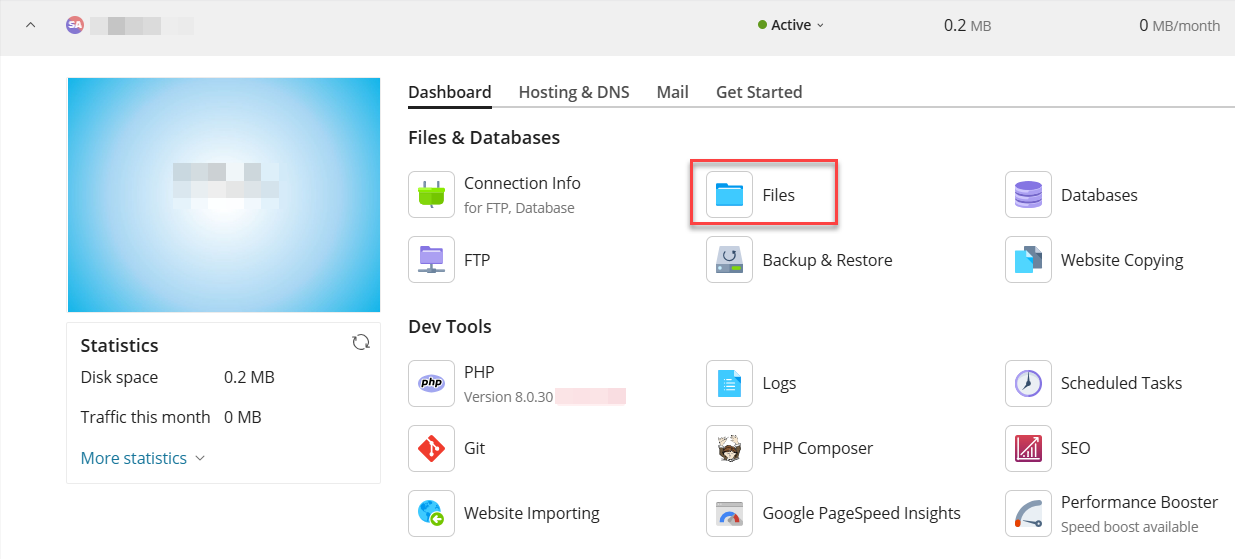
- Select httpdocs from the left-hand side of the screen.
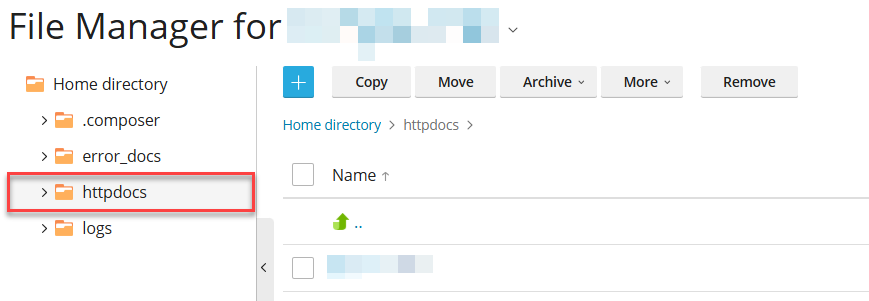
-
Locate the web.config file and click Edit.
If the file does not exist, create a new file named web.config.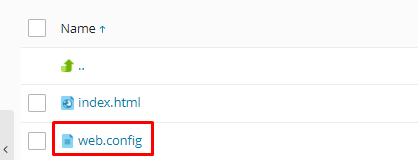
-
Add the MSSQL Connection String.
Inside the <configuration> section, add the following example: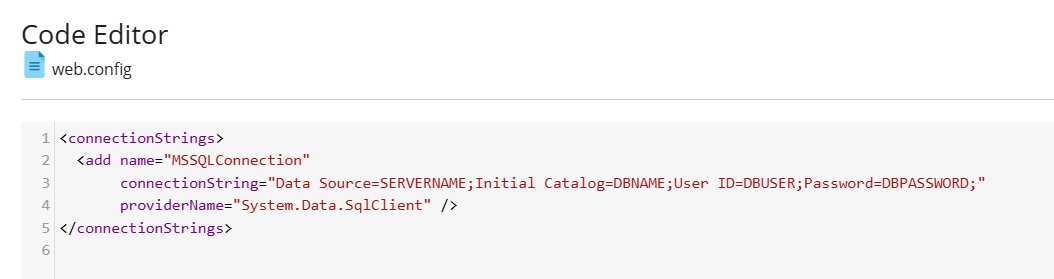
Replace:- SERVERNAME with your MSSQL server name
- DBNAME with the database name
- DBUSER and DBPASSWORD with database credentials
-
Click Save to apply the changes.

By following the above steps, you can successfully add or update an MS SQL connection string in the web.config file on a Windows Plesk server. Ensure the connection details are correct and save the file after making changes. If the application does not connect as expected, recheck the credentials and file location.
Learn more by reading How to Use Link Server Nodes to Create Connections in WHM