
This article explains how to permanently delete all email messages from a specific email account in cPanel. This is useful when you need to free up disk space, clean up old or unwanted emails, or reset an email mailbox without deleting the email account itself.
Note: This guide removes emails (messages) only. It does not delete the email account from cPanel.
Steps to remove all email messages from cPanel:
- Log in to cPanel.
- Navigate to Email > Email Accounts.
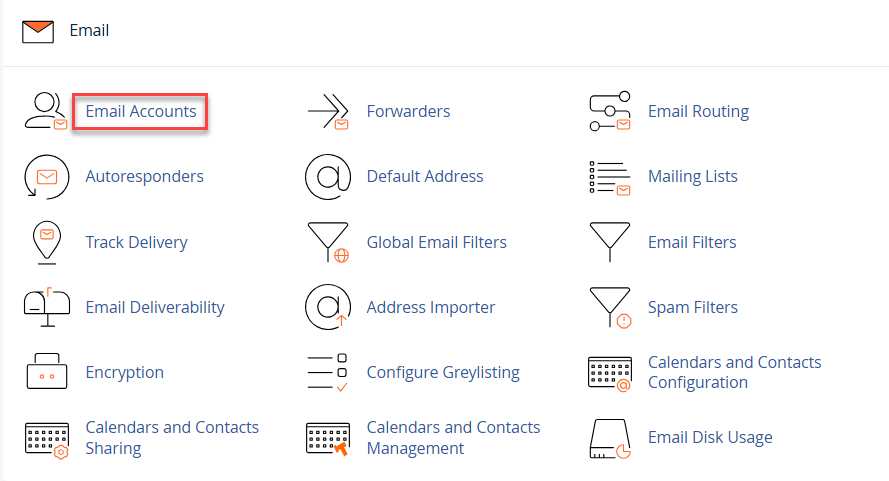
- Locate the email account whose messages you want to delete and click Check Email.

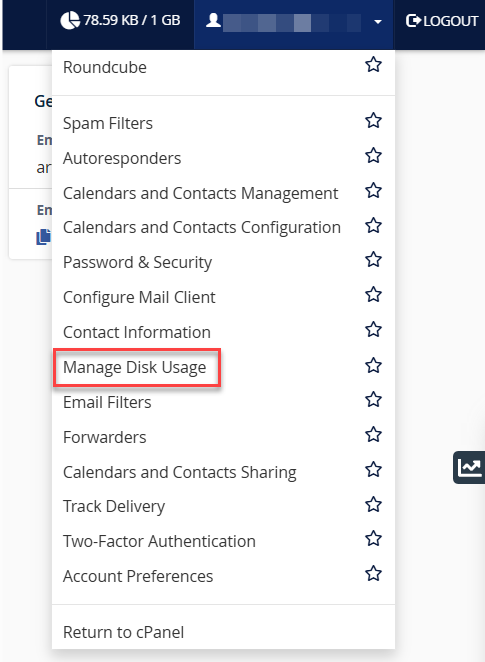
- In the Webmail interface, click the gear icon or drop-down menu (top-right corner) and select Manage Disk Usage.
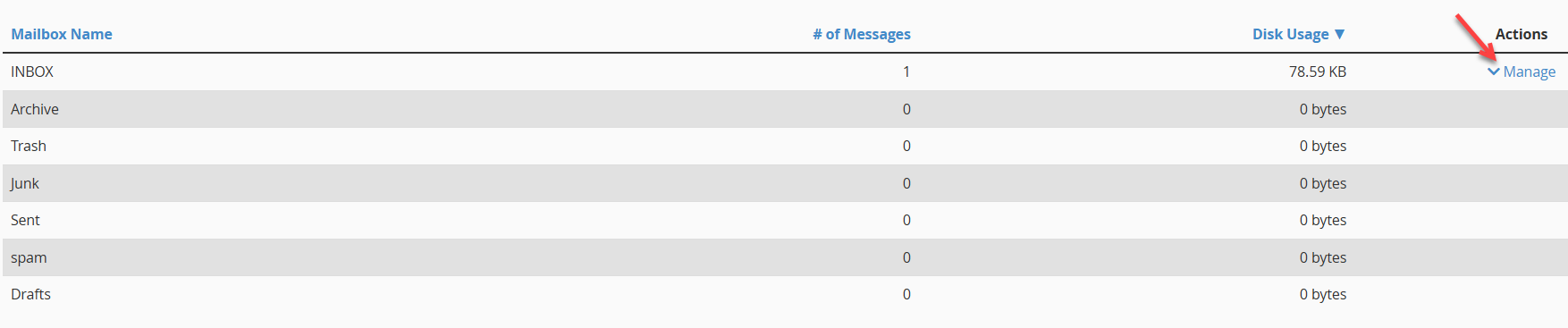
- On the Disk Usage page, choose the email folder (such as Inbox, Sent, Spam, or Trash) from which you want to delete messages.
- Click the Manage option under the Actions column.
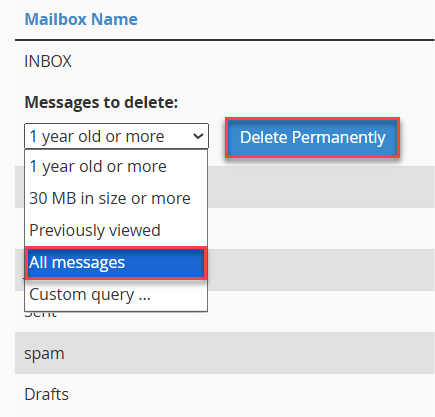
- From the Messages to delete drop-down, select All messages.
- Click Delete Permanently.
- Repeat the above steps for other folders to completely remove all emails from the mailbox.
You have successfully deleted all email messages from a cPanel email account. This helps reclaim disk space while keeping the email account active.
If you need assistance or want to remove the email account entirely, please contact our support team, available 24×7.