
Proactive server monitoring allows you to identify performance or security issues before they impact uptime. By setting up resource monitoring and automated alerts, you can keep your server running smoothly and avoid unplanned downtime.
This guide explains how to monitor your dedicated server’s performance, configure alerts, and use available tools in WHM or external monitoring platforms.
Table of Contents
Why Proactive Monitoring Matters?
Regular monitoring helps you:
- Detect high resource usage before it affects site performance.
- Identify failing services early.
- Ensure consistent uptime for websites and applications.
- Reduce response time to potential system issues.
Proactive monitoring gives you peace of mind and guarantees maximum reliability for your hosting environment.
Check Resource Usage in WHM
- Log in to WHM as root.
- Navigate to Server Status > Service Status.
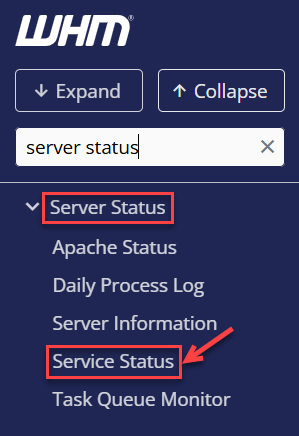
- Review system metrics such as CPU load, memory usage, and disk space.
- If you notice unusual spikes or persistent high usage, investigate the corresponding service (like MySQL or Apache).
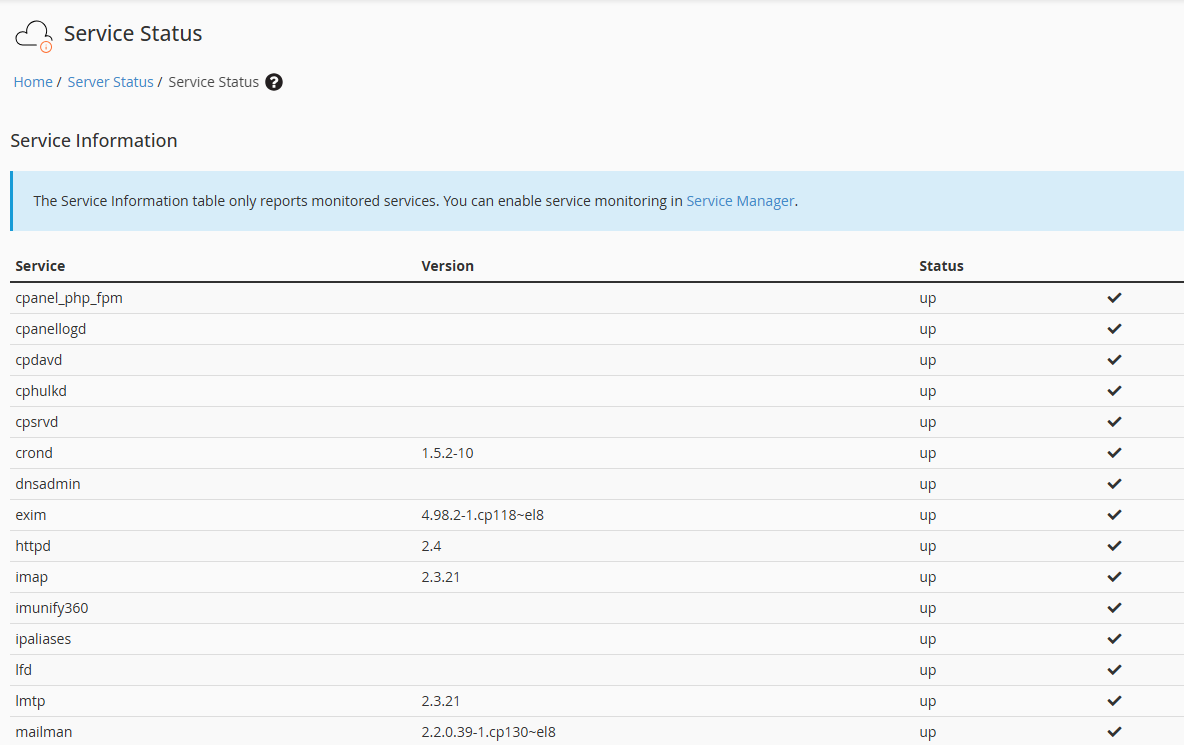
For a detailed guide, refer to How to Check Service Status in WHM and Monitor Server Health.
Enable Service Monitoring in WHM
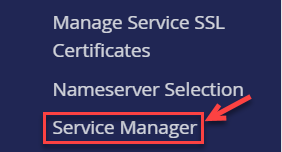
- In WHM, go to Service Configuration > Service Manager.
- Enable monitoring for essential services like Exim, FTP, and cPanel.
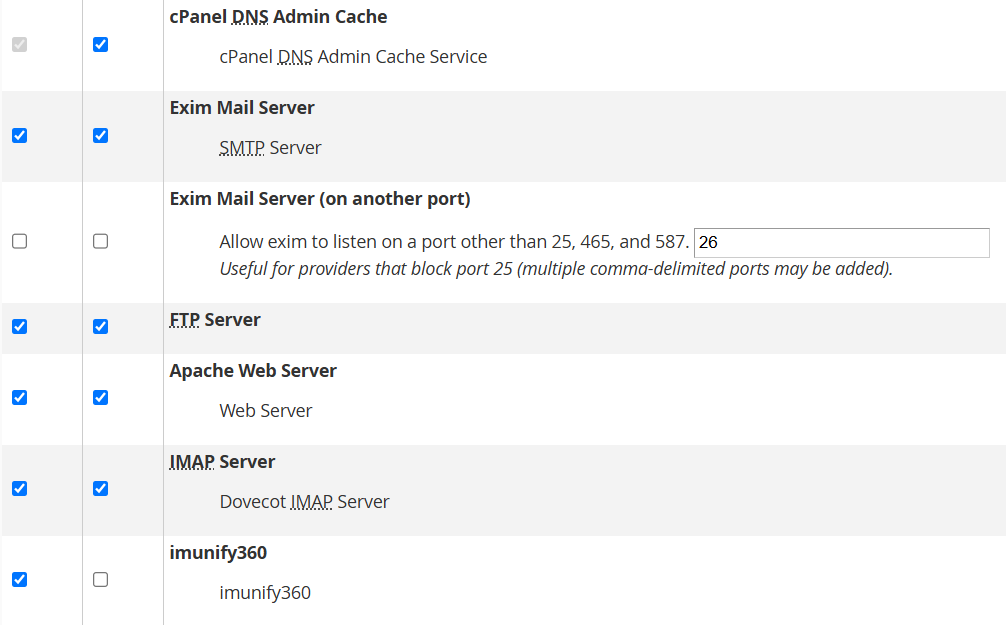
- Save the changes.

This ensures WHM automatically checks these services and alerts you if any fail.
Set Up Email Alerts for Service Failures
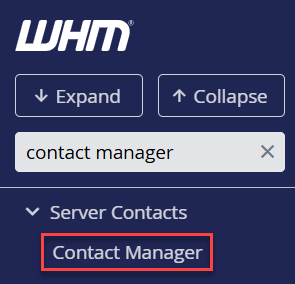
- In WHM, navigate to Contact Manager under Server Contacts.
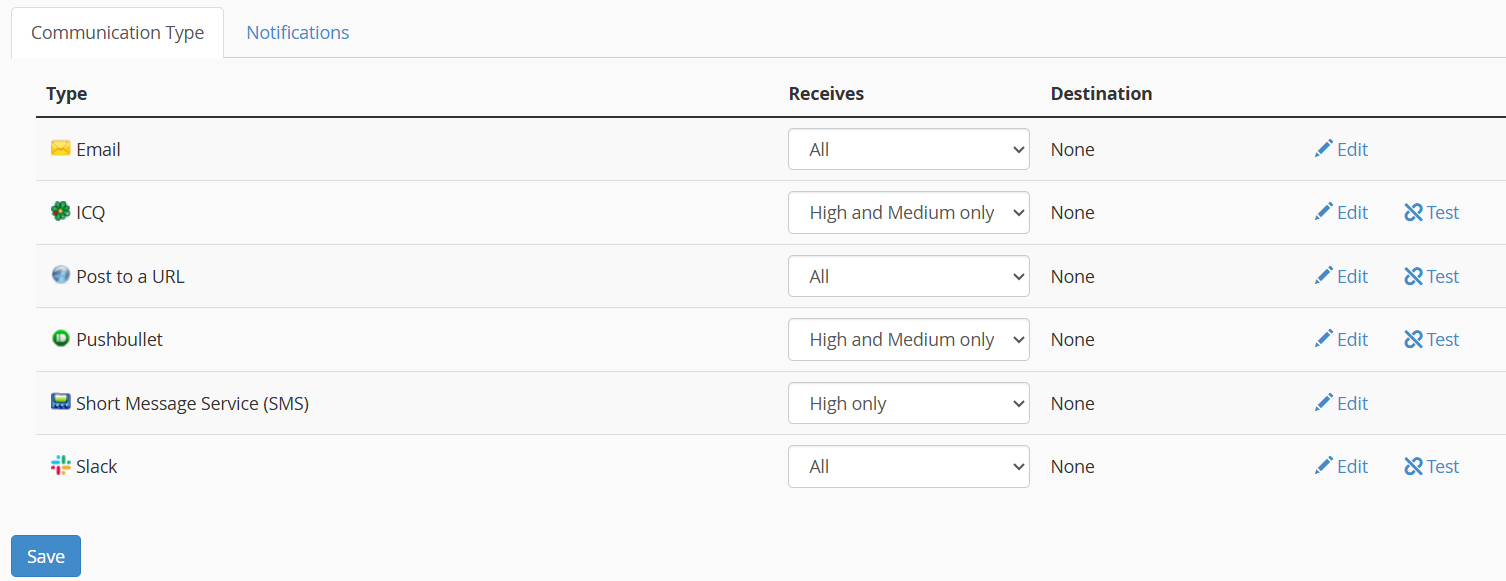
- Set your preferred notification level.
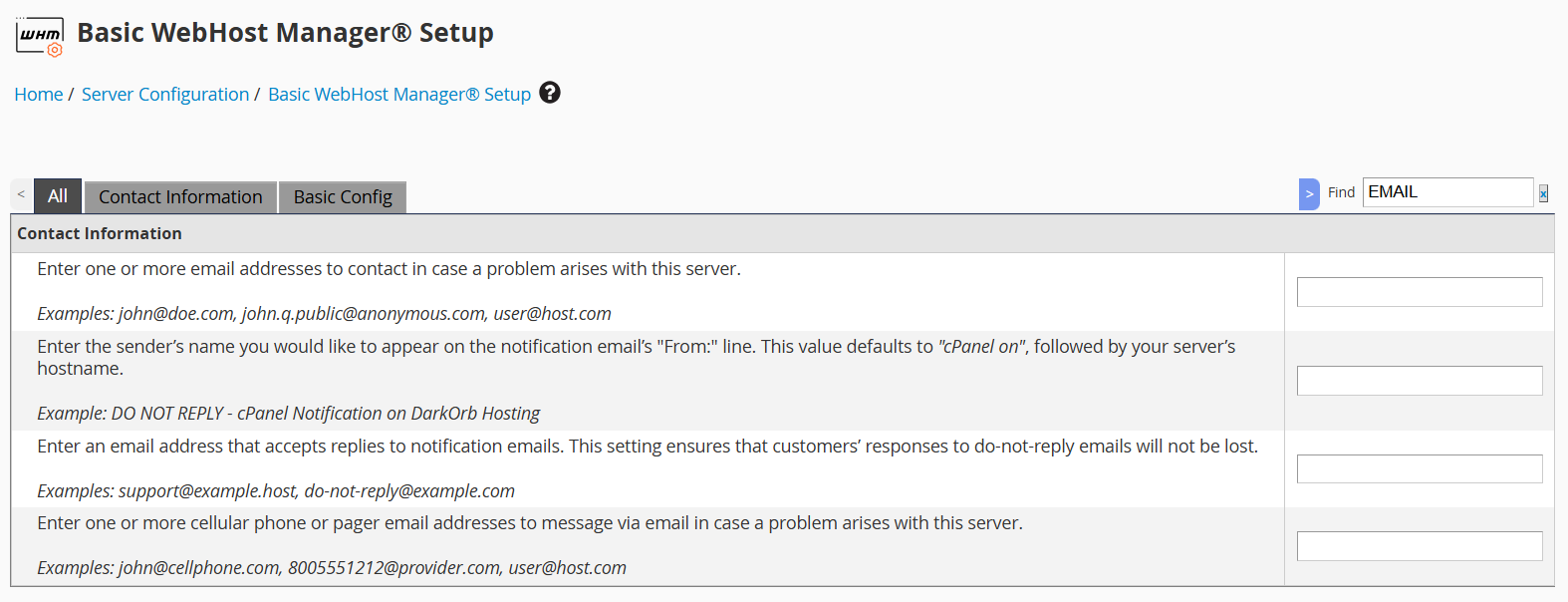
- Add your email address.
- WHM will send alerts for events like high load, failed services, or resource issues.
Use External Monitoring Tools
For more advanced monitoring, you can use third-party platforms such as:
- UptimeRobot or Pingdom for uptime and response checks
- Netdata, Zabbix, or Nagios for detailed performance graphs
- CSF/LFD email alerts for intrusion and resource warnings
These tools help track uptime trends and notify you instantly of potential downtime.
Best Practices for Ongoing Monitoring
- Review service status at least once a week
- Investigate alerts immediately to avoid escalations
- Keep software and control panels updated
- Schedule performance checks during low-traffic hours
By combining WHM’s built-in tools with external monitoring, you can maintain full visibility over your server’s health.
Conclusion
Setting up proactive monitoring provides early warnings about potential server issues, helping maintain uptime, performance, and overall system stability. It enables quick detection of irregularities, allowing corrective actions to be taken promptly.
If you need assistance with configuration or troubleshooting, feel free to contact our 24/7 technical support team. We are always happy to help.
Want to enhance your server management? Learn How to use an external/remote mail server for a domain hosted on a cPanel server