
Automation plays a vital role in keeping your dedicated server running smoothly, securely, and efficiently.
With a Managed Dedicated Server from eukhost, many maintenance tasks are already handled by our technical team. However, you can still automate additional areas to improve performance and reduce manual effort.
This guide explains how to configure key automation tools and features in WHM and Plesk, helping you save time, reduce human error, and optimise your server environment.
Table of Contents
- Why Automating Server Tasks Matters?
- Configure Automatic OS and Software Updates
- Set Up Automated Backups and Restore Points
- Schedule Maintenance Tasks
- Enable Monitoring and Automated Alerts
- Automate Code Deployments
- Automate Security Protection
- Application-Level Automation
- Leverage Managed Support for Automation
- Best Practices for Server Automation
- Conclusion
Why Automating Server Tasks Matters?
Automating regular server operations provides several advantages:
- Ensures critical updates and maintenance run on schedule
- Reduces the risk of human error
- Improves uptime and server reliability
- Saves time on repetitive manual work
- Maintains security and compliance standards
- Enables smoother scalability as your site or application grows
Configure Automatic OS and Software Updates
Your managed server includes automated operating system and software updates to ensure security and stability.
You can verify or modify update preferences from your control panel.
WHM:
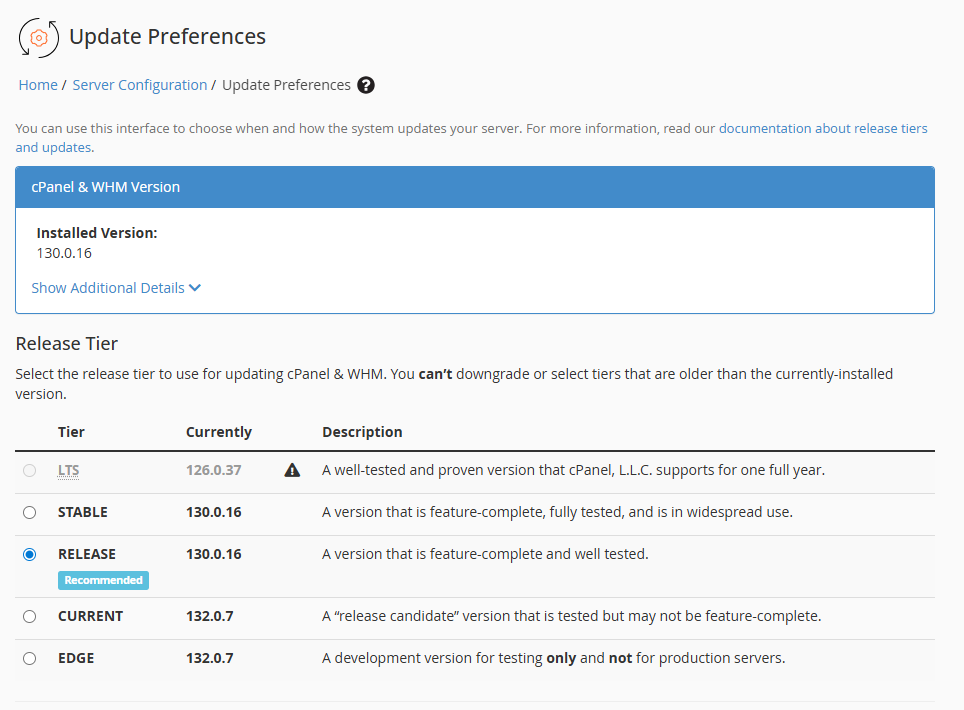
- Go to Server Configuration > Update Preferences.
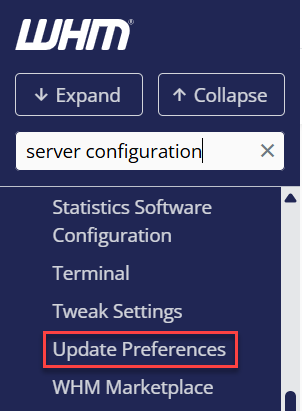
- Review update tiers for OS, Apache, PHP, and cPanel.
Plesk:
- Navigate to Tools & Settings > System Updates.
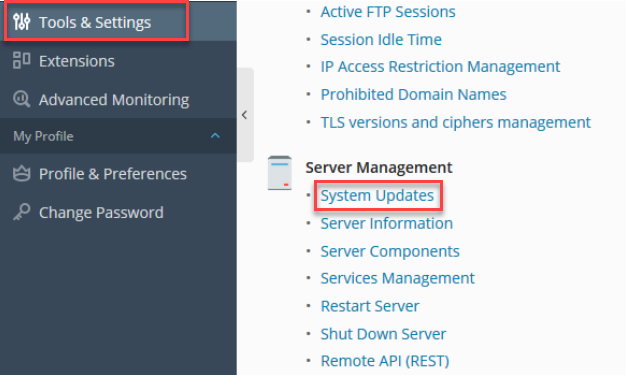
- Enable Automatic Updates for essential packages.
Automatically updated components:
Set Up Automated Backups and Restore Points
Backups are important for business continuity. Managed dedicated servers at eukhost come with automated daily or weekly backups, depending on your chosen backup solution (JetBackup, R1Soft/Idera, or Plesk Backup Manager).
WHM:
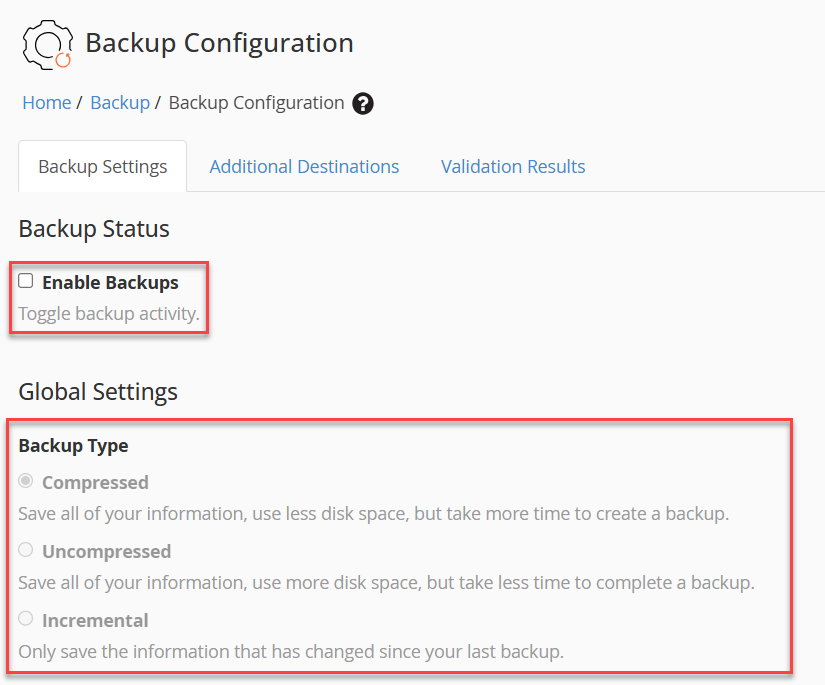
- Go to Backup Configuration.
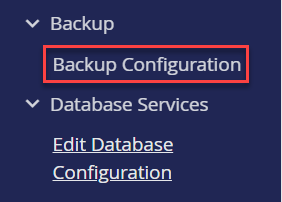
- Enable Backups, select Backup Type (Incremental or Compressed), and set your schedule.
Plesk:
- Navigate to Tools & Settings > Backup Manager.
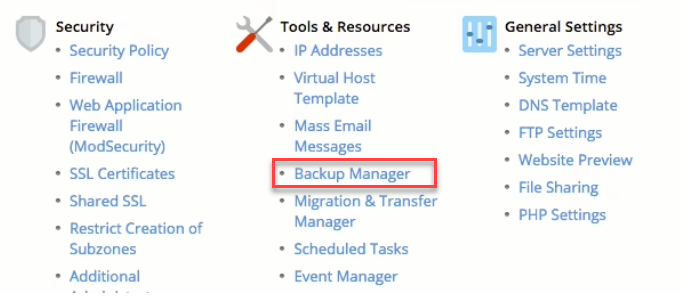
- Configure Automatic Backups and define retention policies.
Features:
- Incremental/full backups
- Remote storage (FTP/SFTP, Acronis, or R1Soft)
- Automated retention and restore options
Schedule Maintenance Tasks
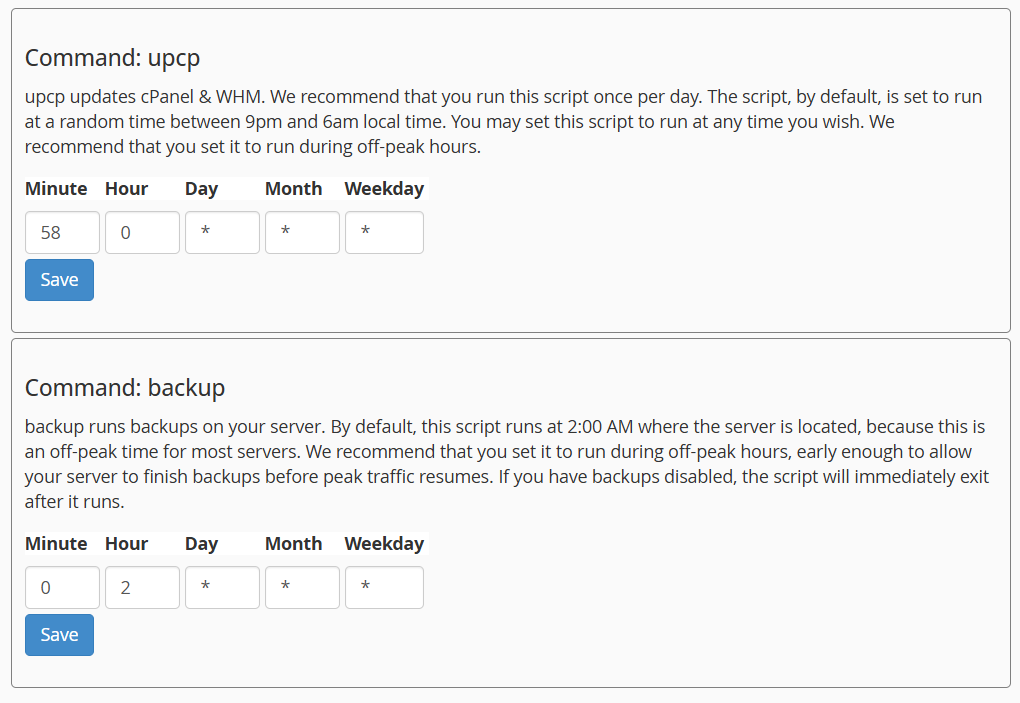
You can automate recurring maintenance tasks using Cron Jobs (on Linux) or Scheduled Tasks (in Plesk). This helps perform essential housekeeping automatically, saving time and ensuring your server stays optimised.
Examples of tasks to automate:
- Log rotation and cleanup
- Temporary file removal
- Database optimisation
- Restarting services
- Running custom maintenance scripts
WHM:
- Go to Server Configuration > Configure cPanel Cron Jobs.
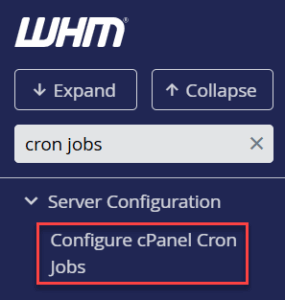
- Review or add cron job entries for scheduled maintenance tasks.
Plesk:
- Navigate to Tools & Settings > Scheduled Tasks.
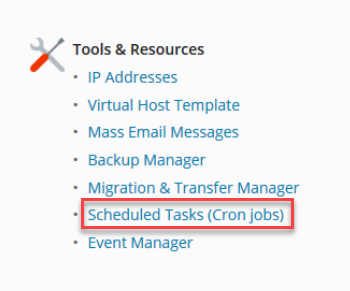
- Create a new task and define the command, frequency, and notification preferences.
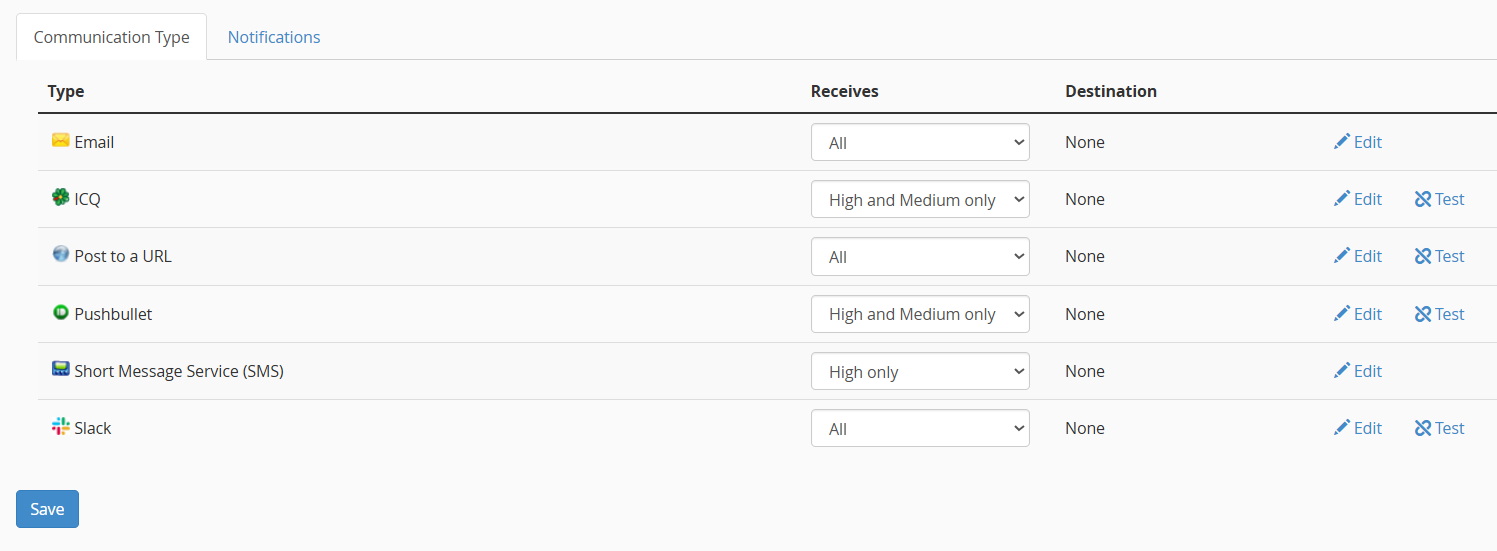
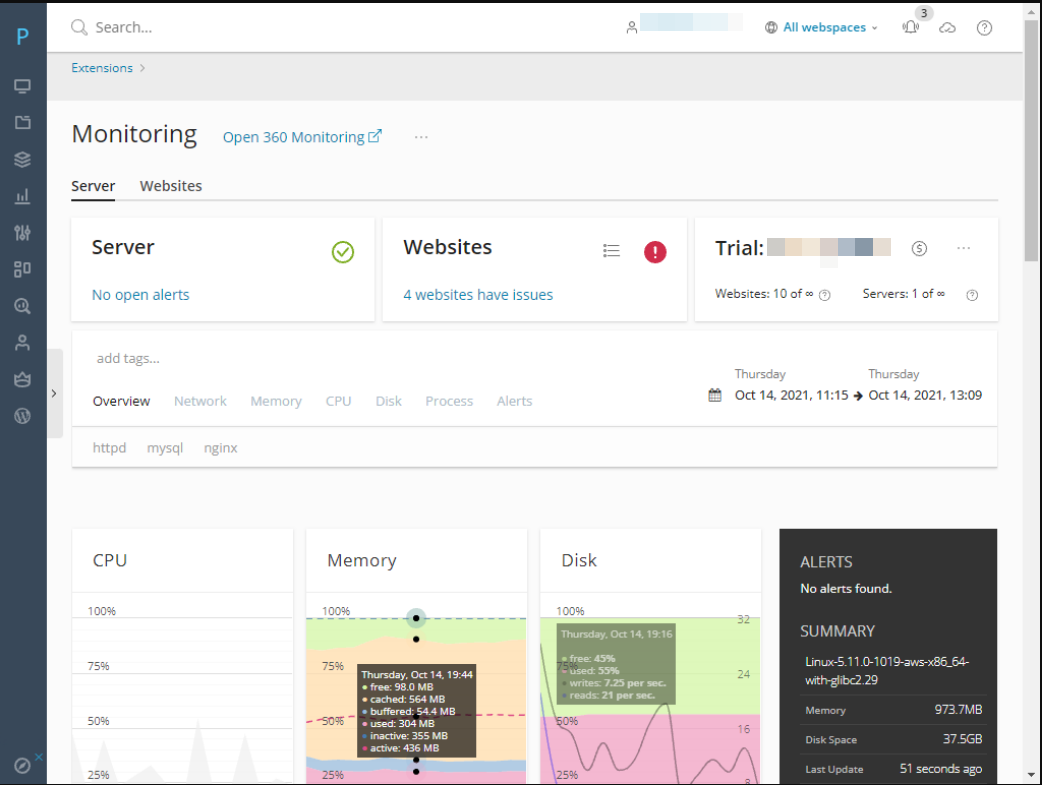
Enable Monitoring and Automated Alerts via the control panel
WHM:
- Go to Server Contacts > Contact Manager.
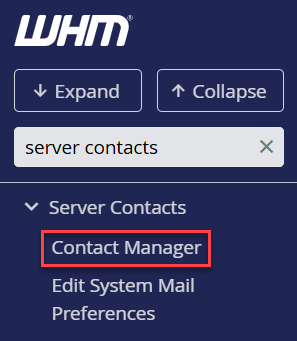
- Configure notification preferences for services.
Plesk:
Automate Code Deployments
Automating your deployment workflow guarantees smooth updates without manual intervention.
Options:
- Git Deployment via cPanel or Plesk
- Post-receive hooks to auto-deploy changes
- Zero-downtime deployment processes
Setup:
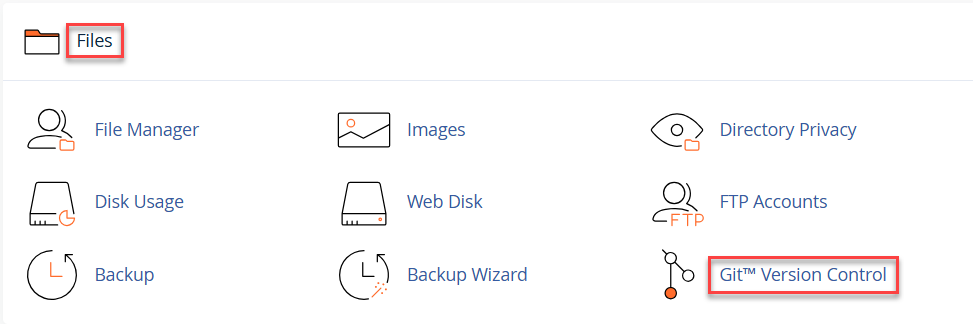
- In cPanel: Go to Files > Git Version Control.
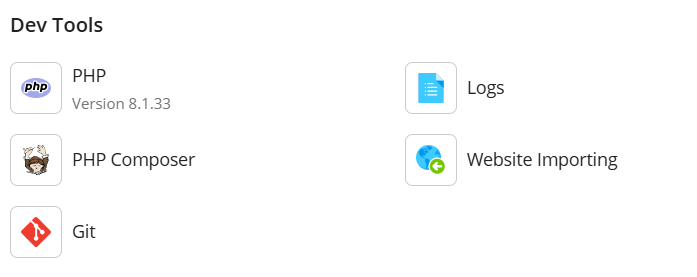
- In Plesk: Install the Git Extension.
This helps streamline site or application updates directly from your version-controlled repository.
Automate Security Protection
eukhost’s managed servers come with advanced automated security systems that protect against threats without manual configuration.
Examples include:
- Imunify360 / ImunifyAV: Automated malware scanning and cleanup.
- CSF/LFD Firewall: Auto-blocks suspicious IPs.
- cPHulk: Prevents brute-force logins.
- Daily vulnerability scanning and IP blacklisting prevention.
Regularly check the dashboards in WHM or Plesk to review detected threats and take action when needed.
Application-Level Automation
At the application level, most CMS platforms support task scheduling and maintenance automation.
Examples:
- WordPress: Auto-updates via cron or plugins
- Magento: Automated indexers and cache clearing
- Laravel: Use the scheduler (php artisan schedule:run) for periodic tasks
- Custom scripts: Set cron jobs for backups, cleanups, or data syncs
This ensures application-level maintenance runs automatically, improving performance and reliability.
Leverage Managed Support for Automation
Your Managed Dedicated Server includes full 24×7 technical support.
If you want to automate a specific task but aren’t sure how, our team can assist with:
- Custom cron configurations
- Advanced monitoring scripts
- Deployment automation setup
- Backup and retention optimisation
- Log and security management automation
You can raise a request anytime through your Client Area > Submit Ticket.
Best Practices for Server Automation
To maximise the benefits of automation:
- Review automation logs weekly
- Document all configured tasks and scripts
- Test custom automations in staging before deployment
- Keep off-site backups enabled
- Avoid overlapping schedules that may conflict
- Consult support before applying large-scale changes
Conclusion
This way, by automating updates, backups, deployments, and security, you simplify your managed dedicated server’s daily operations, reducing downtime and improving performance.
Automation not only saves time but also confirms consistency, stability, and scalability for your business applications.
For expert help with automation setup or optimisation, contact our 24×7 Technical Support team.
Looking to automate your server protection? Check out our guide How to Configure Automated Backups with R1Soft or Acronis